
8 Best AI Sticker Generators in 2026 for Free Sketches, Editable Vectors, and App Assets
These eight AI sticker generators cover chat stickers, editable vector artwork and images delivered through an app.
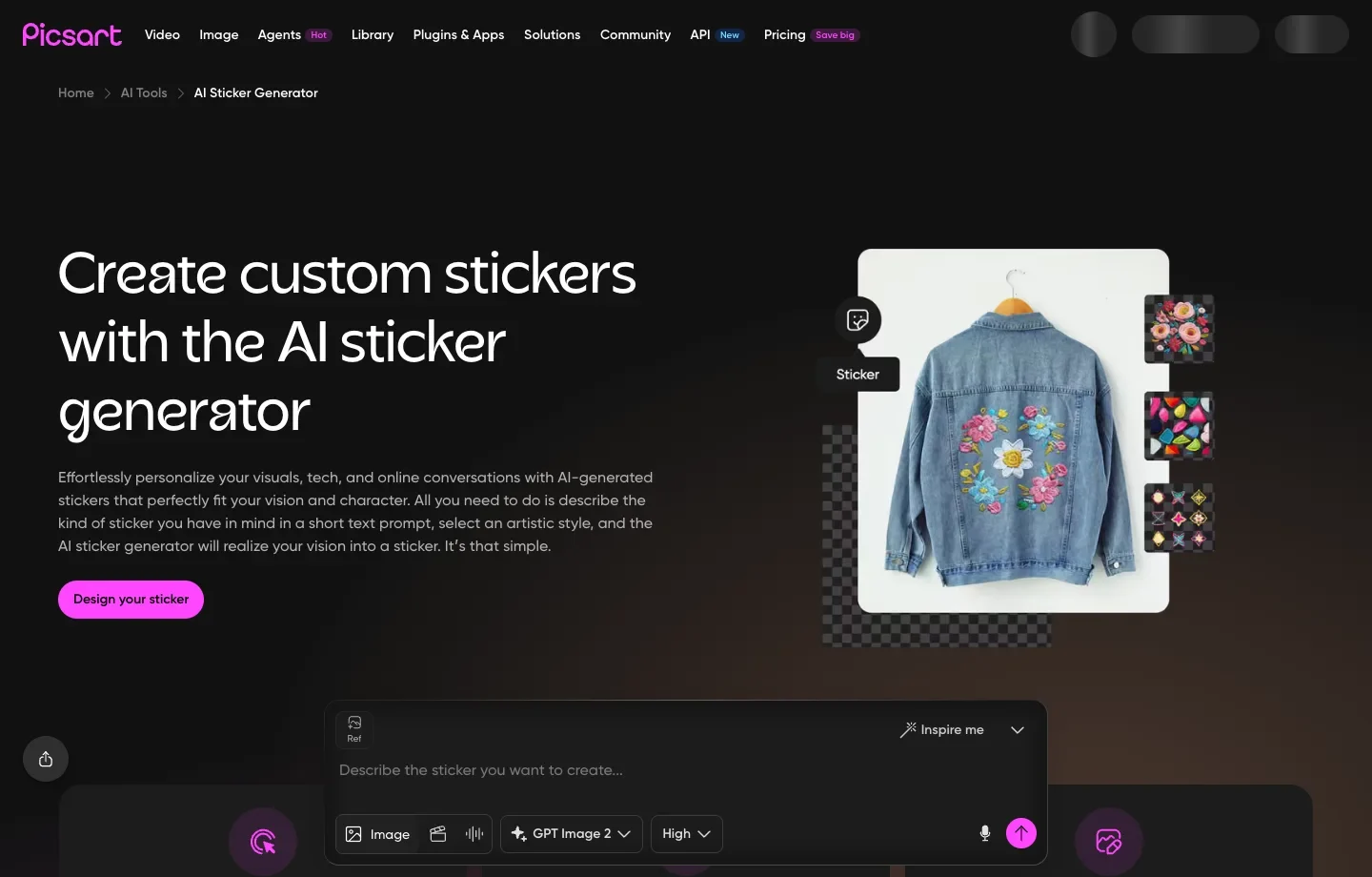
Adding a sticker to a photo or poster? Picsart puts its sticker generator inside an editor, so you can judge the illustration against the rest of your layout.
Need artwork you can resize and edit as a vector? Recraft offers vector styles and SVG export. Choose that route if you’re handing a graphic to a designer.
Just want to see your idea as a sticker? Free AI Image’s AI Sticker Generator turns a short prompt into a free sticker design with no sign-up required.
The 8 Best AI Sticker Generators and What Each Does Best
1. Picsart: design a sticker in the context of a larger image
Picsart lets you open the sticker generator from the editor’s tools. For a café poster, place a peach mascot beside the menu heading. Shrink it to the size you plan to print and check whether its face is still readable.
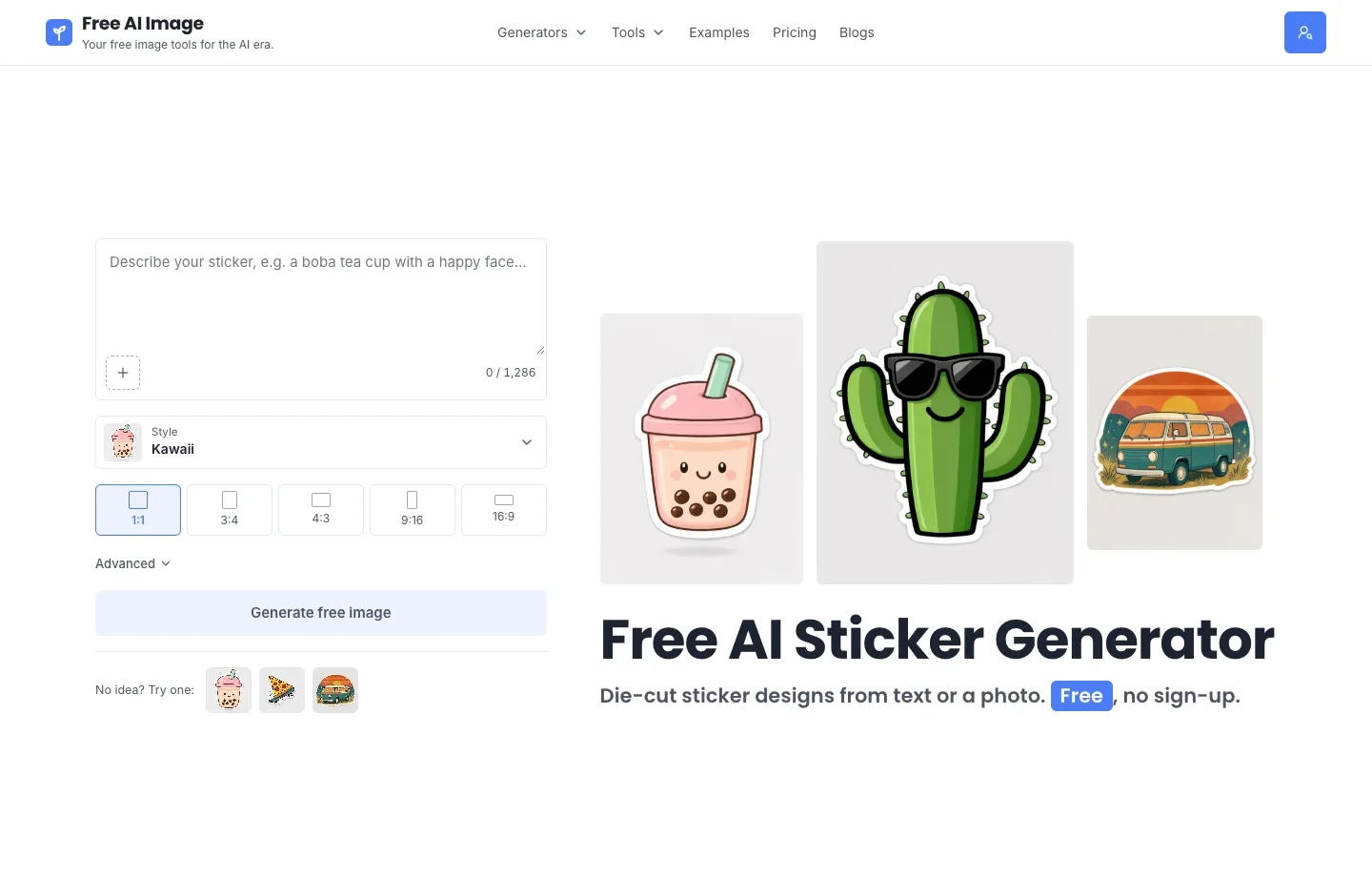
2. Free AI Image: explore five illustrated sticker styles for free
Free AI Image makes high-quality sticker artwork from text or a reference picture. You can generate and download it for free with no sign-up required and no watermark. Choose kawaii, cartoon, retro, 3D vinyl, or line art. A short prompt such as a cactus wearing sunglasses gives the generator a clear subject for a white-bordered design. For small stickers, one recognizable silhouette is easier to read than a crowded scene.
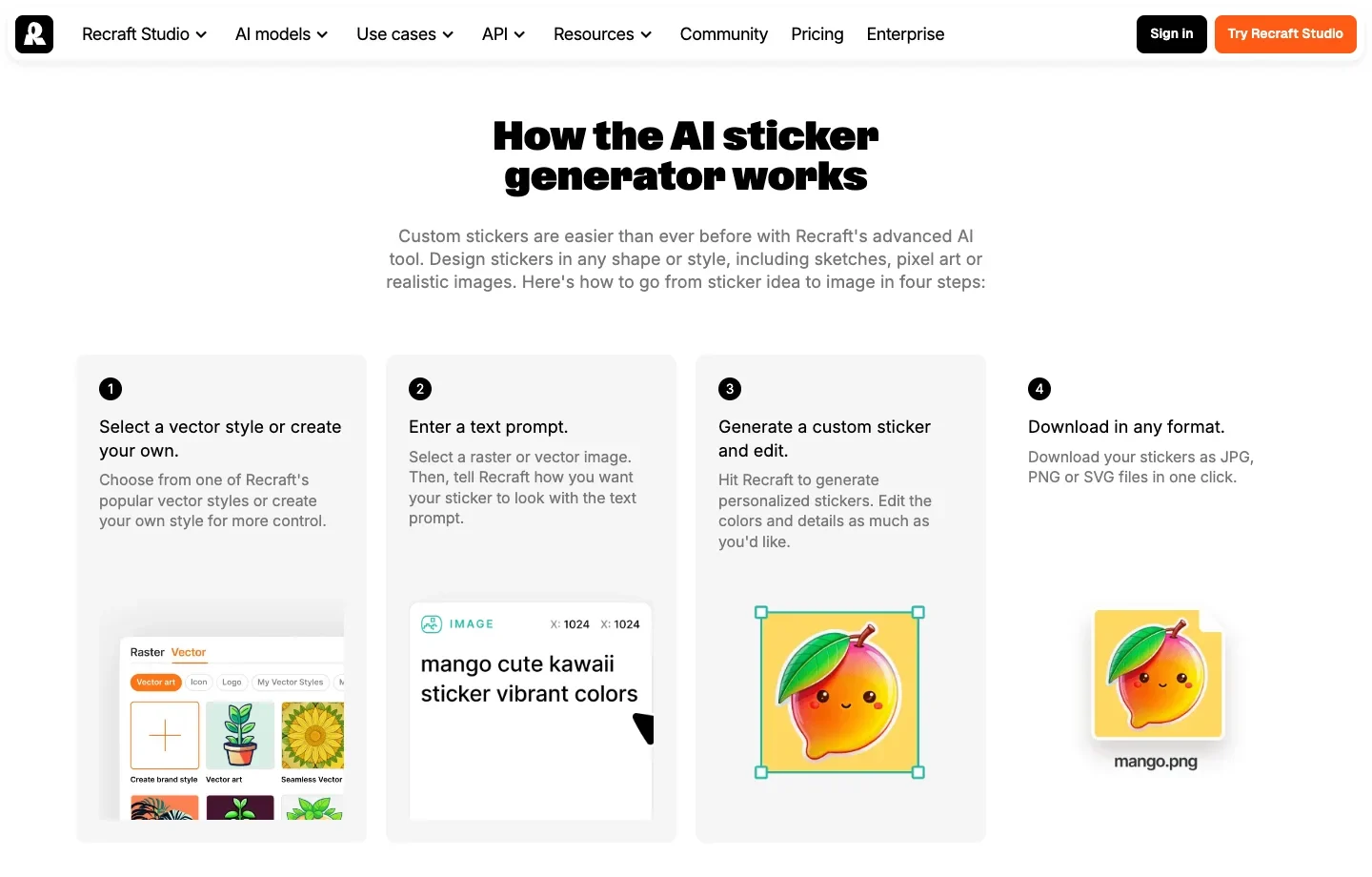
3. Recraft: keep an editable vector for future sizes
Recraft offers a vector-style workflow and lists SVG, PNG and JPG downloads. For a mascot that will appear both on a small label and on a display sign, start in a vector style and keep the SVG. Export a raster copy for places that require one. If you’re sending the design to a printer, ask separately for its bleed and cut-path specifications.
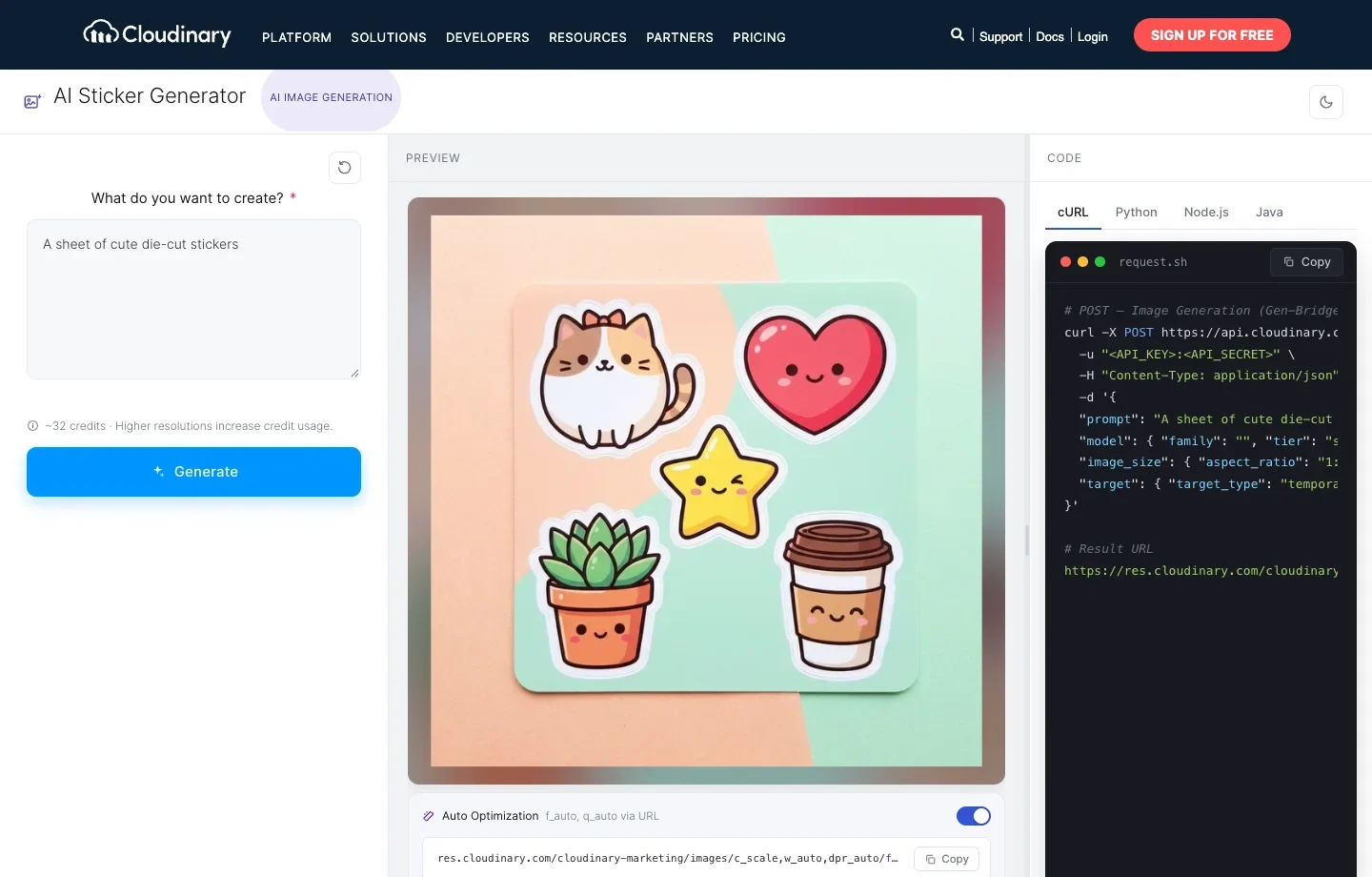
4. Cloudinary: generate and deliver stickers from an application
Cloudinary pairs its sticker preview with delivery and code examples. Its API and SDKs are useful when your product needs a generated asset URL and several delivery sizes. A chat app, for example, could display a small message sticker and a larger picker preview. The public demo gives a developer a place to inspect that workflow before integrating it.
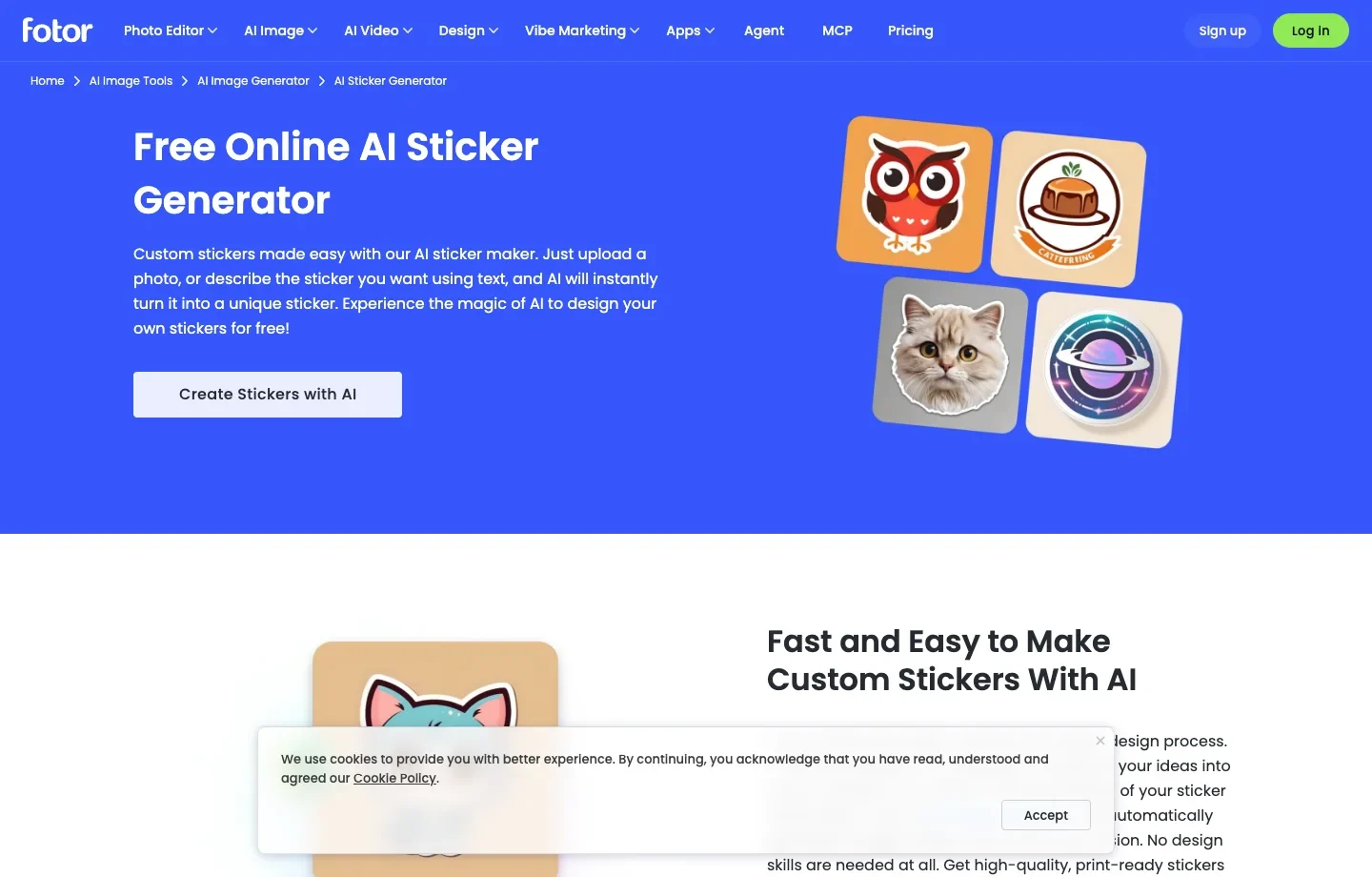
5. Fotor: turn a portrait into a face sticker
Fotor’s sticker maker offers a photo workflow that isolates a face and traces its edge. Start with a well-lit portrait and check the outline around hair or glasses. This is a useful choice when the person needs to remain recognizable in a small chat sticker.
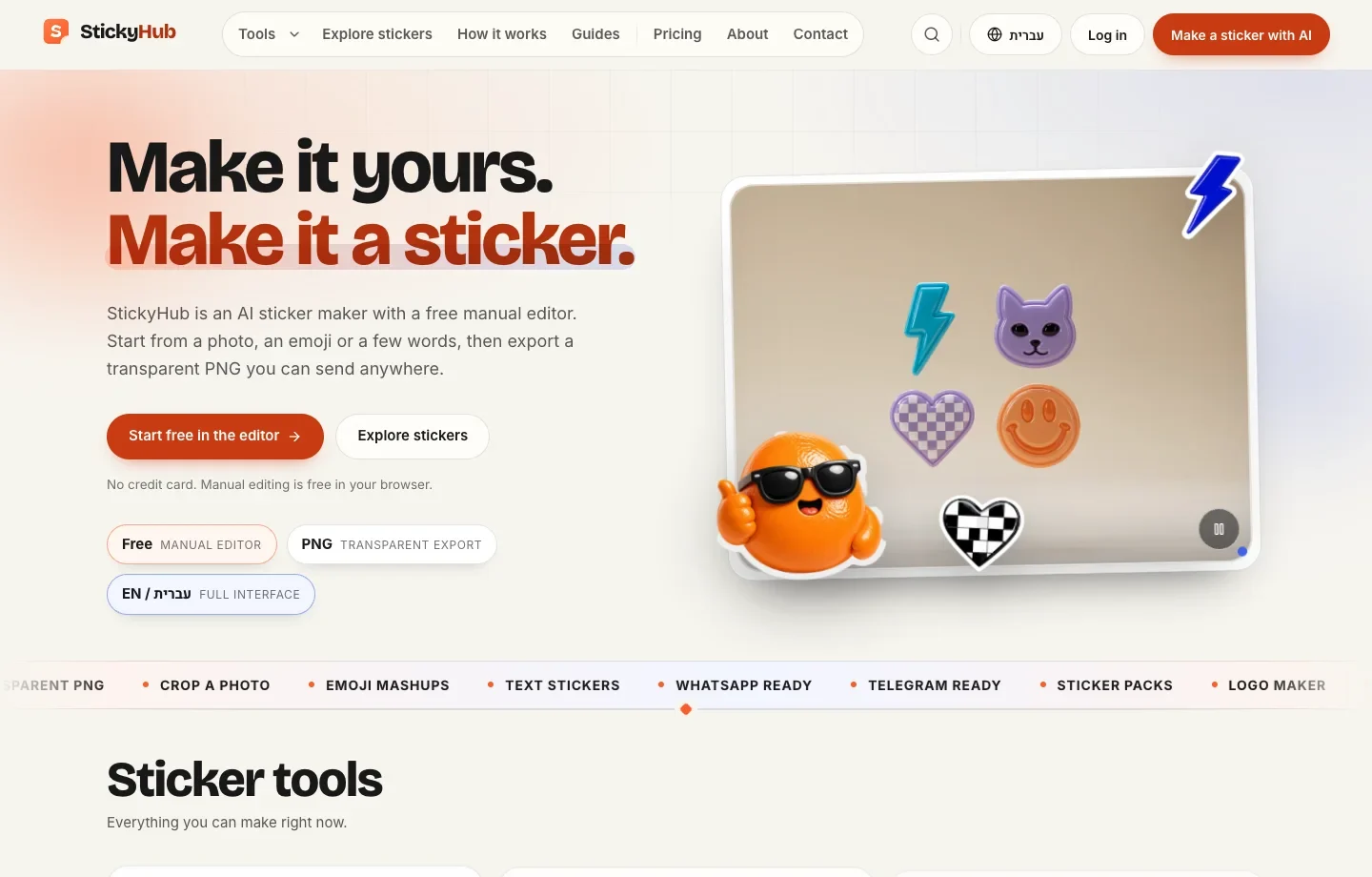
6. StickyHub: finish the outline in a manual editor
StickyHub combines AI creation from a photo, emoji, or description with a free browser editor and transparent PNG export. Use the editor when a generated sticker is nearly right but needs a tighter crop. View it on a dark background before sending it to a chat to catch any pale fringe.
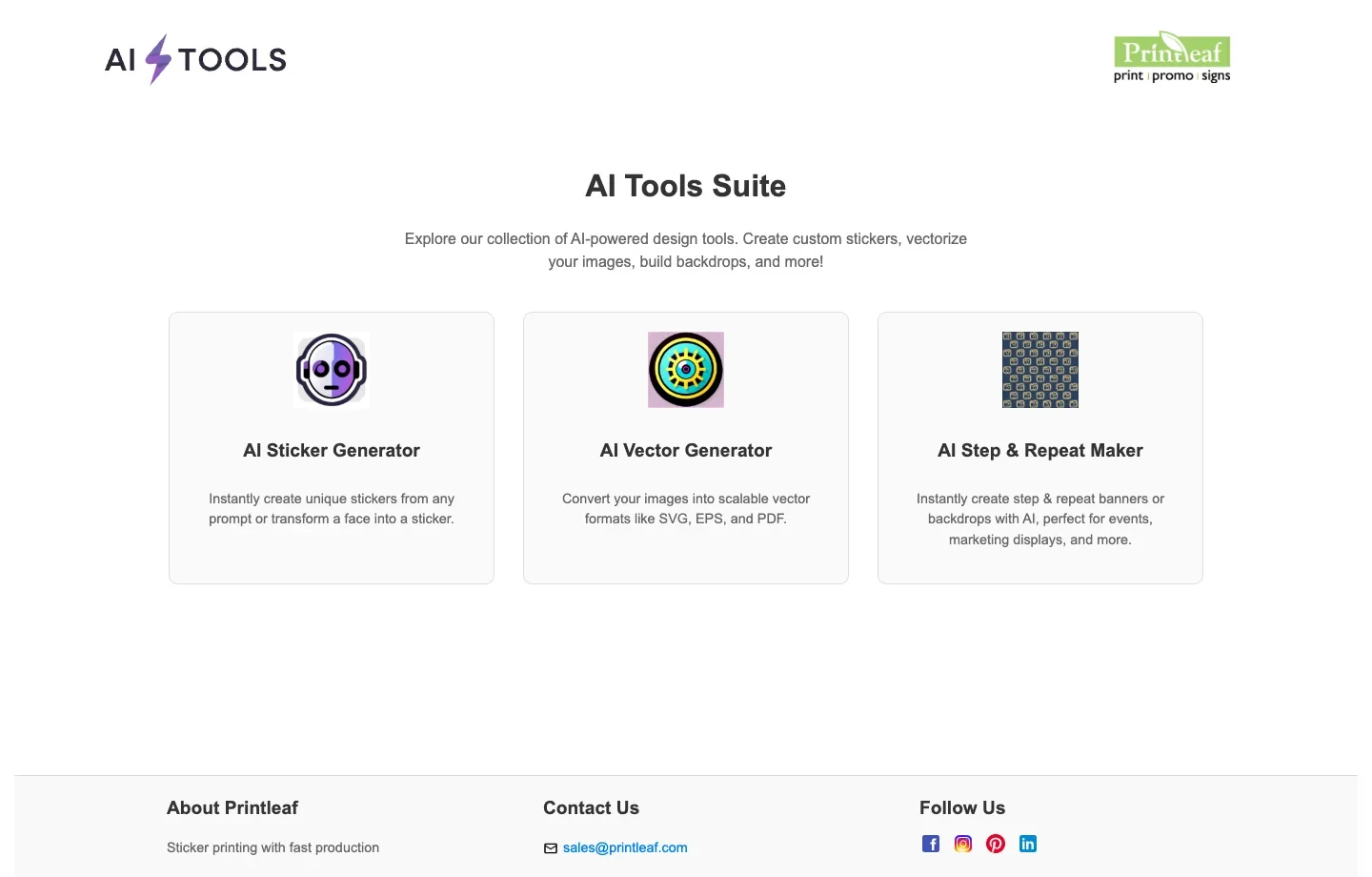
7. Printleaf: take a design idea toward a print order
Printleaf’s AI Tools Suite pairs a sticker creator with a separate vector conversion tool and a route to sticker printing. It suits an event organizer who needs artwork now and a physical order later. Before ordering a run, confirm the finished dimensions and cutting requirements with the printer.
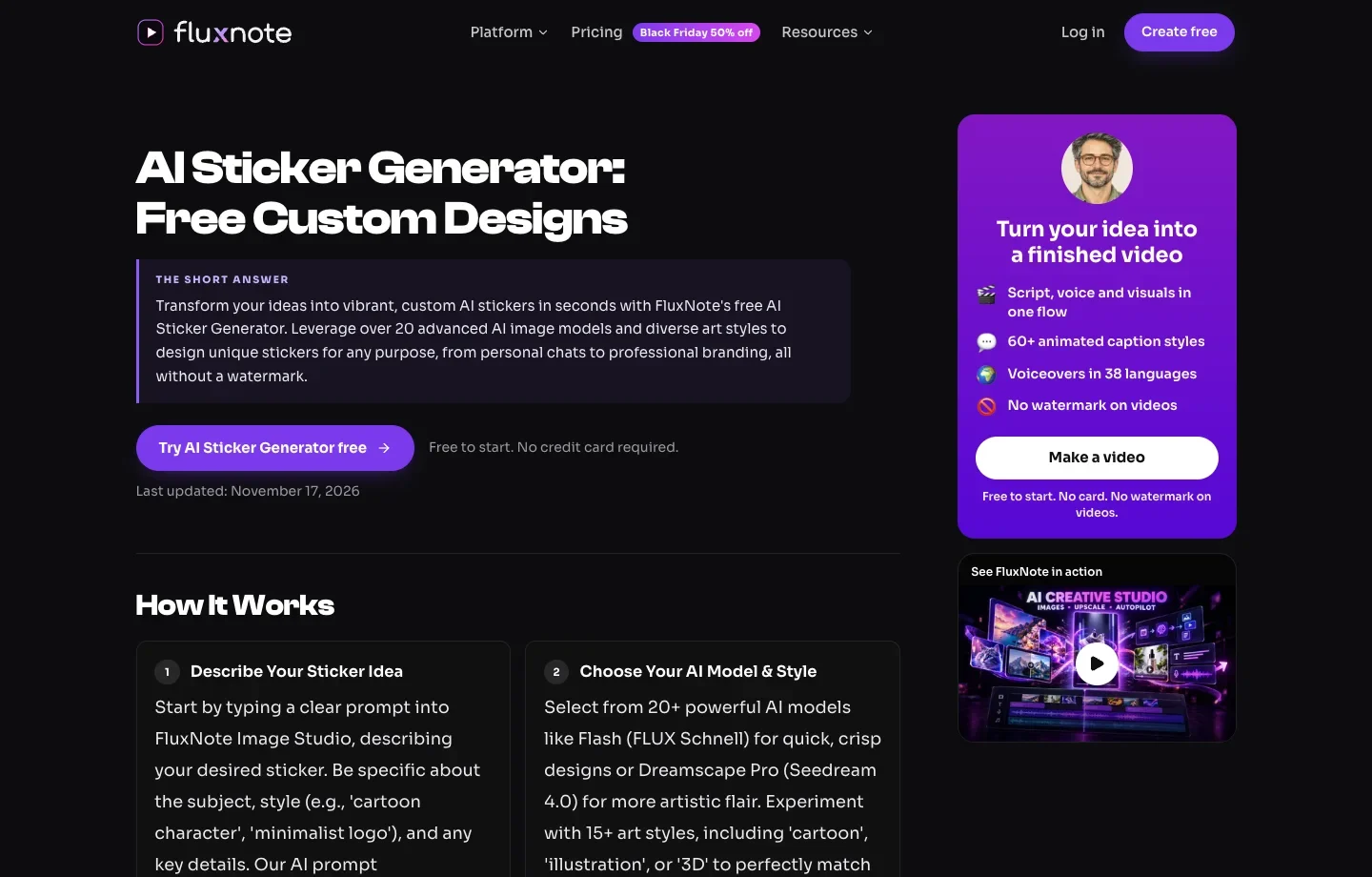
8. FluxNote: try the same brief across image models
FluxNote lets you choose an image model and style for a sticker prompt. For a brand mascot, keep one short description fixed and compare how each model handles the outline, expression, and lettering.
Which AI Sticker Generator Should You Choose?
Choose the file you need first. For a messaging sticker, Fotor starts with a portrait and StickyHub lets you tidy the crop before exporting a transparent PNG. If a designer needs to enlarge the artwork for a sign, keep a vector from Recraft. For an app that needs the same sticker at several sizes, Cloudinary provides a delivery URL.
If you are still deciding how the character should look, try Free AI Image. View the illustration at chat size before you settle on an expression.
How to Use Free AI Image’s Sticker Generator
- Open the AI Sticker Generator and enter a sleepy cat curled up on a cloud. Add a reference image if you have a sketch you want to start from.
- Select Kawaii and choose a square aspect ratio for a compact design. Select Generate free image and save the version you like.
- Keep the description and try Retro or 3D vinyl. View each at the size you intend to use before choosing your favorite.
Look at the cloud under the cat: the kawaii version has a pale lavender outline, the retro version uses a dark teal fill, and the 3D version adds a soft shadow.
| Kawaii | Retro | 3D vinyl |
|---|---|---|
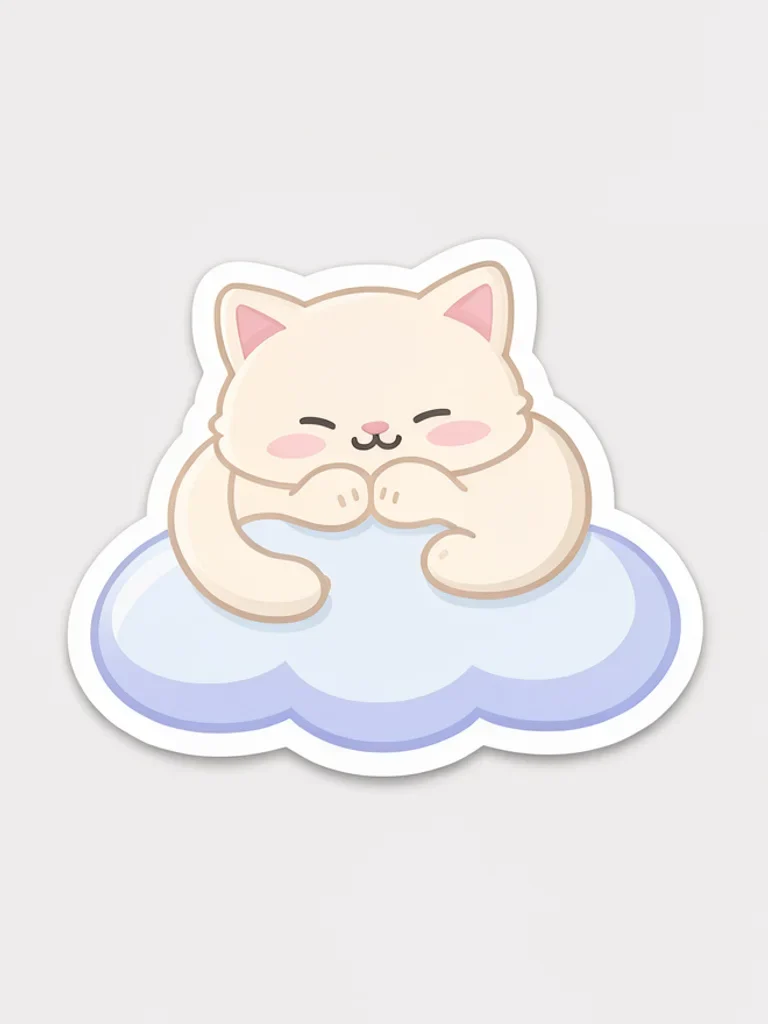 | 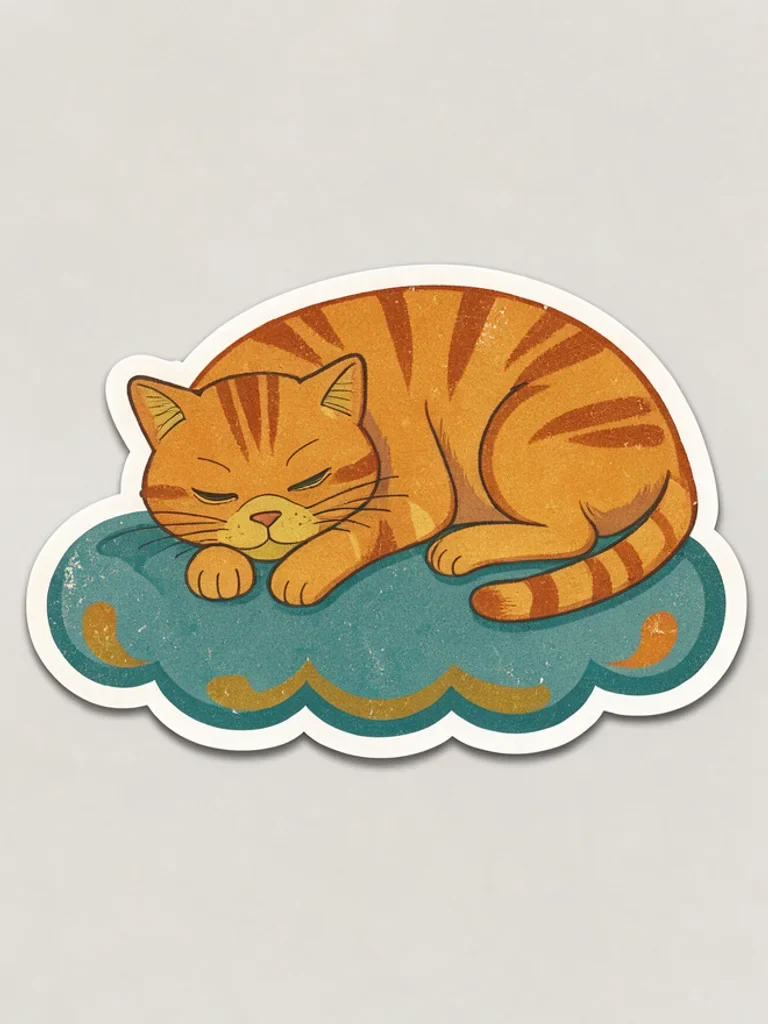 | 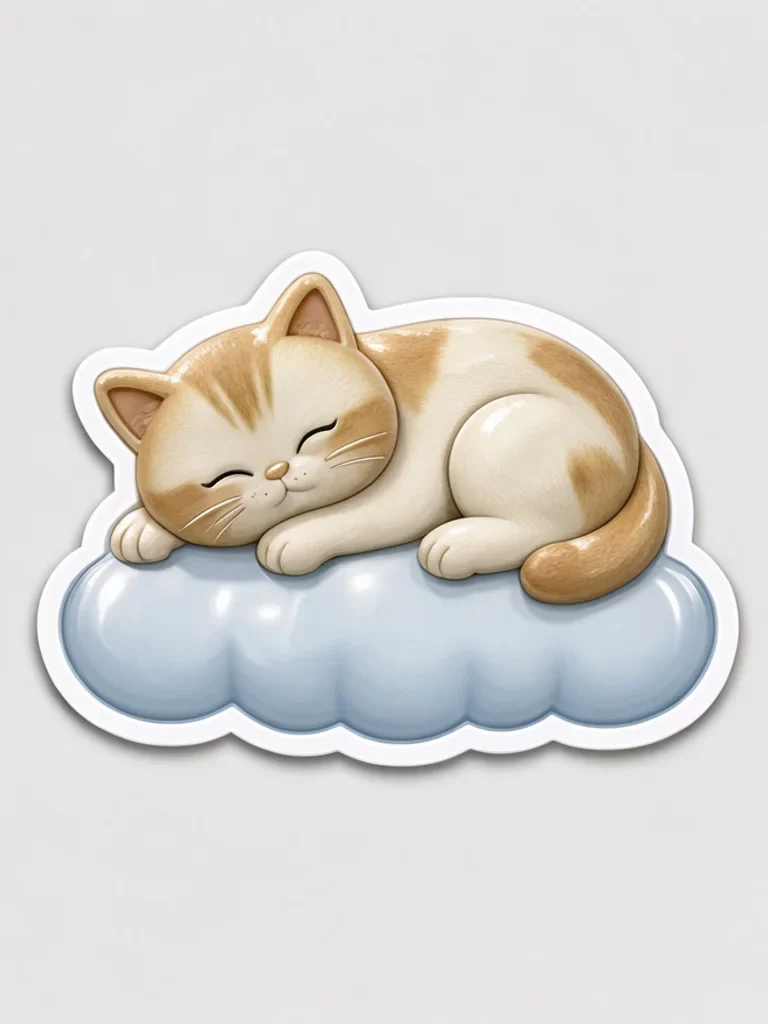 |
Free AI Image Sticker Generator FAQ
Does the white border mean the file is ready for a cutting machine? The border is part of the artwork. A cutter needs a cut path in the format its software accepts. Check the background, size and cut contour in your design or cutting software before printing.