Free AI Image Your free image tools for the AI era.

Free AI Image Background Remover

  • 100% Free
  • No Login Required
  • Transparent PNG
No image? Try samples

Your processed image will appear here

Remove Image Backgrounds Without Manual Cutouts

Remove the background from your image and keep the subject ready for its next use. Free AI Image Background Remover turns portraits, product photos, and graphics into clean cutouts you can place on a new background, add to a design, or download as a transparent PNG.

Remove Background
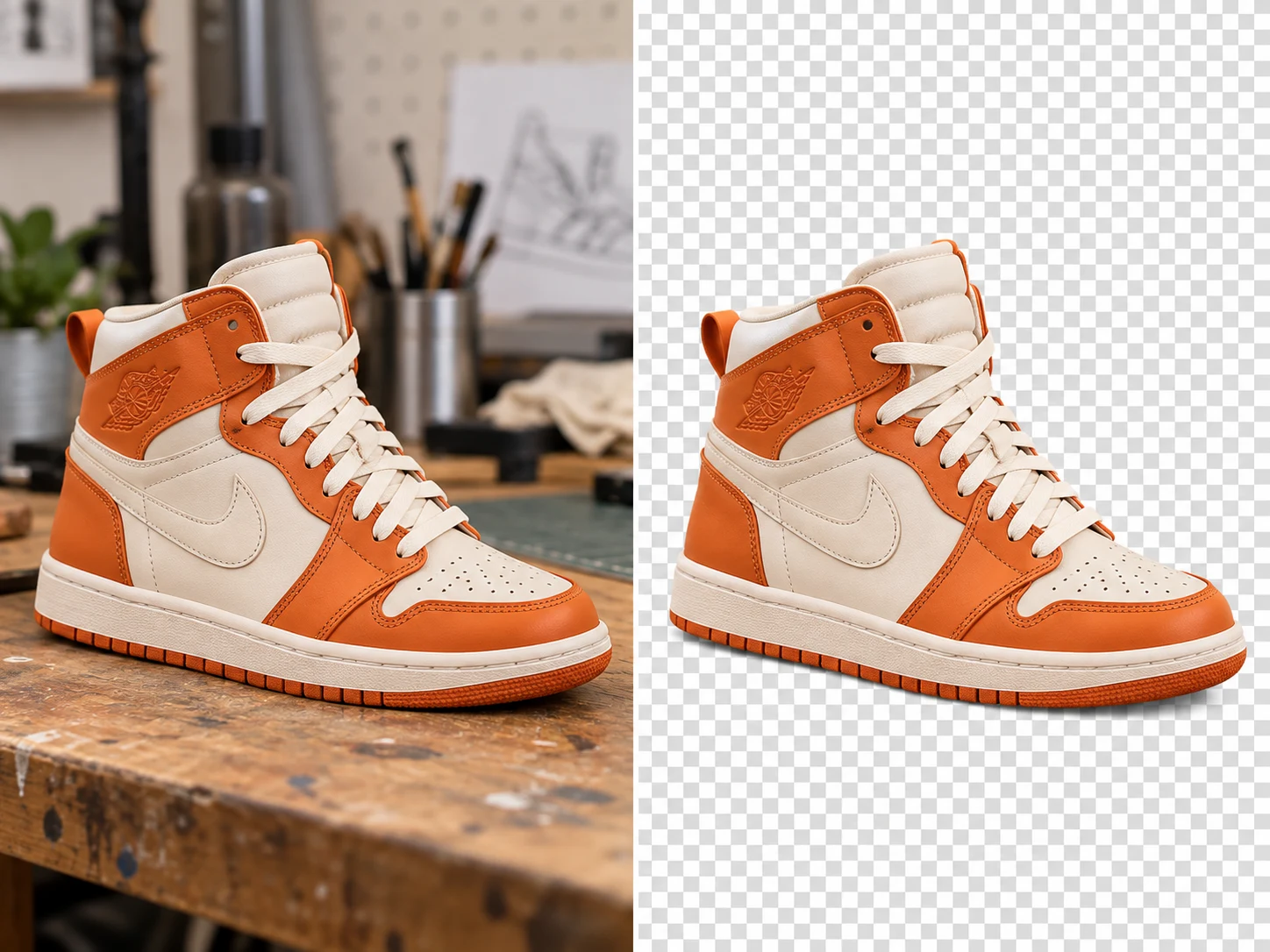
Sneaker on a workbench and its isolated cutout, separated by a white line

Why Use Our AI Image Background Remover?

Sneaker on a workbench and its isolated cutout, separated by a white line

Remove Backgrounds Automatically

Let AI identify the main subject and separate it from the background. Turn a busy photo into a clean cutout without tracing an outline or drawing a selection by hand.

Remove Background

Keep Hair, Fur, and Fine Edges

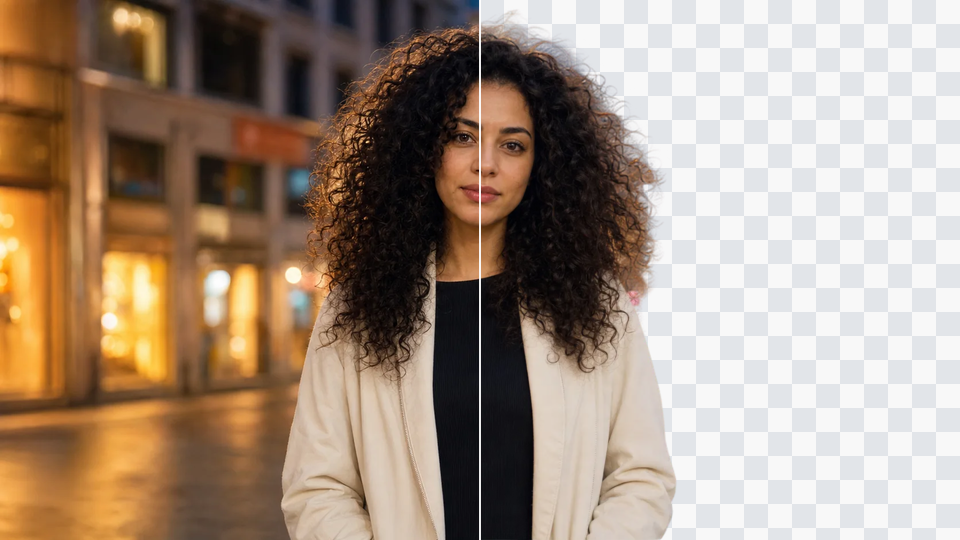
Preserve the details that make a cutout look natural. AI follows flyaway hair, soft fur, thin frames, and intricate product edges, keeping the subject distinct from the background.
Remove Background
Curly-haired portrait with the original background on the left and cutout on the right
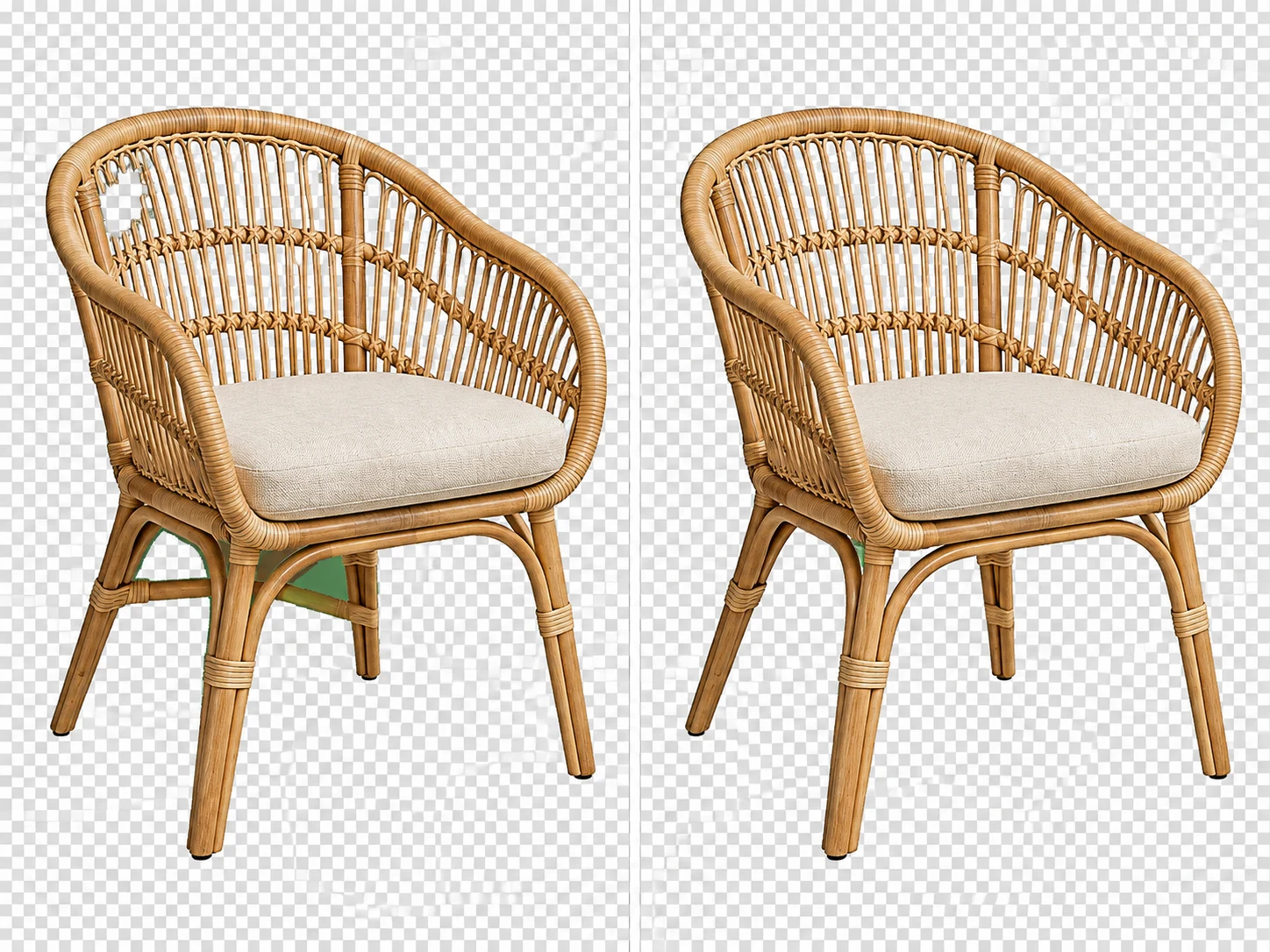
Rattan chair cutout before and after correcting missing edges and background remnants

Fine-Tune with Erase and Restore

Take control of the final cutout with erase and restore brushes. Remove leftover background around small gaps, or bring back parts of the subject that you want to keep.

Remove Background

Download High-Resolution Transparent PNGs

Export your cutout as a high-resolution PNG with a transparent background. Keep it ready for layered designs, product layouts, and presentations without a white rectangle around the subject.
Remove Background
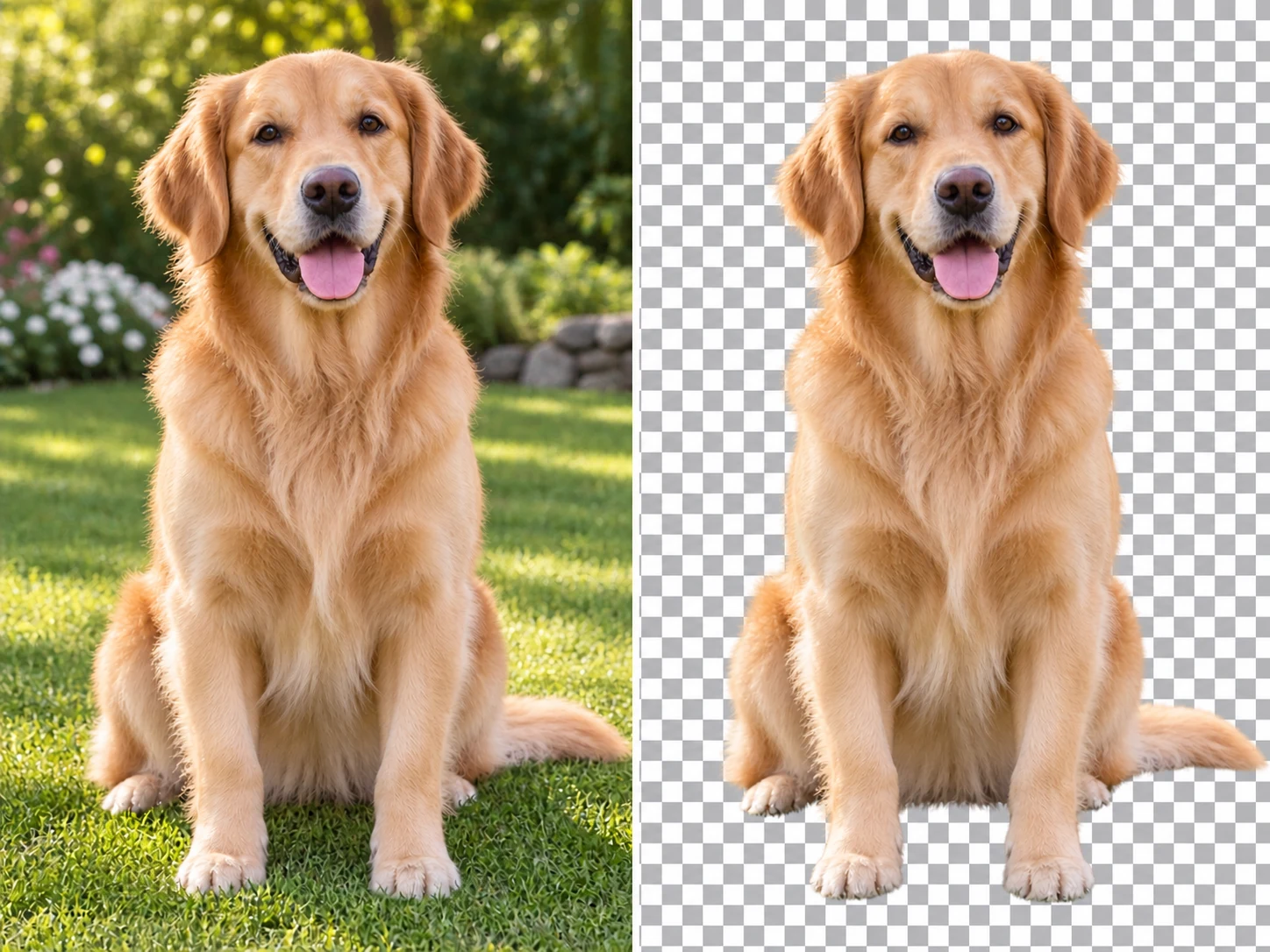
Detailed golden retriever photo and isolated cutout shown side by side
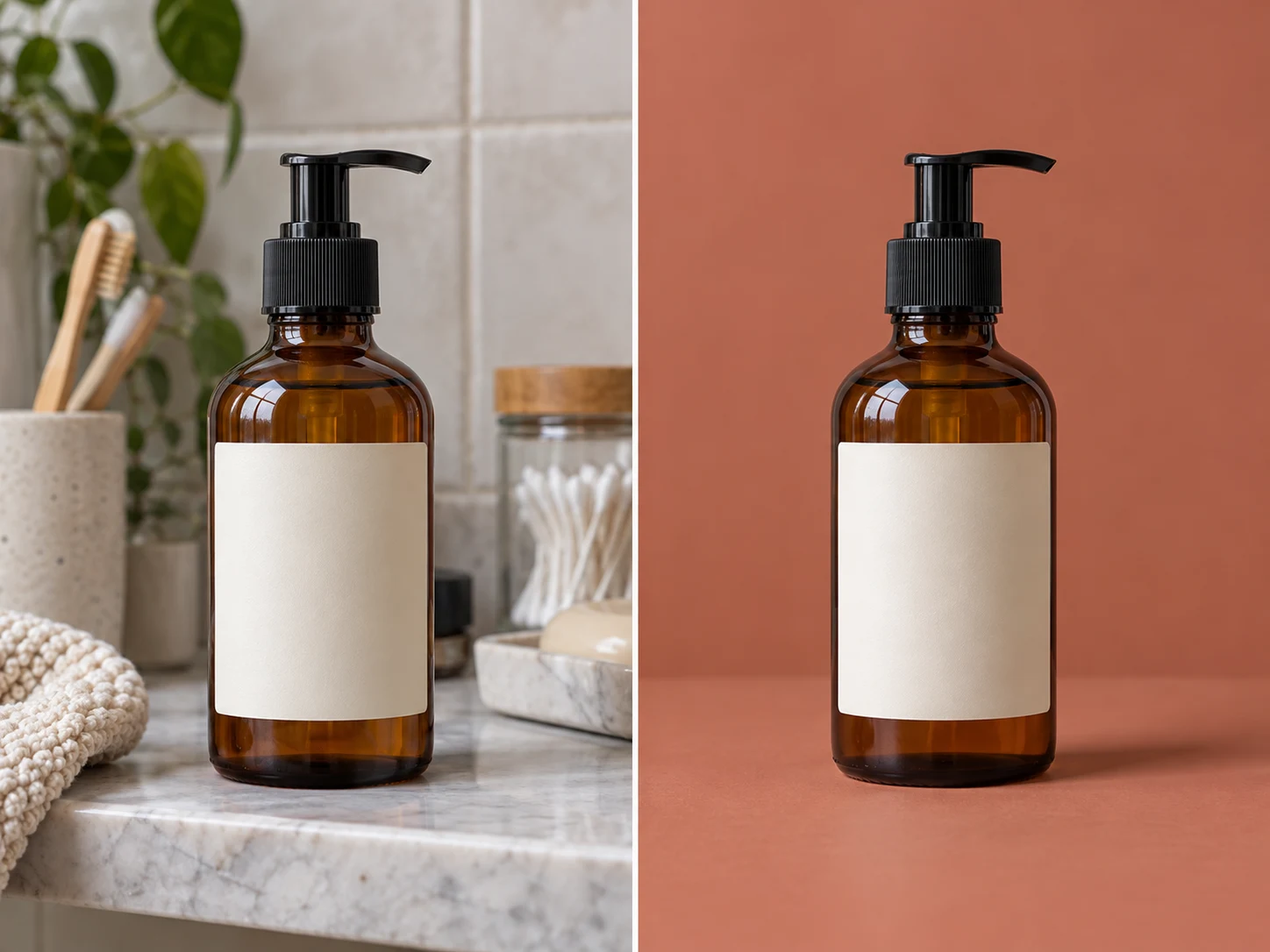
Amber bottle on a bathroom shelf and on a clean terracotta background

Choose White, Color, or a New Background

Keep the background transparent, switch to white, choose a solid color, or add your own background image. Reuse the same cutout across storefronts, campaigns, and layouts with different visual styles.

Remove Background

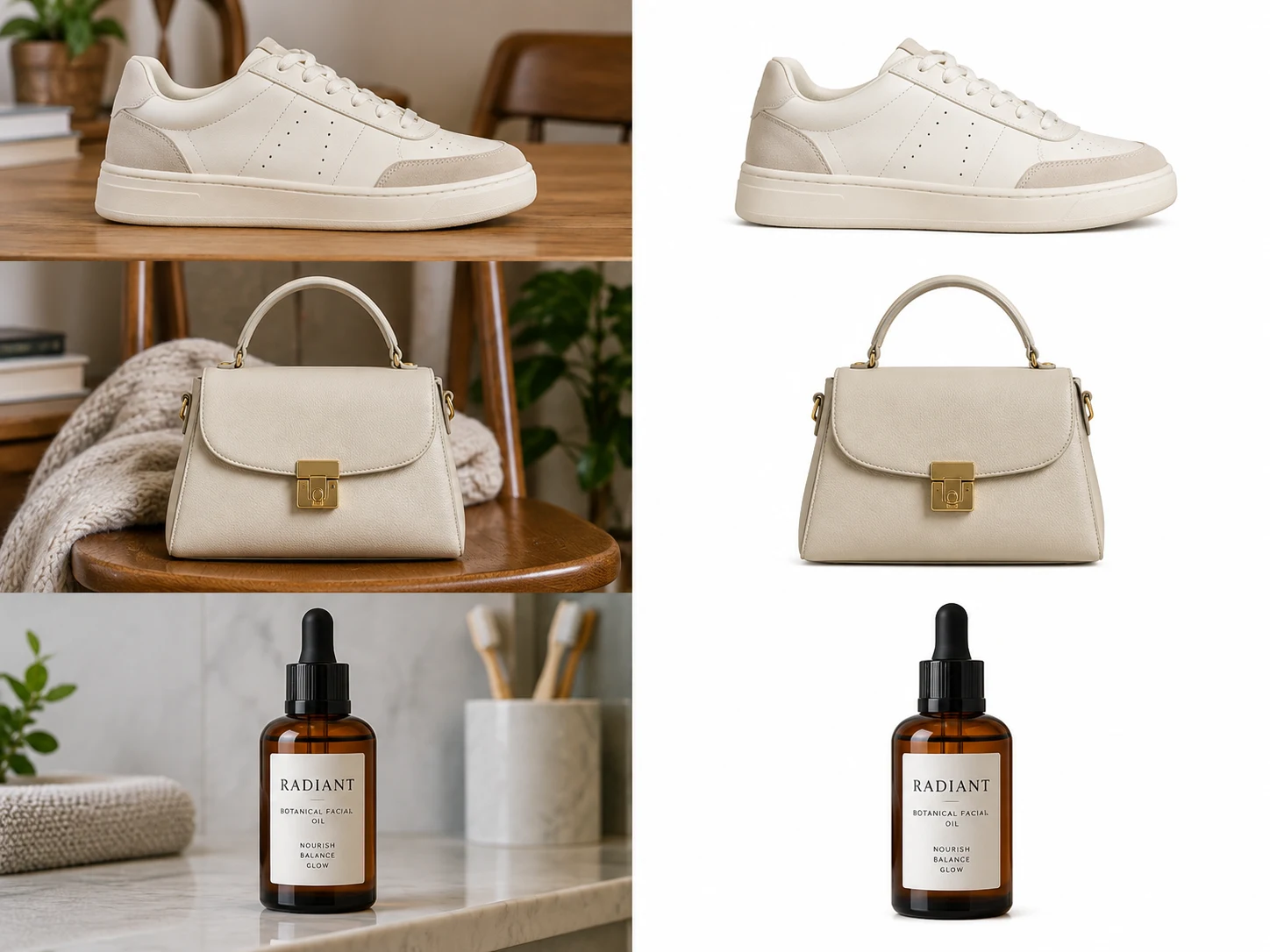
Remove Backgrounds from Images in Bulk

Process multiple photos together instead of repeating the same edit for every file. Apply a consistent background treatment across a product range, portrait set, or collection of campaign images.
Remove Background
Three product photos with varied backgrounds and matching clean white backgrounds

Clean Cutouts for the Images You Work With

Sneaker on a workbench and its isolated cutout, separated by a white line

Product Listings and Online Stores

Create clean product images for Shopify, Amazon, Etsy, and other storefronts. Isolate each item and give a mixed set of photos a consistent white or transparent background.

Curly-haired portrait with the original background on the left and cutout on the right

Headshots and Profile Photos

Remove distracting portrait backgrounds for LinkedIn profiles, resumes, team pages, and speaker bios. Keep the focus on the person and place the cutout into a consistent layout.

Amber bottle on a bathroom shelf and on a clean terracotta background

Social Posts and Campaign Graphics

Cut out people or products for Instagram posts, YouTube thumbnails, ads, and banners. Leave room for headlines and reuse the same subject in different campaign designs.
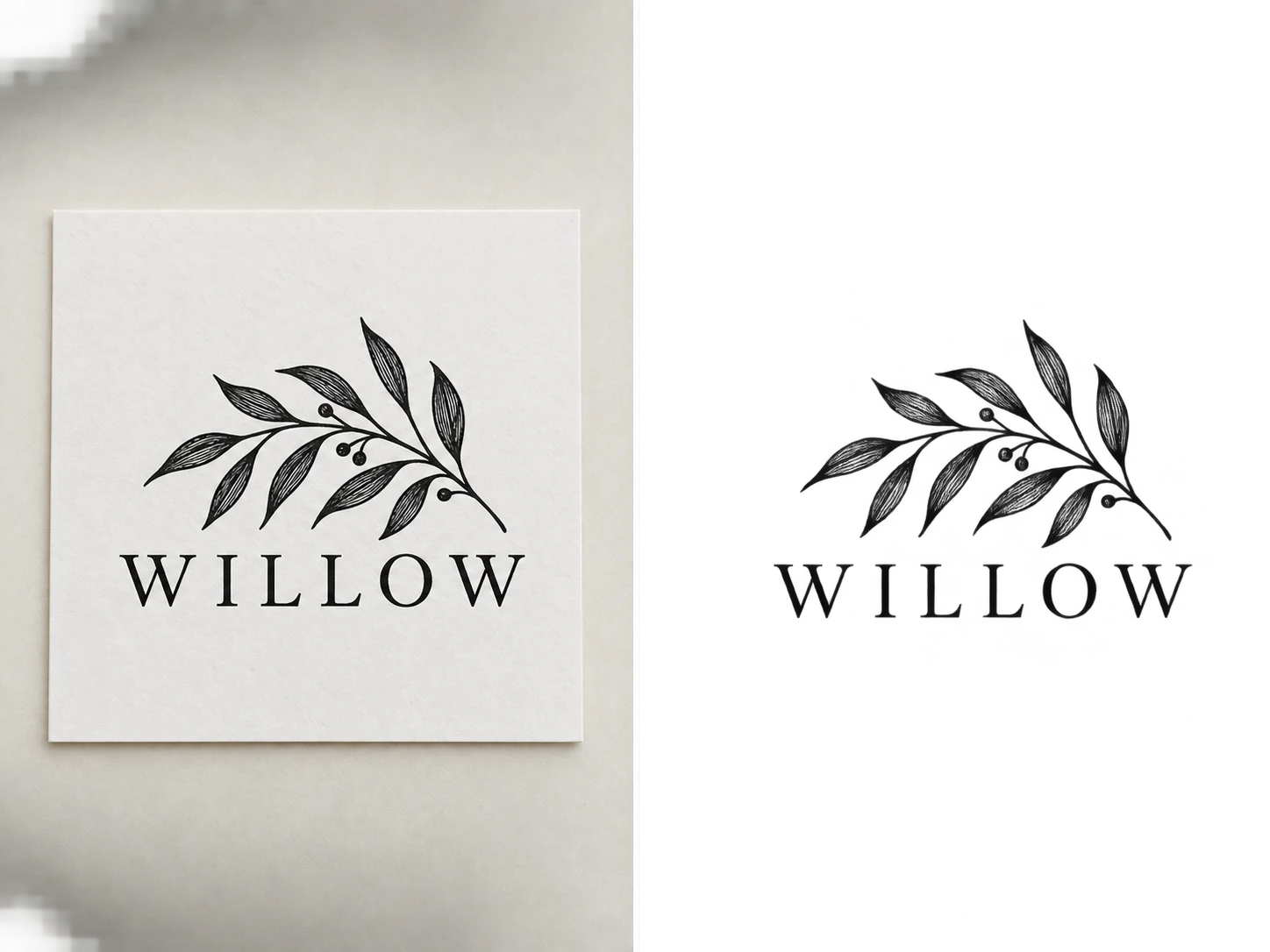
Botanical emblem on a paper card and with the paper background removed

Logos, Signatures, and Graphic Assets

Turn logos, signatures, icons, and flat graphics into transparent assets. Place them on websites, packaging, slides, and documents without carrying over the old background.

Detailed golden retriever photo and isolated cutout shown side by side

Pet Photos, Stickers, and Creative Prints

Separate pets and other subjects from busy scenes for stickers, merchandise, collages, and personal prints. A transparent cutout gives you room to build the design around them.
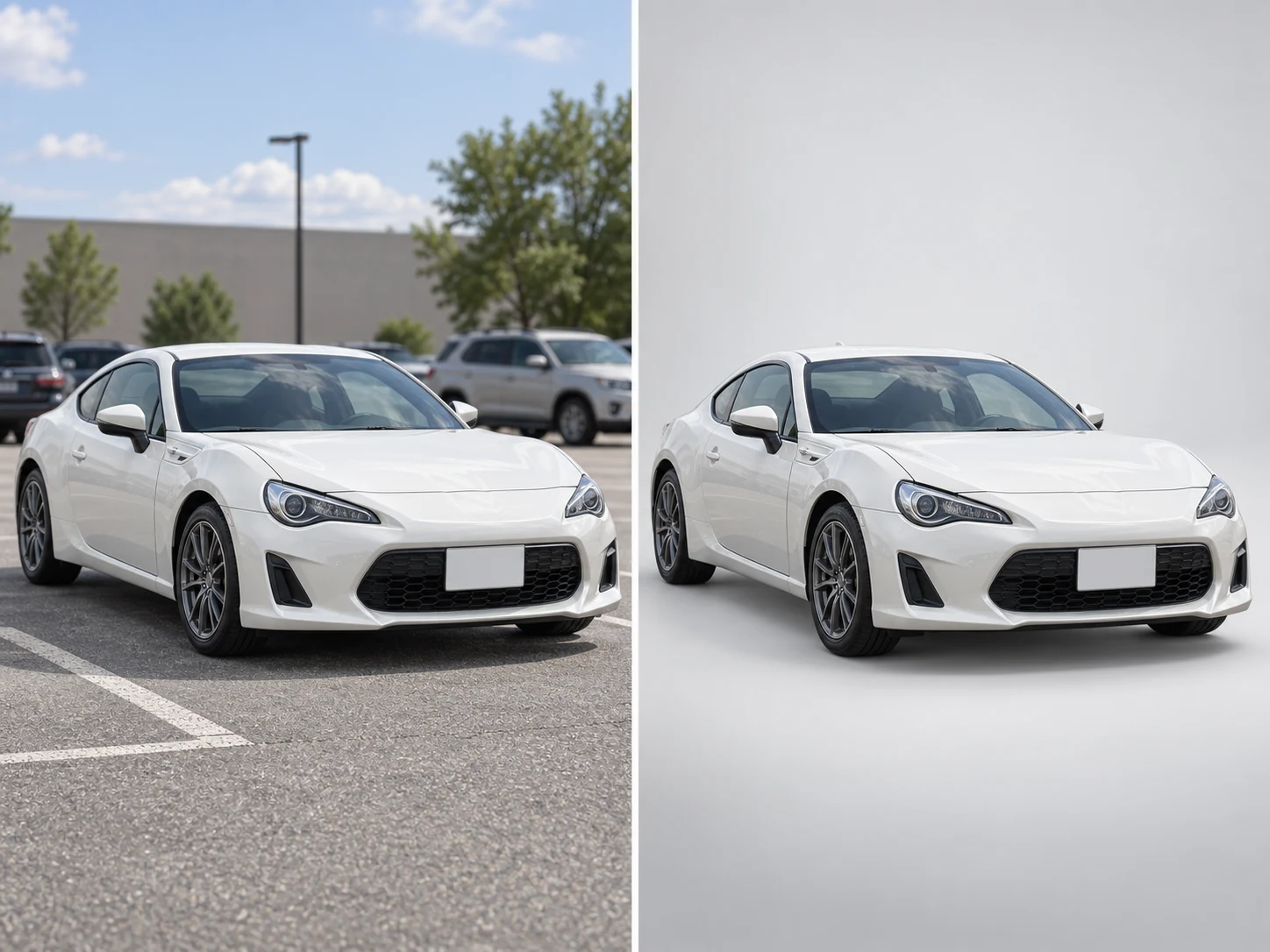
White coupe in a parking lot and against a clean studio backdrop

Vehicle Listings and Dealership Photos

Give car photos a clean, consistent backdrop for resale ads and dealership listings. Keep attention on the vehicle rather than the parking lot or surrounding clutter.

How to Remove a Background from an Image

Sneaker on a workbench and its isolated cutout, separated by a white line1

Upload Your Image

Choose a photo from your device or drag it into the uploader. Start with a clear image so the subject and its edges are easy to distinguish.

Rattan chair cutout before and after correcting missing edges and background remnants2

Remove and Refine

Run the background remover, then use erase and restore to fine-tune the cutout. Keep the result transparent or choose a new background.

Detailed golden retriever photo and isolated cutout shown side by side3

Download Your Cutout

Save your transparent PNG or finished background edit, ready for a product listing, profile, presentation, or design.

AI Image Background Remover FAQs

Yes. Remove backgrounds and download your cutouts for free, without creating an account.

Upload your photo and select Remove background. Refine the cutout if needed, then download a transparent PNG or choose a new background.

Upload JPG, JPEG, PNG, or WebP images. Your cutout downloads as a PNG so the background can stay transparent.

AI detects detailed edges such as hair, fur, and thin product outlines. For difficult areas, use erase and restore to adjust the cutout before exporting.

Background removal isolates the existing subject rather than generating a new one. Erase and restore controls let you correct the selection around areas you want to keep.

Yes. Keep the cutout transparent, choose white or a solid color, or add your own background image to fit the design.

Yes. Use batch background removal to process a group of images together and apply a consistent background treatment across the set.

Most photos take a few seconds. Processing time can vary with image size, detail, connection speed, and the number of images in a batch.

Yes. Open the tool in your mobile browser, select a photo from your device, and save the finished cutout. You do not need to install an app.

Your uploads and cutouts are processed privately and are not published in a public gallery.

Your Image. A Cleaner Background.

Remove the background, keep the details, and turn your photo into a cutout ready for its next use.

Remove Background for Free