
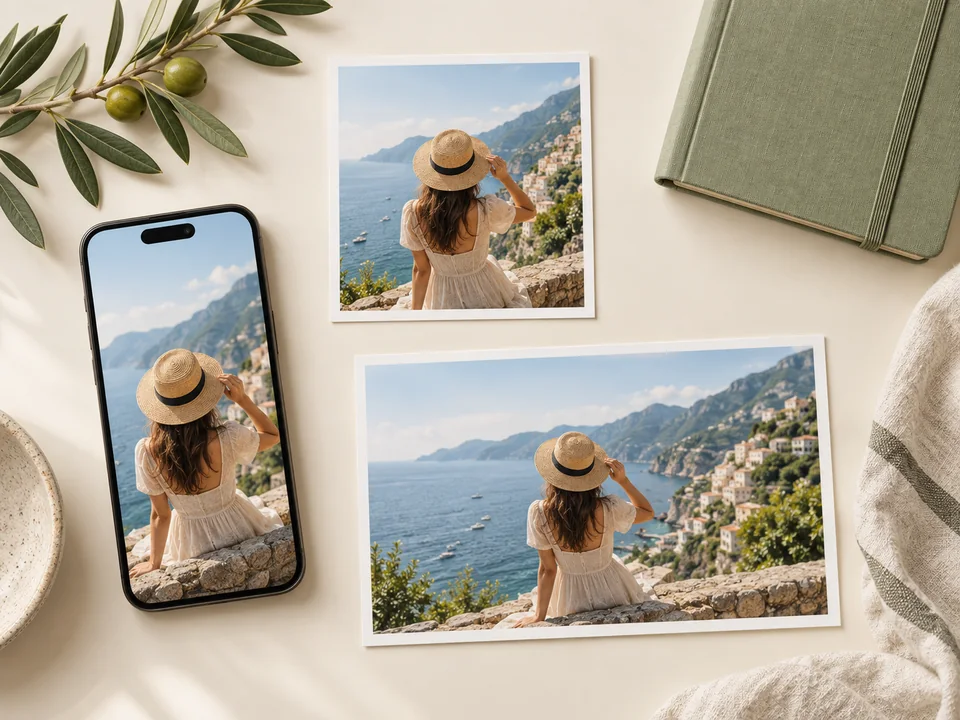
Social Media Teams
Prepare posts, Stories, covers, and thumbnails from the same creative. Match each channel’s shape while keeping your subject visible and your campaign consistent.
Your processed image will appear here
A product photo, a website banner, and an Instagram Story need different dimensions. Resize your images to exact pixels, choose a ready-made aspect ratio, or expand the background for a new layout. Keep the subject in frame and prepare the right version for each destination.
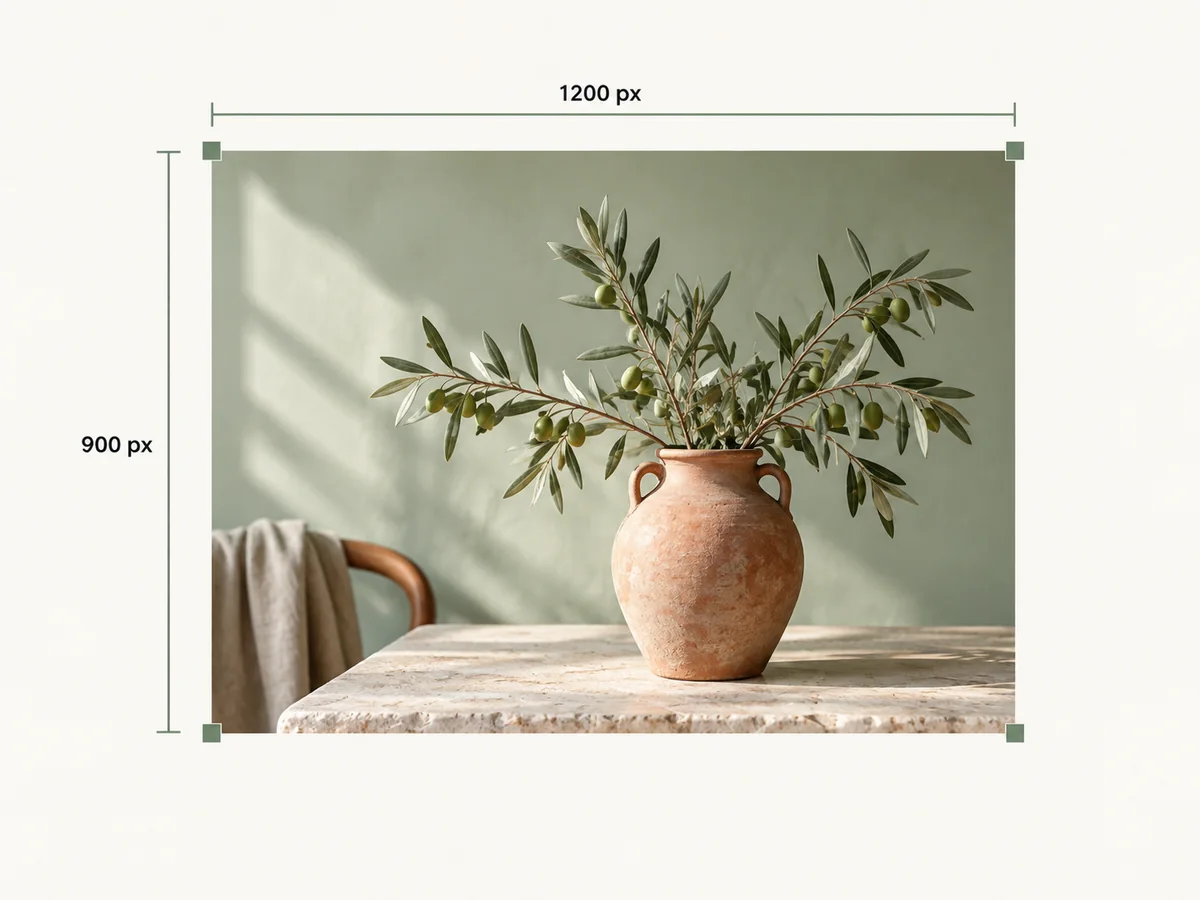
Enter the pixel dimensions your project needs, from a small website thumbnail to a full-width banner. Custom width and height let you prepare images for a specific layout instead of settling for the closest preset.
Use exact pixels when a product listing, ad placement, or content management system requires a particular size. Choose dimensions up to 4096 × 4096 pixels.
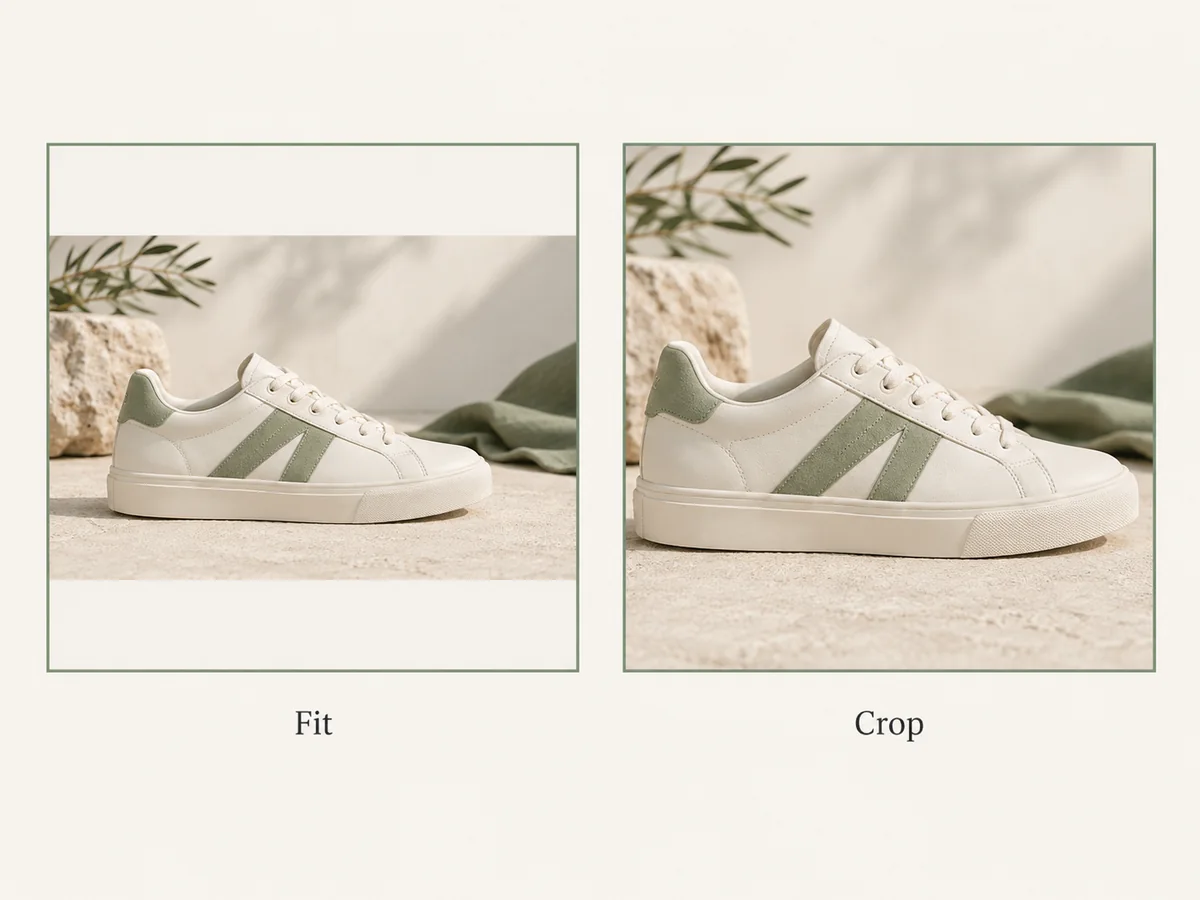
Control what happens when your source image and target size have different proportions. Fit keeps the complete image visible; a centered crop fills the frame by trimming the extra edges.
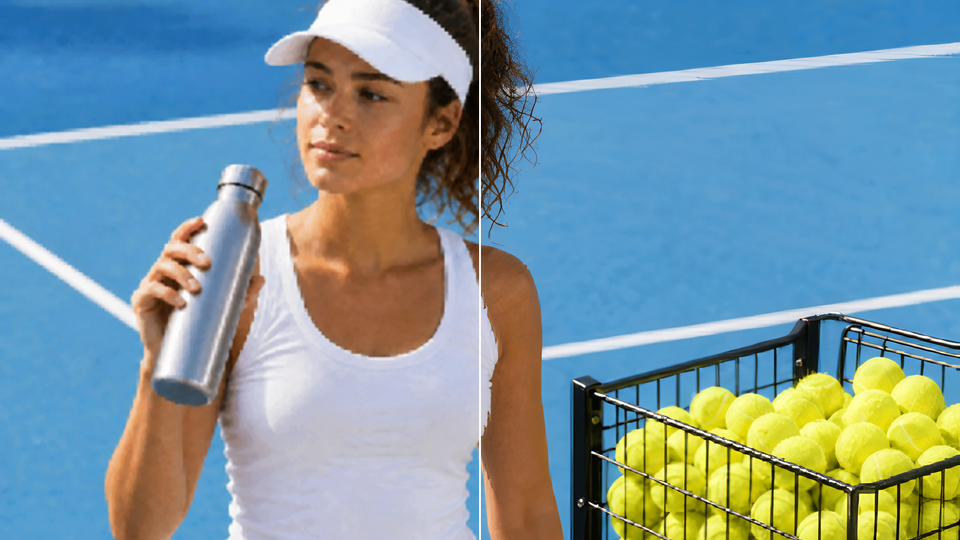
Add padding when you need the full subject inside an exact canvas. Proportional resizing keeps faces, products, and logos from looking stretched or squeezed.
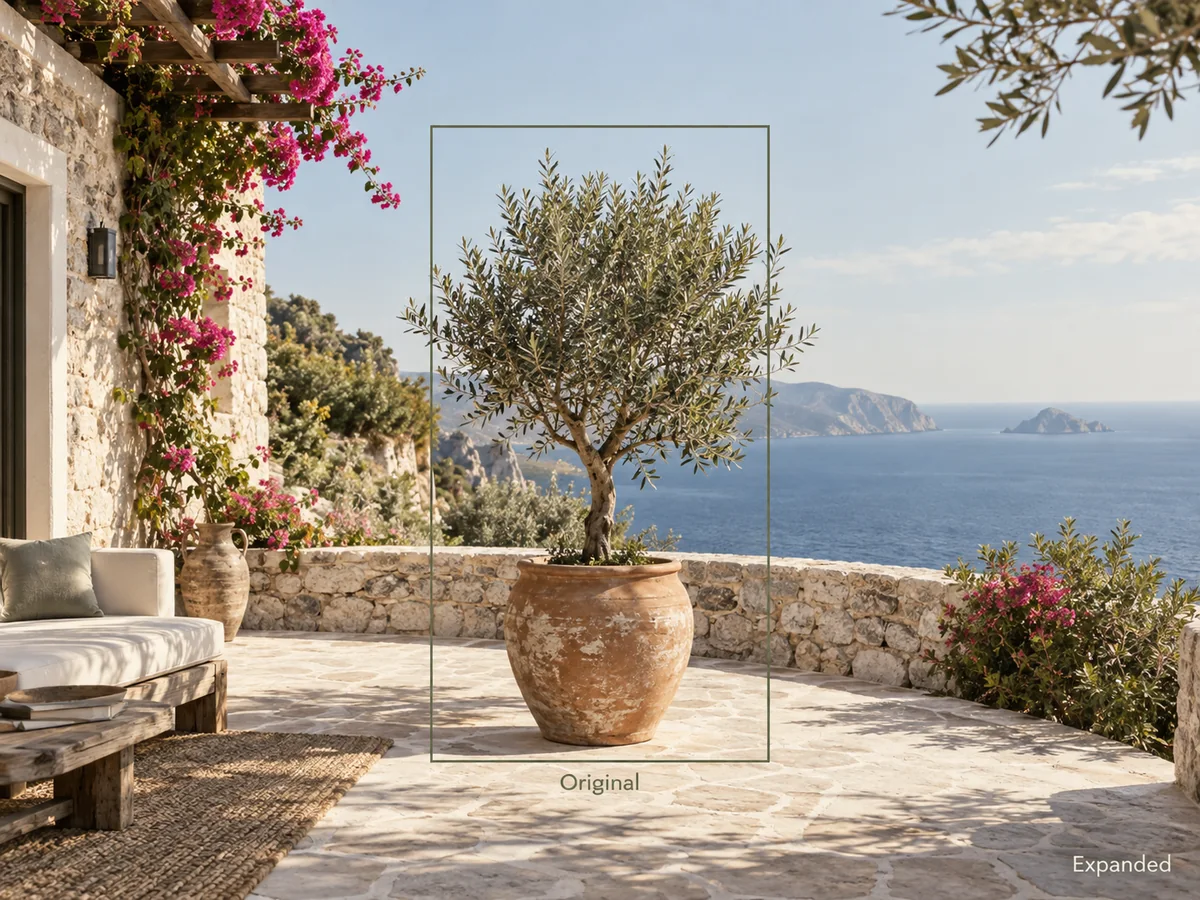
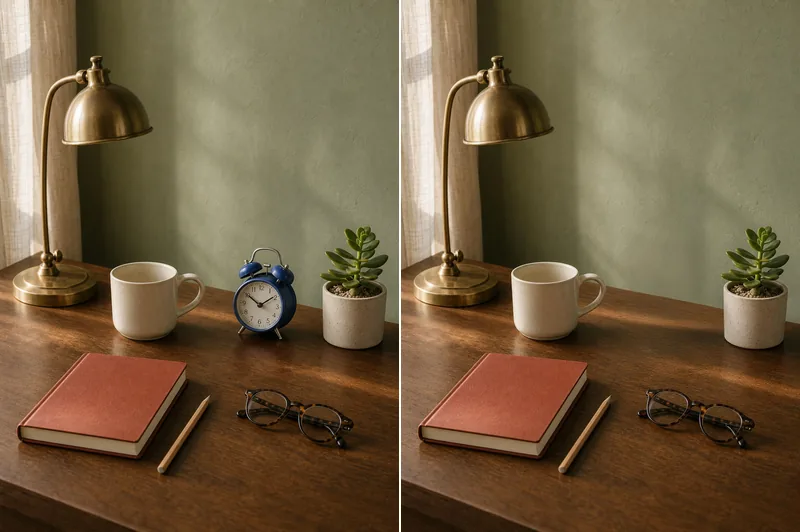
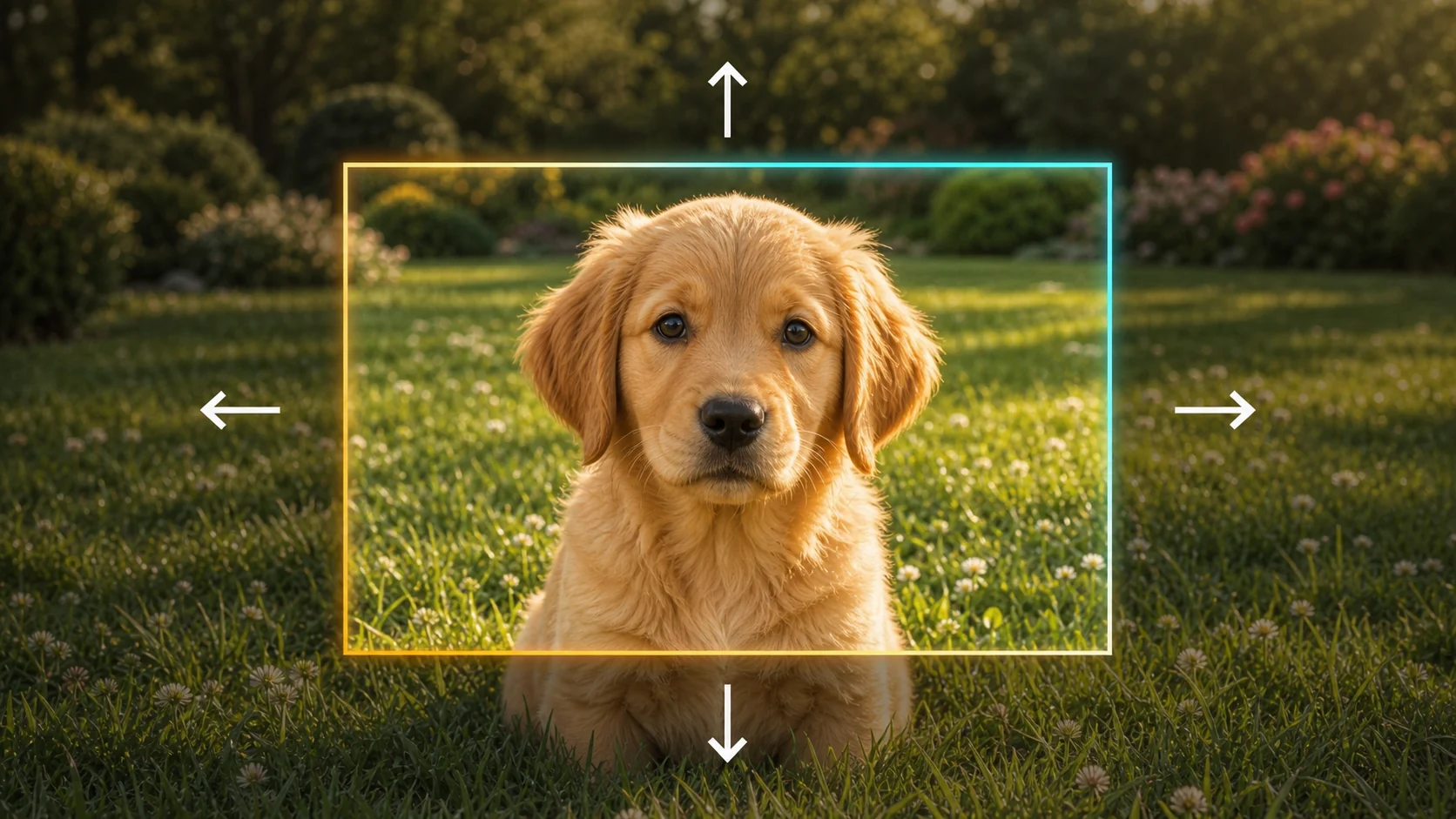
Turn a portrait into a landscape image without cutting away the subject. AI expansion adds scene-matched background around the existing picture to fill the extra canvas.
The generated areas follow the surrounding colors, textures, and lighting. Create room around a product or extend a landscape while keeping the main subject in focus.
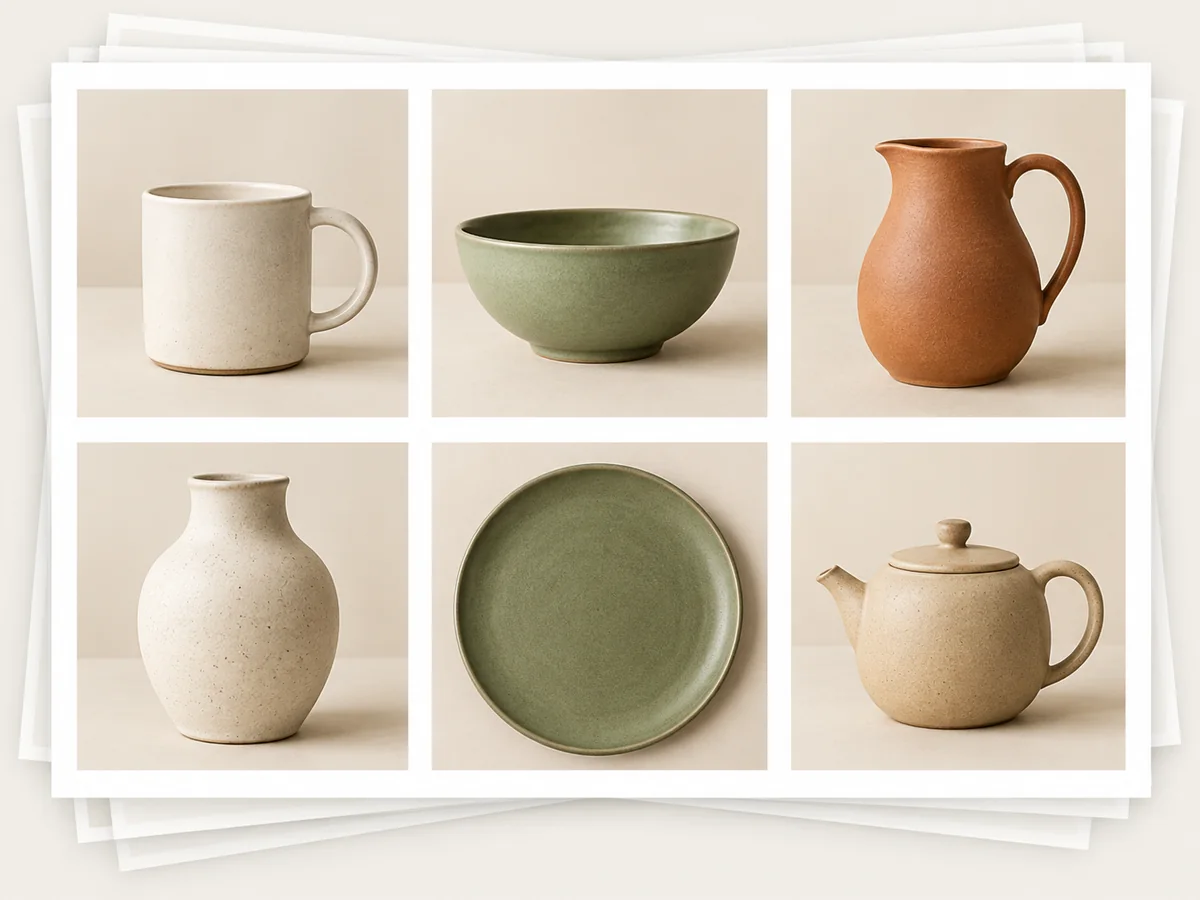
Apply the same target dimensions to a group of images for a consistent product gallery or campaign. Batch resizing saves you from repeating the same settings for every file.
You can also turn one source image into multiple sizes for different placements. Prepare the square, portrait, and landscape versions together for a coordinated release.
Export resized images as JPG, PNG, or WebP. Use JPG for everyday photo sharing, PNG for graphics that need transparency, and WebP for web images where file size matters.
Adjust output quality to balance visible detail and file weight. Prepare a lighter image for a page or email while keeping a higher-quality version for larger displays.
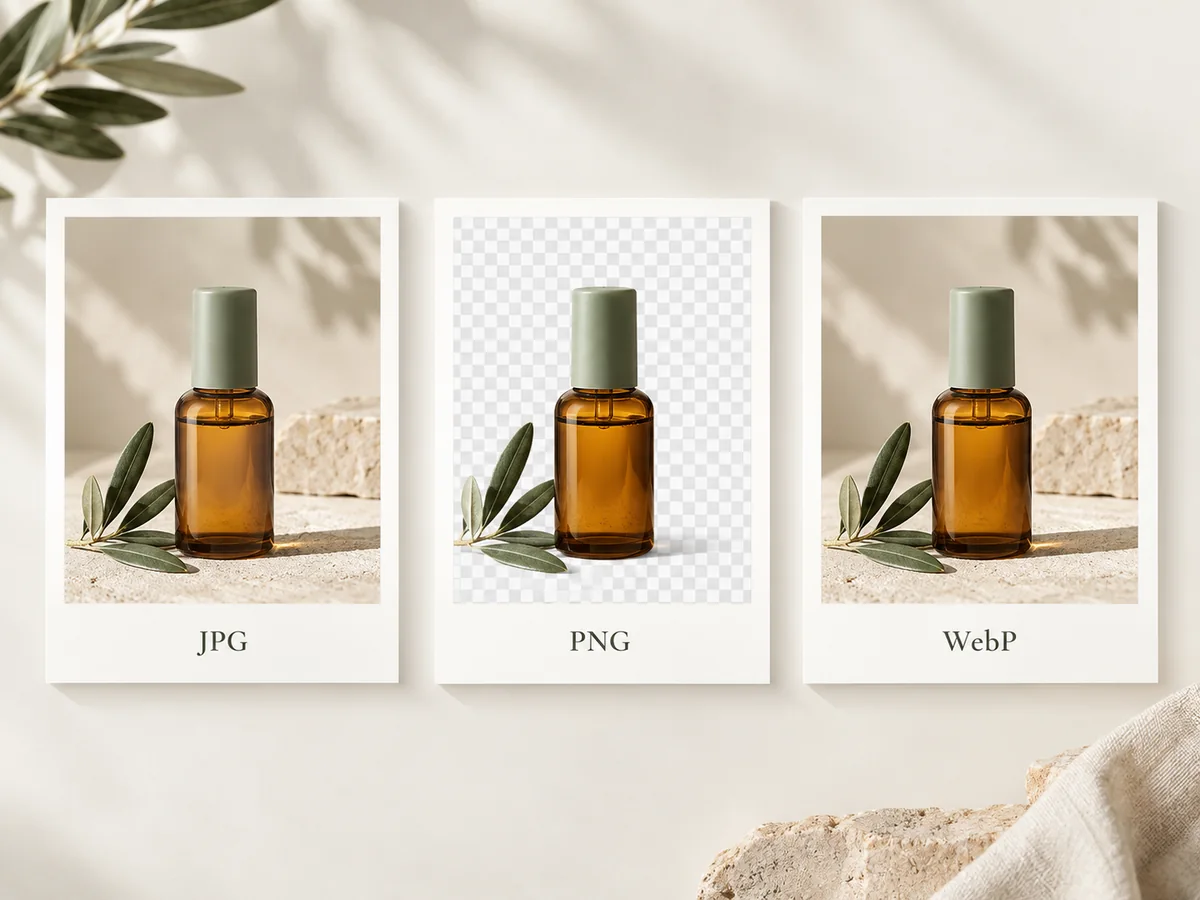
Prepare posts, Stories, covers, and thumbnails from the same creative. Match each channel’s shape while keeping your subject visible and your campaign consistent.
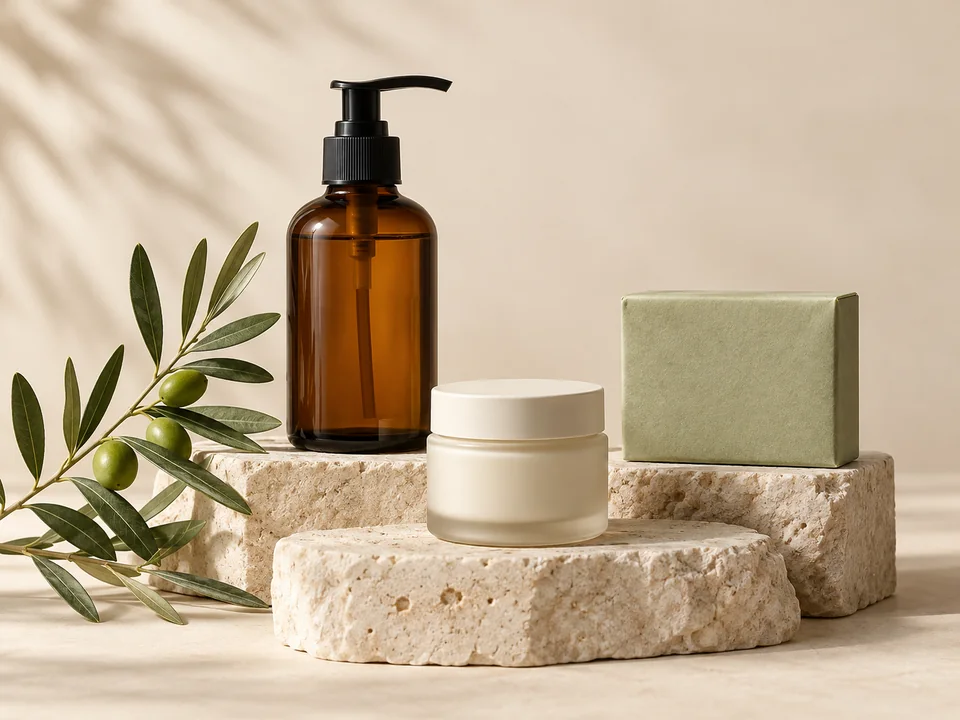
Give product photos consistent dimensions for marketplace listings and store galleries. Keep the full item in frame, with clean spacing around each product.
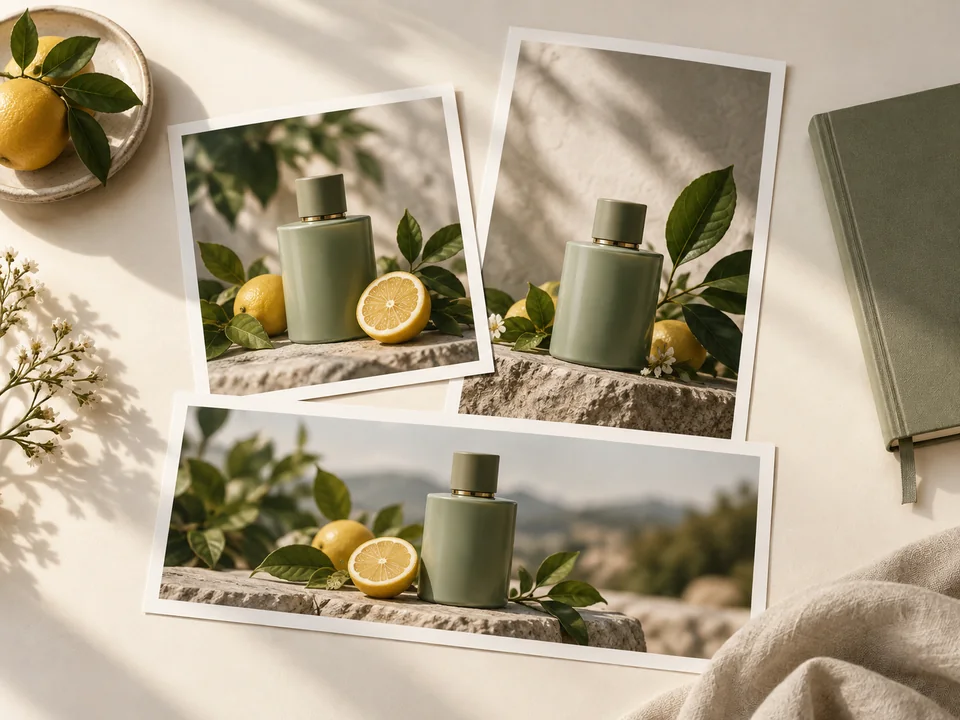
Adapt one campaign image for landing pages, email newsletters, display ads, and social banners. Build the sizes each placement needs without starting the design again.
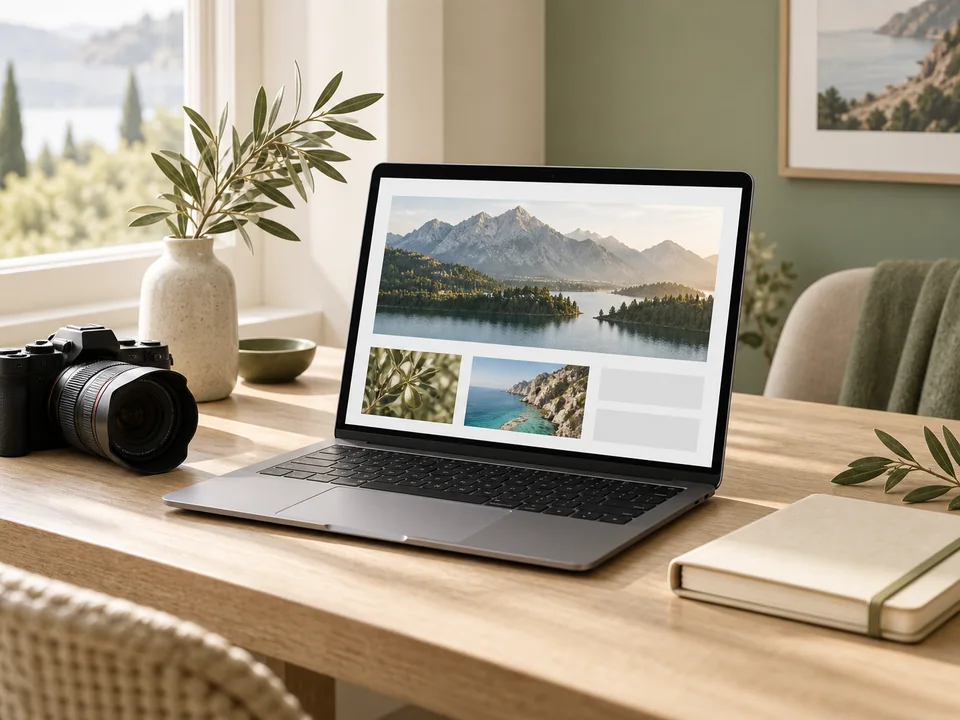
Resize article headers, feature images, and thumbnails to fit your page layouts. Export lighter web assets for blogs, portfolios, and content-rich websites.
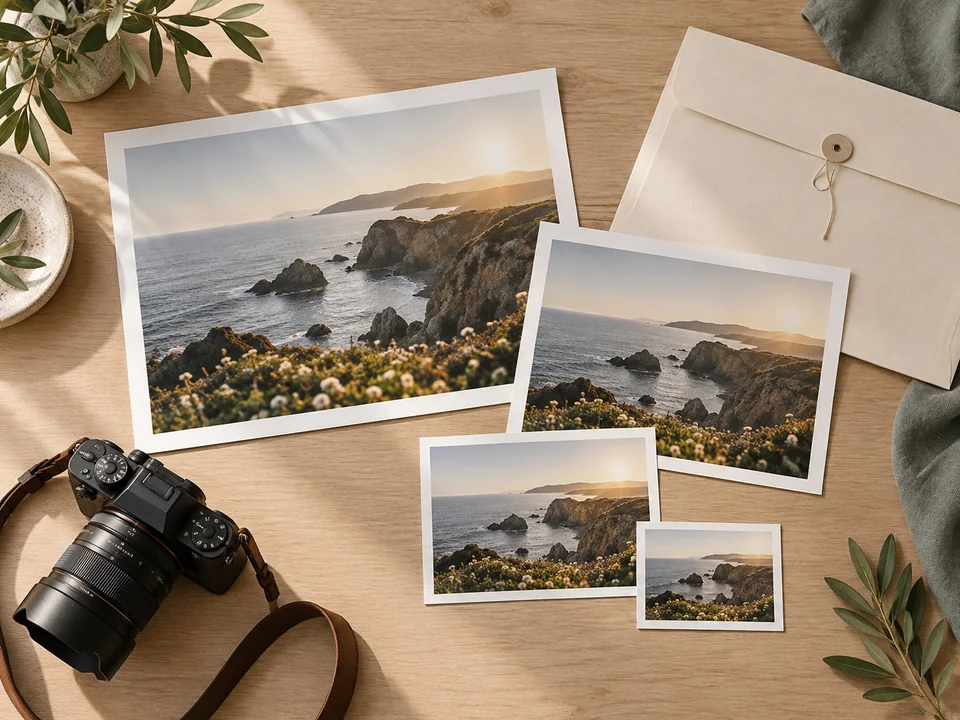
Create smaller client previews and portfolio images from high-resolution originals. Keep image proportions consistent when preparing versions for different displays.
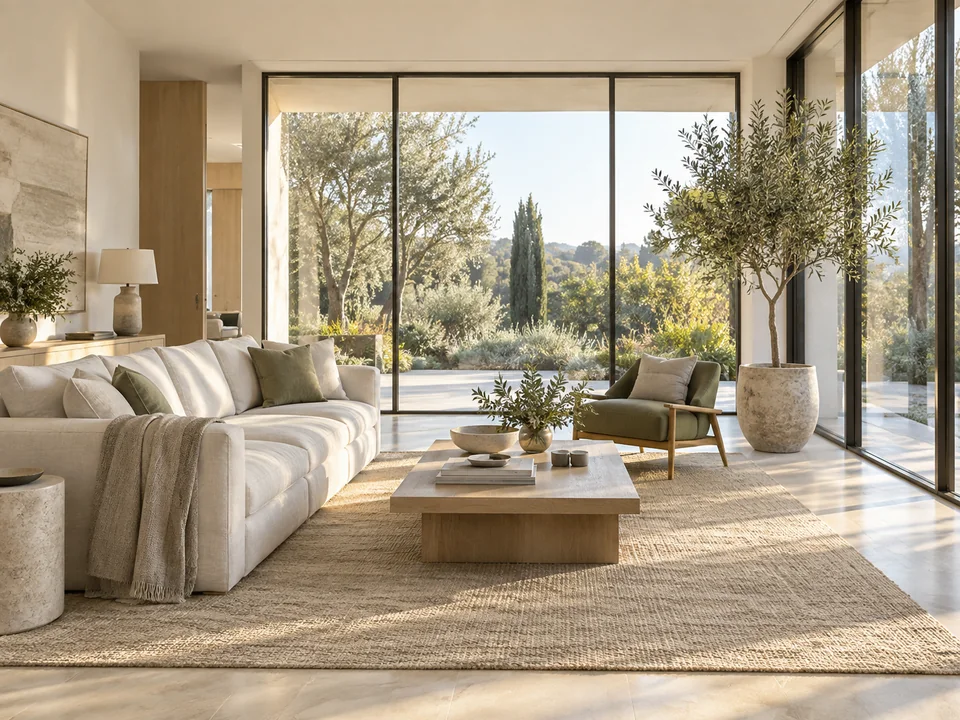
Prepare property photos for listing portals, social ads, and website galleries. Use consistent image sizes so rooms and exterior shots fit neatly across your marketing.
Go from an original photo to the right output size in three steps.
Choose a JPG, PNG, or WebP file. Start with the original, high-quality image so each resized version has the best source to work from.
Select a preset or enter your target width and height. Keep the whole image with Fit, fill the canvas with a crop, or add padding to preserve the full composition.
Choose your output format and resize the image. Download the finished version, then create any other sizes you need from the same original.
Free AI Image Resizer is an online tool for changing the width, height, or aspect ratio of a picture. Set exact pixel dimensions, choose a preset, and control how the image fits. AI expansion can add background when you need a new shape without cropping the subject.
Yes. You can resize your images online and download the results for free. Start with a photo, choose the dimensions you need, and create a version for your website, social post, or product listing.
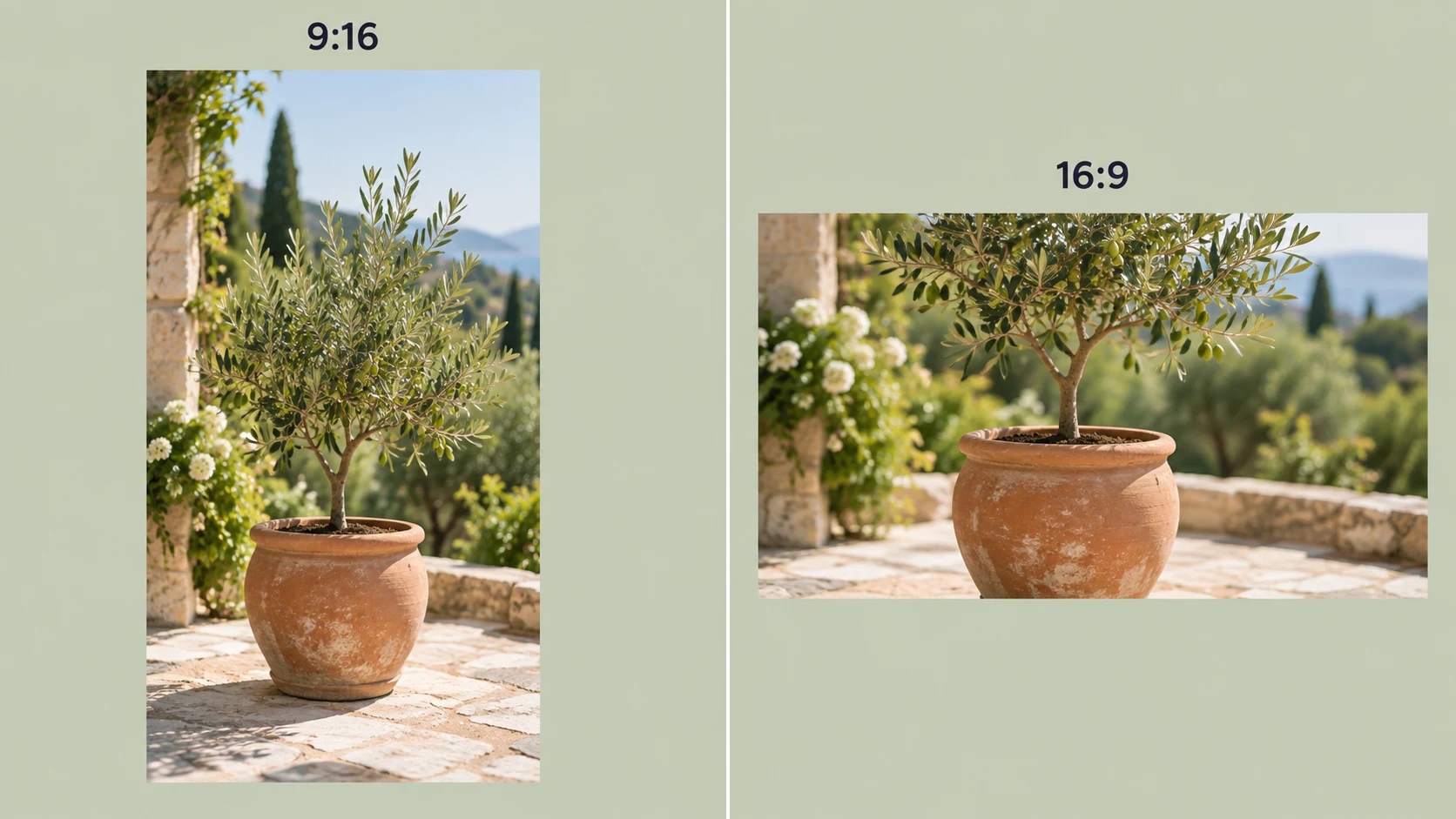
Use a preset or enter custom width and height up to 4096 × 4096 pixels. Common choices include 1080 × 1080 for square posts, 1080 × 1350 for portrait feeds, 1080 × 1920 for Stories, and 1280 × 720 for YouTube thumbnails. A ratio such as 16:9 describes the shape; pixel dimensions specify the actual size.
Preserve the original proportions and choose the fitting method that suits your layout. Fit keeps the whole image visible. Crop fills the target frame by trimming edges. Padding keeps the complete image inside an exact canvas with extra space around it.
Start with the highest-quality original available. Reducing dimensions generally keeps the image looking clear at its new display size, while enlarging a small file can reveal blur or pixelation. AI expansion adds background around the subject; AI upscaling is the separate process used to increase resolution and enhance detail.
Resizing changes the image’s pixel dimensions. AI expansion changes the canvas by generating new background beyond the original edges. Use resizing for a precise output size, and expansion when you need extra scene space while preserving the subject. Generated extensions are new content, not recovered evidence of what was outside the original frame.
Work with JPG, PNG, and WebP images, then choose an output format for your destination. JPG suits photographs, PNG supports transparent graphics, and WebP is useful for lighter website images. Choose output quality according to how large the image will be displayed.
Yes. Batch resizing applies a common target size to multiple images. Creating several sizes from one image is a different workflow: it produces square, portrait, or landscape versions of the same original. Use batch resizing for a catalog and multiple sizes for a campaign.
Yes. Use the image resizer in your mobile browser, upload a photo from your device, choose a size, and download the result. You can also work from a desktop or tablet without installing photo-editing software.
Smaller pixel dimensions often produce a lighter file, but the final size also depends on the image content, format, and output quality. Resize when you need a different width or height. Adjust compression or export quality when the main goal is a smaller file for a website, email, or upload limit.
Give Your Image the Right Size
Create a photo that fits your next post, product listing, or page. Upload an image and choose the dimensions you need.
Resize an image for free
Choose Ready-Made Social Media Sizes
Switch between square posts, portrait feeds, vertical Stories, and landscape thumbnails with size presets. Start with 1080 × 1080 for a square post, 1080 × 1920 for a Story, or 1280 × 720 for a YouTube thumbnail.
Keep the same creative direction across your channels while giving each version the proportions it needs.