Free AI Image Your free image tools for the AI era.

Free AI Image Upscaler

  • 100% Free
  • No Login Required
  • 2× / 4× Upscaling
Upscale factor

Your processed image will appear here

Free AI Image Upscaler: Make Small Photos Clearer

Turn low-resolution photos into larger images with sharper edges, cleaner textures, and more visible detail. Free AI Image Upscaler combines enlargement with noise reduction, compression cleanup, and face enhancement.

Give product photos, portraits, old pictures, and AI artwork enough resolution for your next project. Choose an enlargement, compare the result, and download a clearer image for web, social, or print.
Upscale Your Image
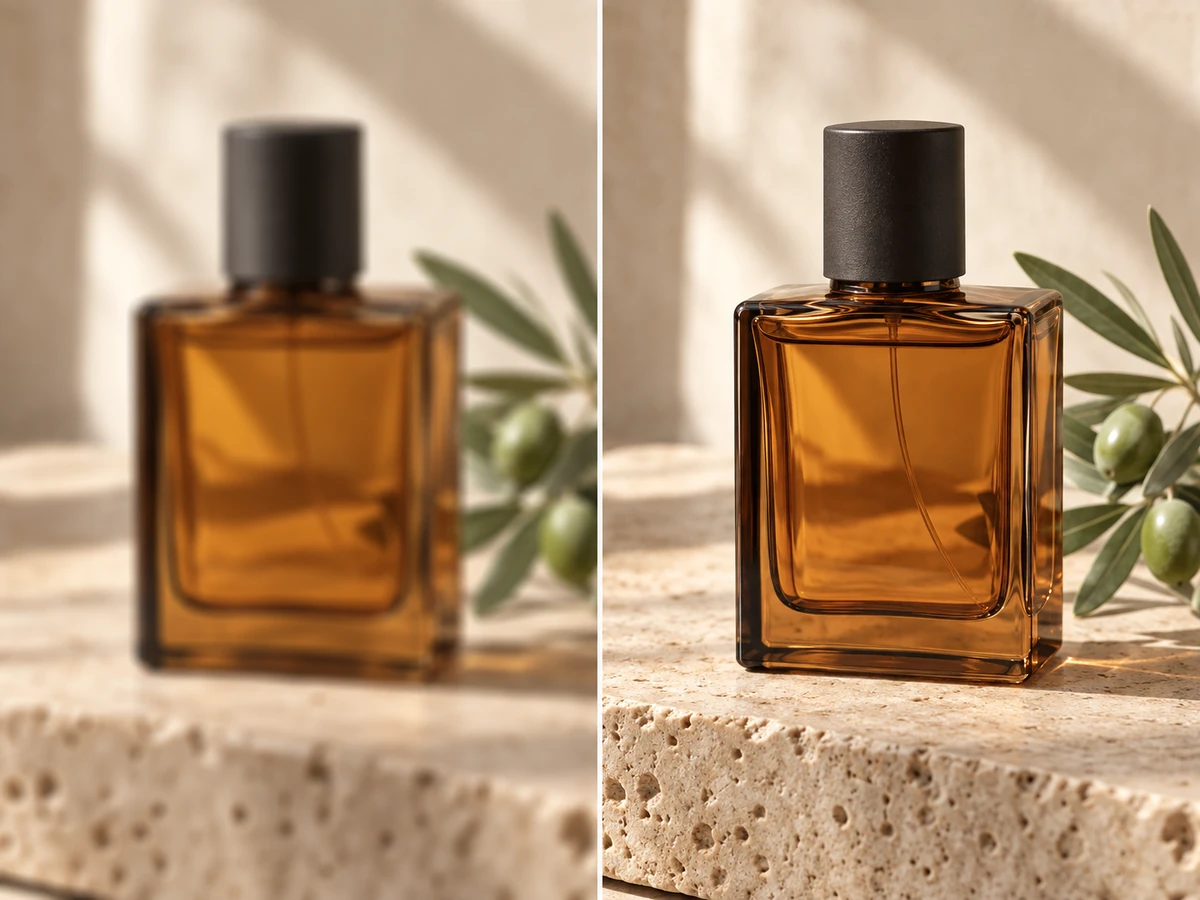
AI-generated photo comparison of the same amber glass bottle, blurry on the left and clear on the right
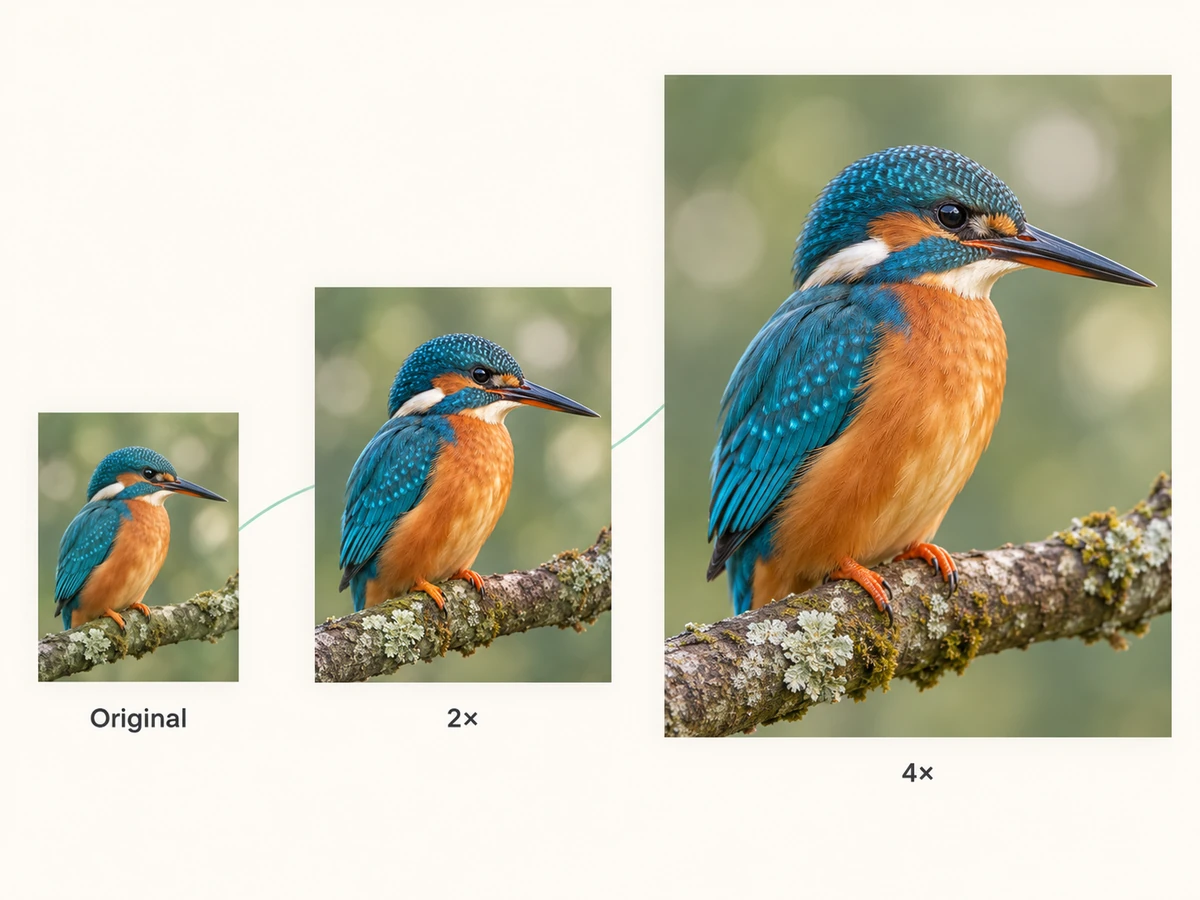
AI-generated illustration of the same kingfisher photo at original, 2× and 4× sizes

Enlarge images by 2× or 4×

Choose how much larger your image should be. The AI image upscaler increases both width and height, giving small files more pixels for detailed viewing and larger layouts.

A 2× upscale doubles each dimension; 4× makes each side four times larger. Keep the original proportions while creating a higher-resolution version.

Upscale Your Image

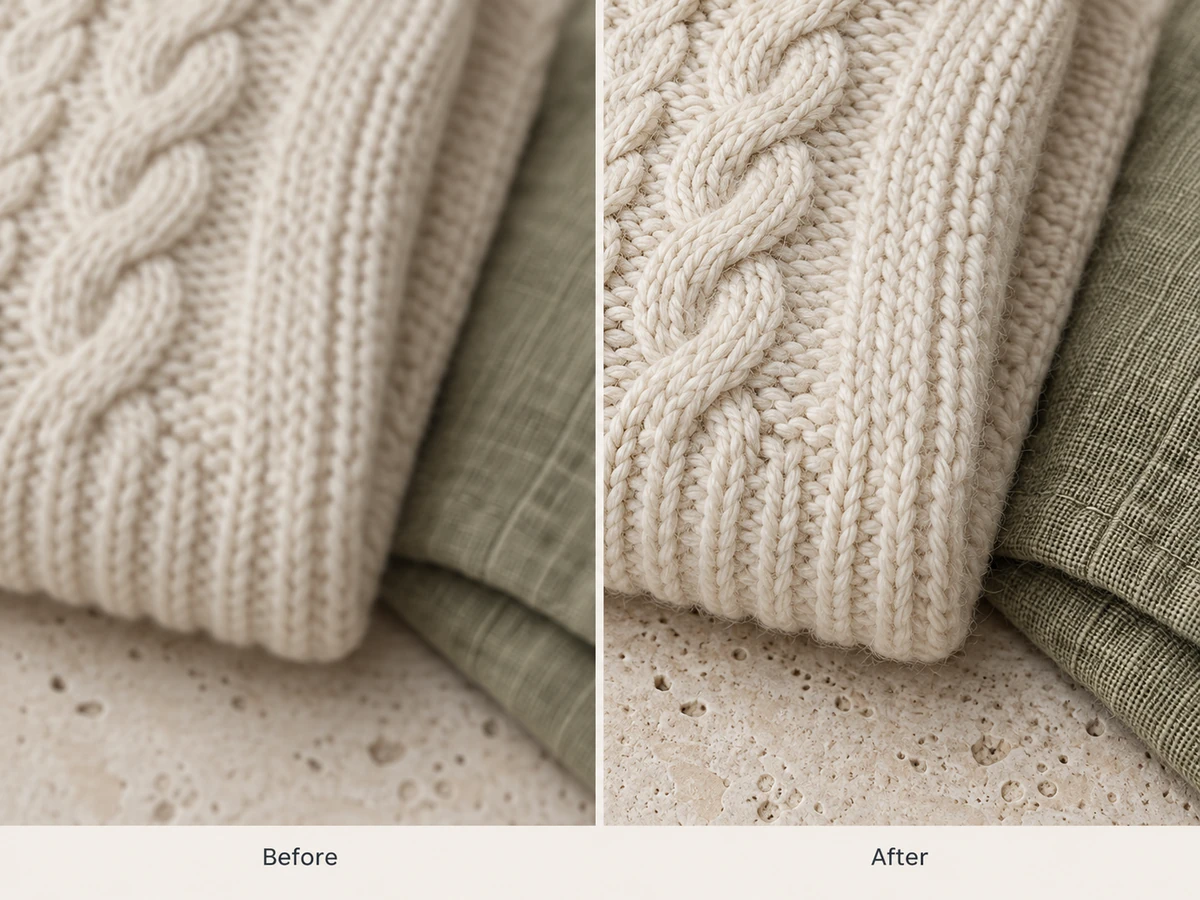
Rebuild sharp edges and fine textures

AI upscaling analyzes shapes, edges, and repeating patterns to reconstruct detail as the image grows. Lines become more defined, and textures such as fabric, hair, and product surfaces become easier to see.

The result keeps the original composition and visual style while adding clarity. It is a sharper interpretation of the source, rather than a stretched copy of its pixels.
Upscale Your Image
AI-generated before-and-after illustration of clearer knit fibers and linen texture
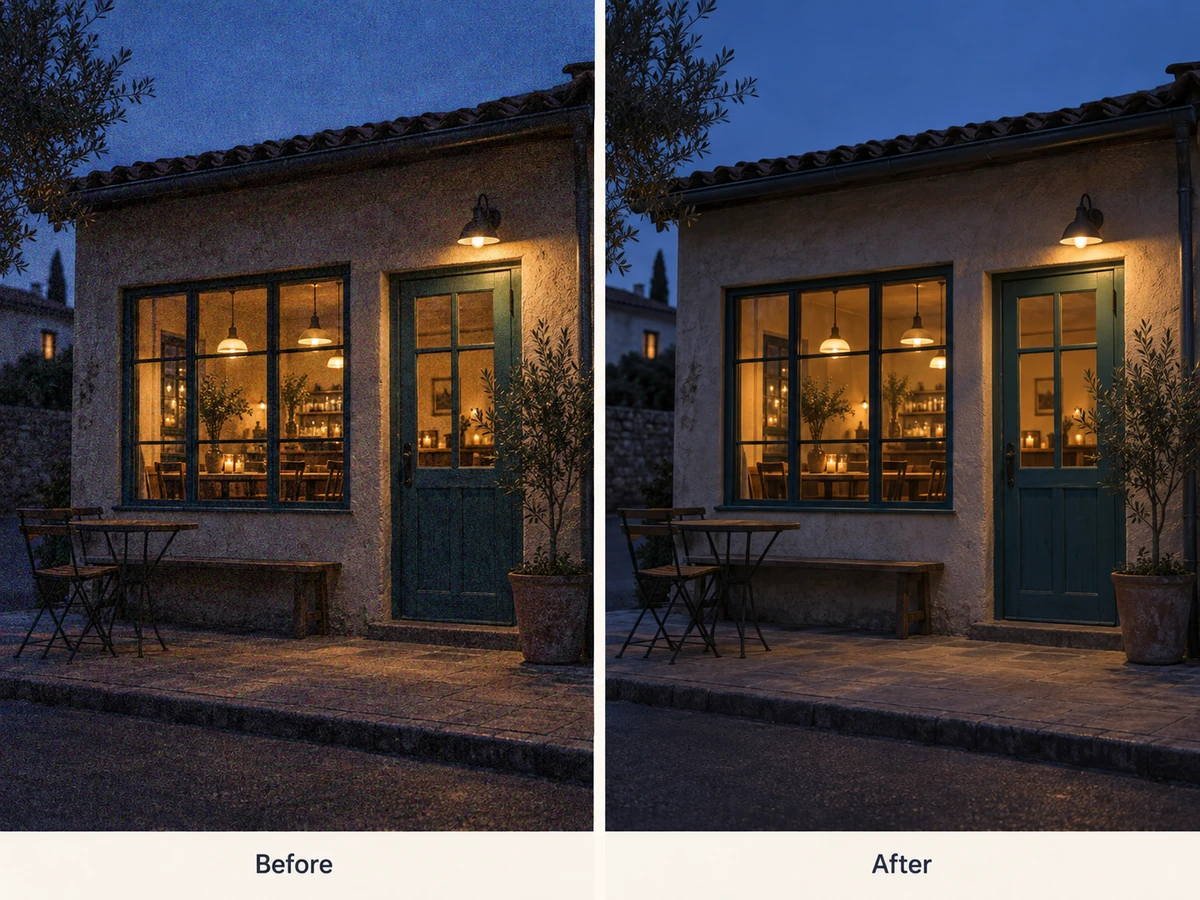
AI-generated comparison of a grainy evening cafe photo and a clean denoised version

Reduce grain and low-light noise

Clean up the speckled grain that makes low-light photos look rough. AI denoising reduces unwanted noise while retaining the edges and textures that give an image its character.

Smooth areas such as skies, walls, and backgrounds look cleaner, while the subject stays defined at a larger size.

Upscale Your Image

Clean up pixelation and compression artifacts

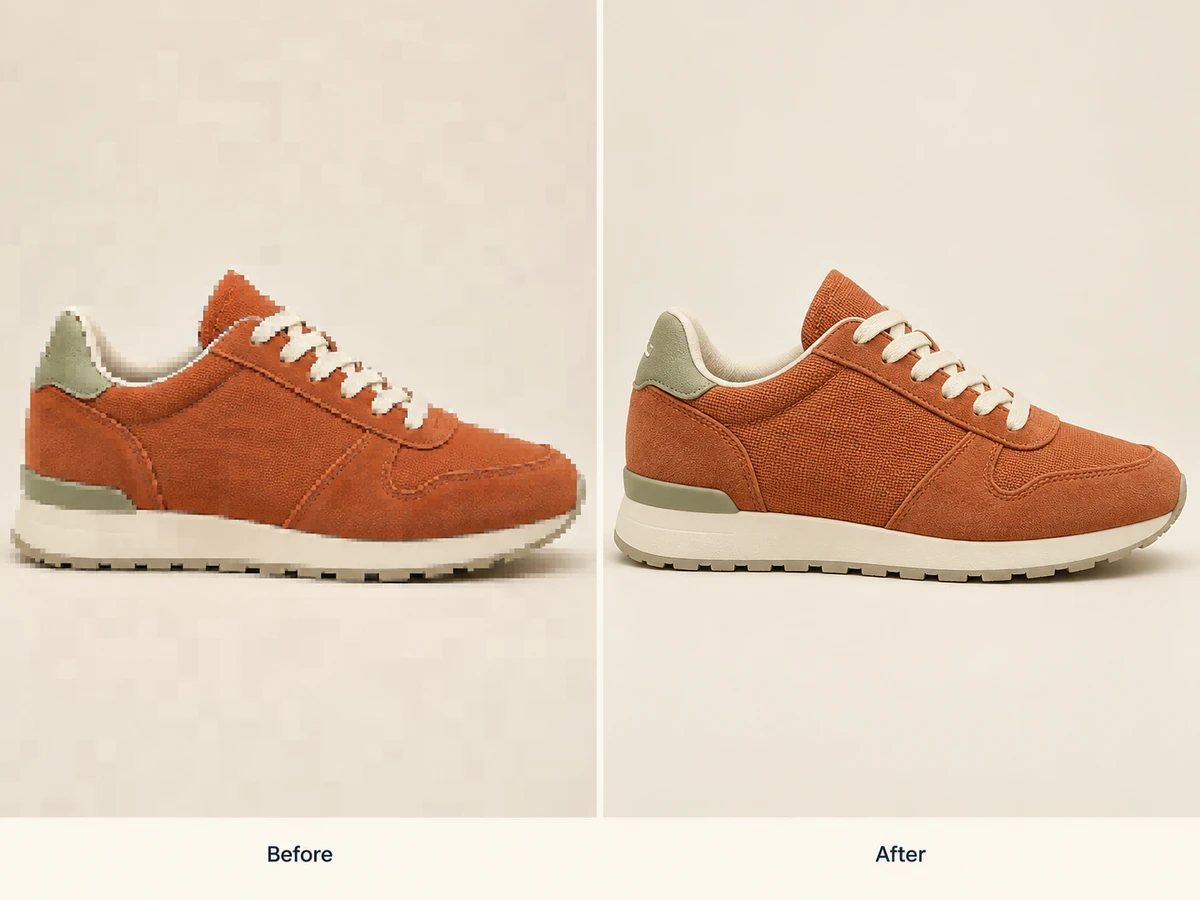
Repeated saves and heavy compression can leave blocks, jagged outlines, and fuzzy detail. The image upscaler reduces these artifacts as it enlarges the file.

Recover cleaner transitions around objects and more readable detail in compressed photos and graphics. Small web images become easier to reuse at higher resolution.
Upscale Your Image
AI-generated comparison of blocky compression artifacts and clean sneaker details
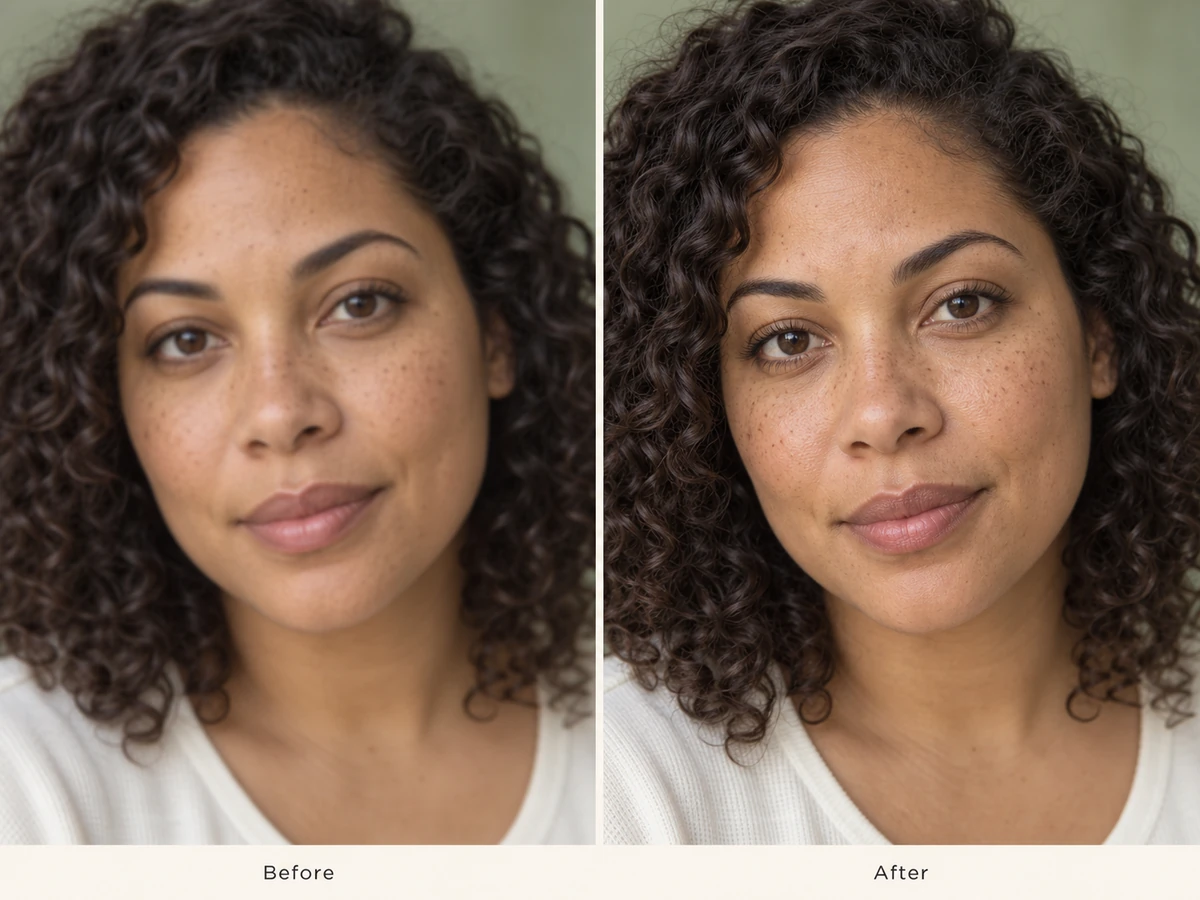
AI-generated portrait comparison showing clearer eyes, curls and natural skin texture

Enhance faces with natural detail

Face enhancement refines soft eyes, hair, and facial features during upscaling. It brings definition back to portraits while preserving the person’s recognizable appearance.

Skin keeps its texture instead of looking uniformly smoothed. Headshots, profile pictures, and family portraits gain clarity as they get larger.

Upscale Your Image

Upscale multiple images in one batch

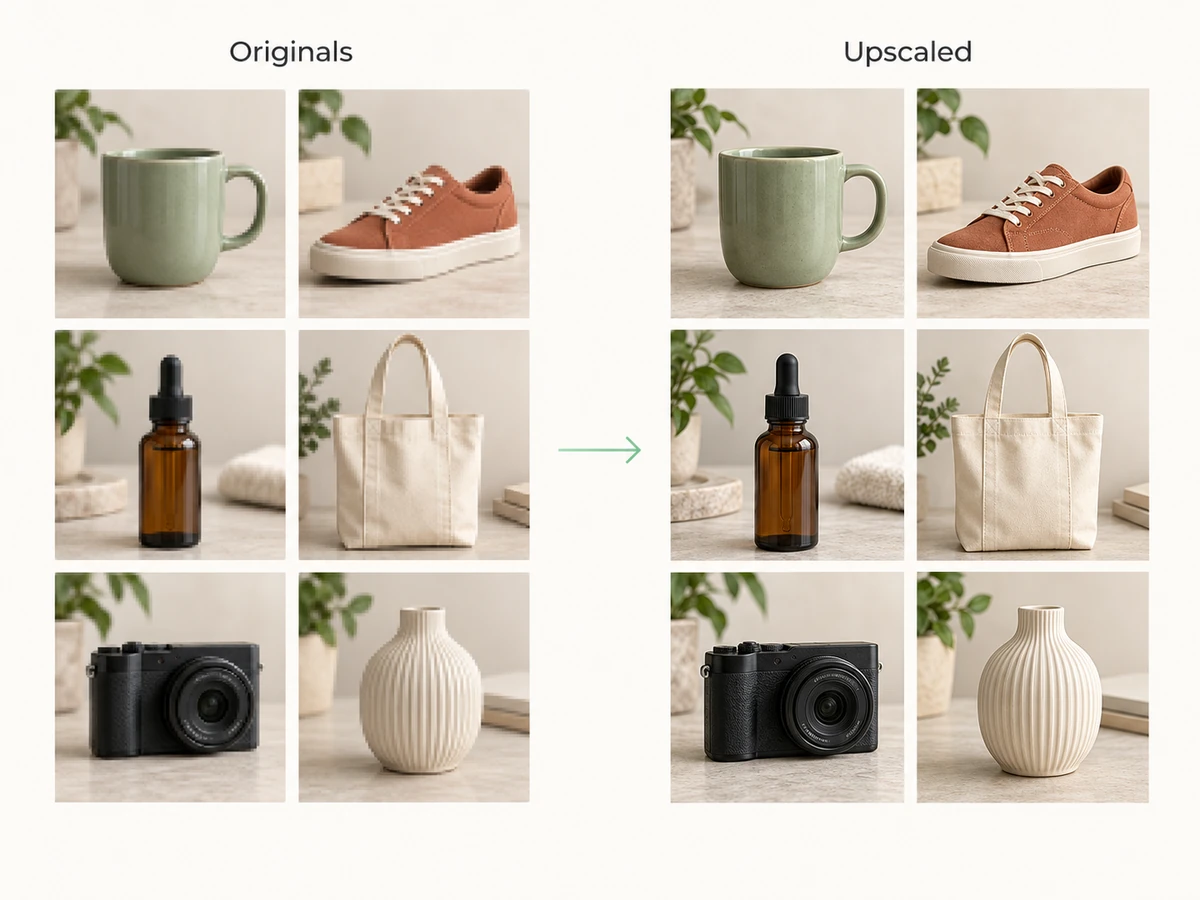
Apply the same enlargement to a group of images instead of repeating the task for every file. Batch upscaling processes a set together for consistent resolution and image quality.

Prepare a product collection, photo series, or campaign asset set in fewer steps, with sharper details across the whole batch.
Upscale Your Image
AI-generated batch upscaling illustration with six matching product photos before and after enhancement

What Can You Use an AI Image Upscaler For?

Give existing photos and graphics the resolution they need for a specific job.

Product photos for online stores

Enlarge small supplier photos for Shopify, Etsy, and marketplace listings. Make fabric, packaging, and surface details easier to inspect in product galleries.

Thumbnails and social posts

Prepare sharper images for video covers, profile photos, and social campaigns. Keep the subject clear when a small source is cropped for a larger placement.

Posters, prints, and display graphics

Increase image dimensions for posters, flyers, and presentation boards. Give small photos more detail at larger sizes before preparing the final print layout.

Portraits and family photo archives

Enlarge soft headshots and scanned family photos for portfolios, albums, and keepsakes. Refine faces and visible texture while preserving the person’s recognizable appearance.

AI artwork and illustrations

Take a finished AI image, anime illustration, or digital drawing beyond its original size. Prepare a clearer version for wallpapers, portfolios, and printed artwork.

Logos, graphics, and presentation slides

Improve small logos, icons, and screenshots before placing them in brand materials or classroom slides. Make outlines and fine details clearer on larger displays.

How to Use Free AI Image Upscaler

1

Upload your image

Choose a JPG, PNG, or WebP file from your device. Use the original photo or scan for the most detail.

2

Choose 2× or 4× and upscale

Select your enlargement and start processing. AI increases resolution while refining edges, textures, and faces.

3

Compare and download

Compare the enlarged image with your original, then download the PNG for your layout, listing, or print project.

Why Use Our Free AI Image Upscaler?

Start for free

Try image enlargement online without an upfront payment. Bring a small photo and see the difference.

Results in seconds

AI handles the enhancement automatically, so a routine photo upscale takes seconds instead of manual retouching.

Natural-looking clarity

Improve edges, textures, and facial detail while preserving the original composition and visual style.

Works in your browser

Upscale from a computer, phone, or tablet without installing a desktop editor.

Compare the difference

View the original and enhanced image before choosing the version for your project.

Downloads without watermarks

Get a clean image file for your next design, without a watermark covering the result.

Free AI Image Upscaler FAQ

Answers about enlargement, image quality, formats, free access, and downloads.

Free AI Image Upscaler increases the size and resolution of an existing photo or graphic. It uses AI to rebuild fine detail, sharpen edges, and reduce noise, so a small image looks clearer when enlarged.

Look for natural textures, clear edges, recognizable faces, and the output size your project needs. Compare the result at full size, especially around hair, lettering, and fine patterns. Free-download limits, supported formats, and batch processing also matter when choosing a tool.

Yes. You can start upscaling images online for free and download the enhanced result. Free access is intended for everyday image improvement; usage limits apply.

No. You can start a free image upscale in your browser without creating an account or installing desktop software. Upload a photo directly from your device to begin.

Upload a JPG, PNG, or WebP image, choose 2× or 4× enlargement, and start the upscale. The AI increases resolution and enhances detail. Compare the result with the original, then download your image.

Choose 2× when you need a modest increase in size, or 4× when your source needs a larger enlargement. These multipliers apply to both width and height: a 1000 × 1000 image becomes 2000 × 2000 at 2× or 4000 × 4000 at 4×.

Yes. AI upscaling can turn a smaller source into a 4K-size image. The final dimensions depend on the original size and your chosen multiplier; for example, a 1000-pixel-wide image enlarged by 4× becomes 4000 pixels wide.

Upload a JPG, JPEG, PNG, or WebP image up to 10MB. Use the clearest original file you have: repeatedly saved or heavily compressed copies give the AI less detail to work with.

Download the enhanced image as a PNG for further editing, layouts, or sharing. Keep the larger file as a source for your next design project.

It adds detail by analyzing the source and generating pixels that fit its edges, textures, and patterns. Ordinary resizing only enlarges the existing pixels. AI can create a clearer interpretation, but it cannot guarantee an exact reconstruction of detail that was missing from the original.

The aim is to preserve your composition, colors, and recognizable features while increasing clarity. Fine textures can change as the AI reconstructs them. Inspect faces, text, and repeating patterns at full size if an exact match to the original matters.

Yes. It sharpens soft edges, reduces grain, and cleans up blocky compression artifacts as it enlarges the image. Extremely blurry or badly damaged images can still have limited detail, so the quality of the source affects the result.

Yes. Upscaling makes small scans and older photos clearer for albums and sharing, and gives AI art, anime, and illustrations more resolution for publishing or print. Use a dedicated restoration tool when a photo also needs deep scratch or tear repair.

Yes. Batch upscaling lets you process a group of images with the same enlargement settings. It is useful for product catalogs, photo collections, and campaign assets that need consistent resolution. Batch size and usage limits apply.

Most individual images are processed in seconds. Larger source files, stronger enlargement, batches, and busy periods can take longer. Your connection also affects how quickly images upload and download.

Yes. Use it in a mobile browser on iPhone or Android, or on a desktop computer or tablet. You can upload a photo from your device and download the larger image without installing an app.

Your uploaded images are processed privately and removed after processing. The service uses your files to create the enhanced result rather than publishing them as a public gallery. Download the images you want to keep.