Social media content
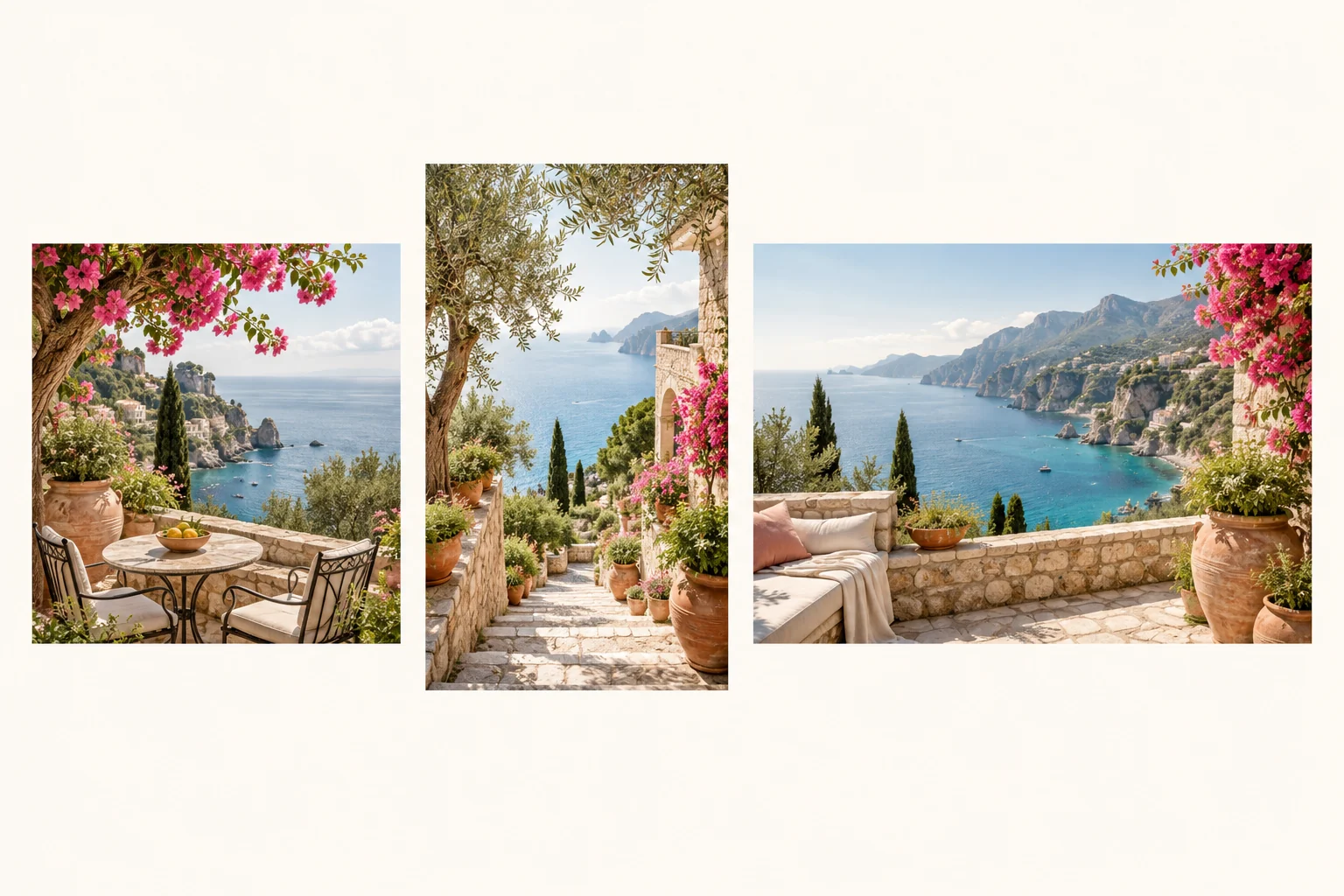
Create a square post, a vertical story background or a wide channel visual. Match the scene and format to the idea you want to share.
Your AI generated image will appear here
FROM WORDS TO VISUALS
Turn an idea into a photo, illustration or imagined scene. Describe what you want to see, shape its style and composition, and create a visual for your next post, story or project.
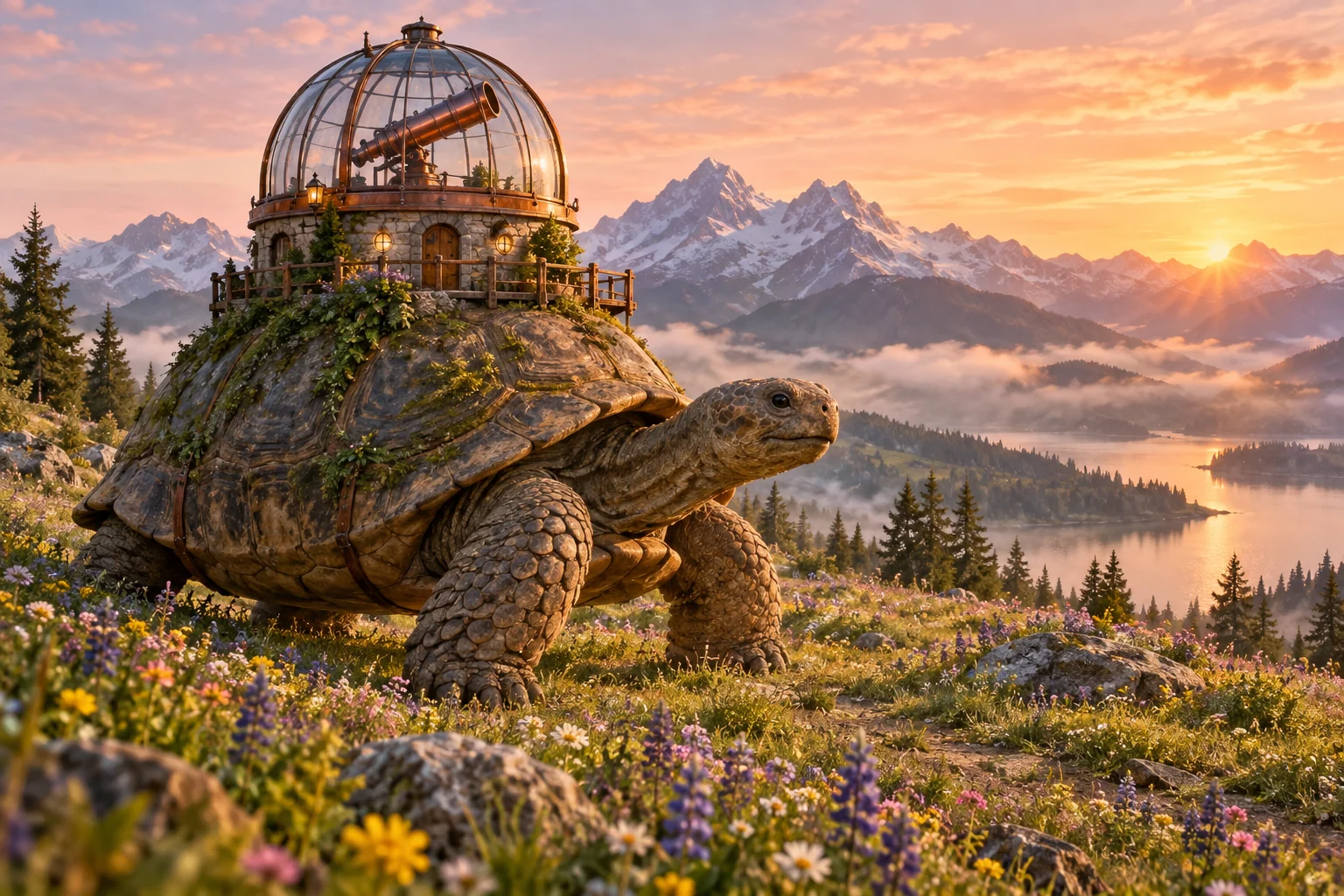
Describe a subject, an action and a setting, and the AI turns those words into a new visual. Build an imagined world, a realistic scene or a product concept without starting from a stock photo.
Add details that matter to your idea: a glass observatory, a misty meadow, a copper telescope. The text-to-image generator uses those details to shape the scene and connect its elements.
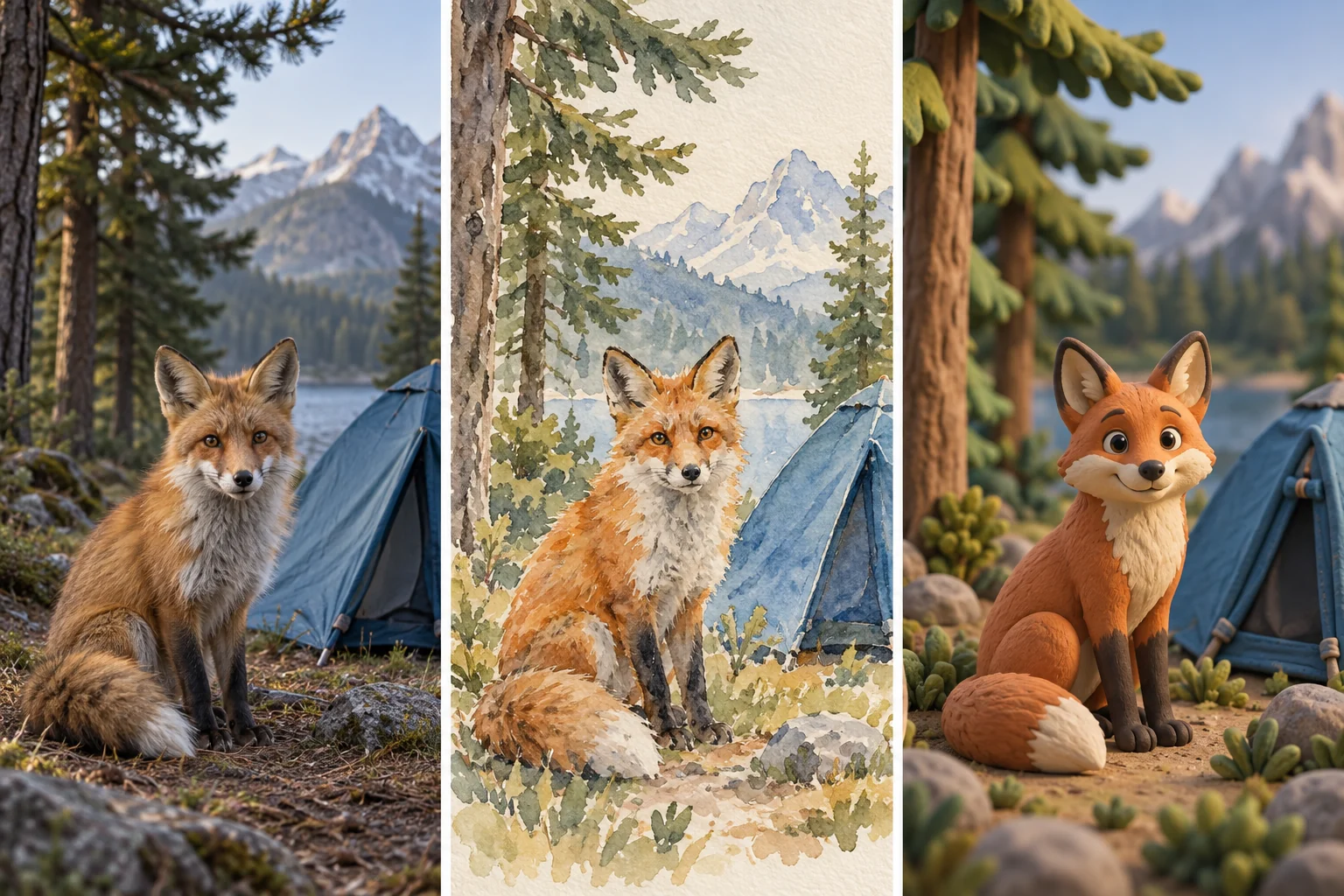
Give the same idea a different visual language. Describe a photographic finish, watercolor texture, anime illustration, oil painting or playful 3D look to guide the image style.
Keep the subject in your prompt and change the medium to explore alternatives. A realistic fox can become a soft watercolor character or a clay-style illustration for a completely different project.
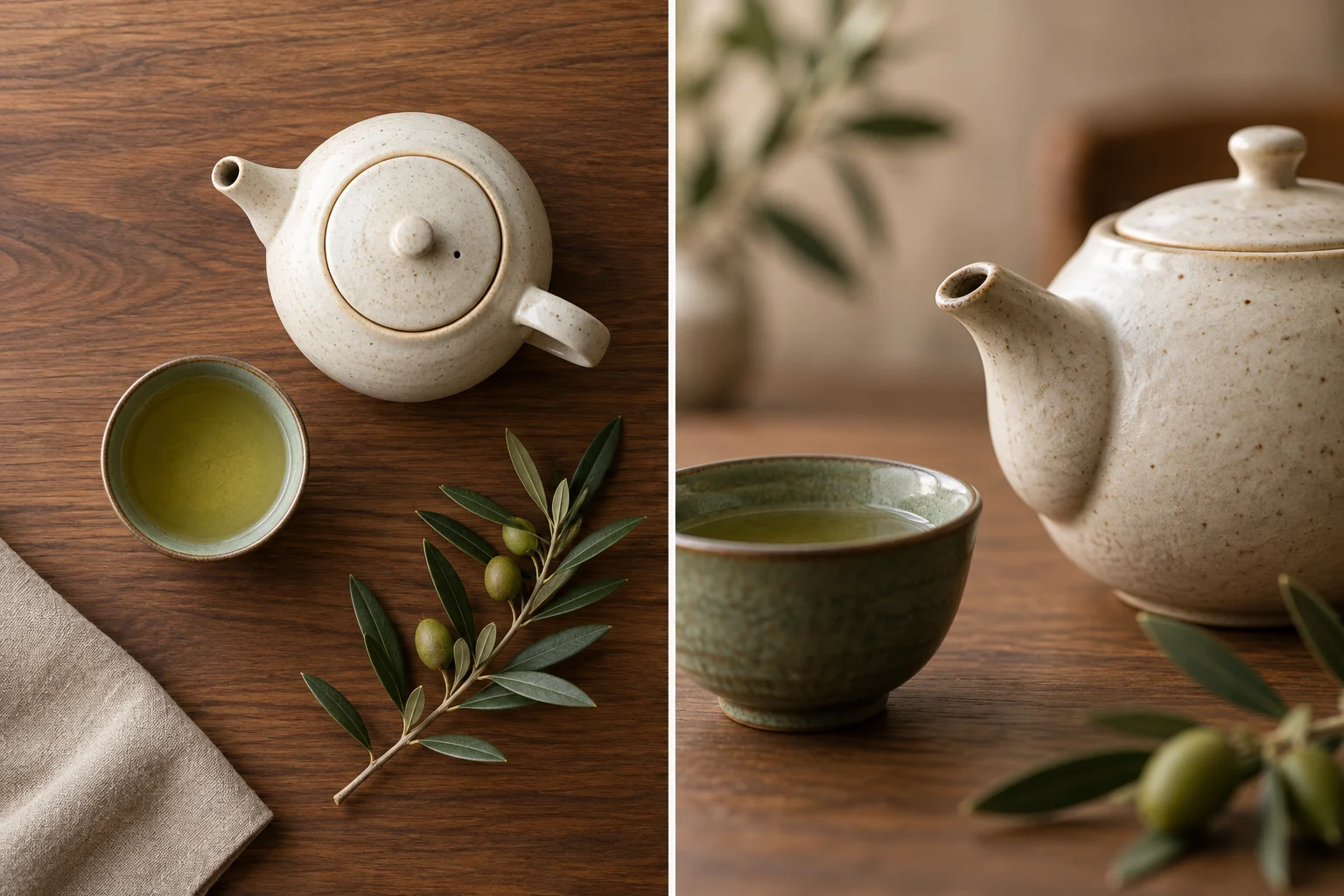
Tell the AI how to frame the scene. Ask for a close-up, a wide view, a top-down arrangement or a low camera angle to control what draws attention first.
Include the subject’s position and the background you want. A close product detail highlights texture, while an overhead composition gives objects room to breathe and leaves space for a headline.
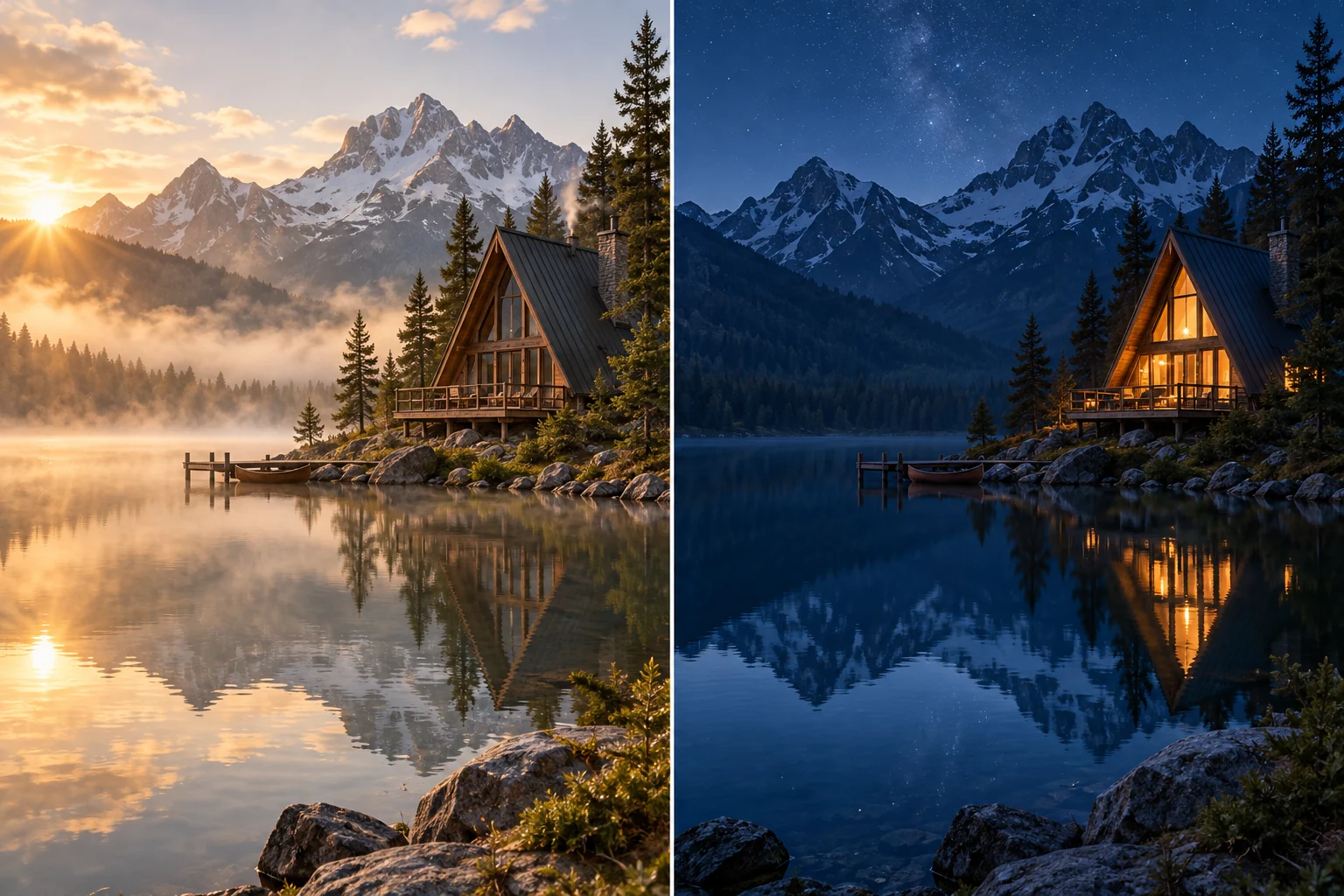
Use light to change the feeling of an image. Describe soft daylight, warm golden hour, a clean studio setup, dramatic shadows or a cool evening glow in your prompt.
Lighting directs attention and shapes depth, reflections and atmosphere. Turn a lakeside cabin into a bright morning escape or a quiet blue-hour scene by changing the light you ask the AI to create.
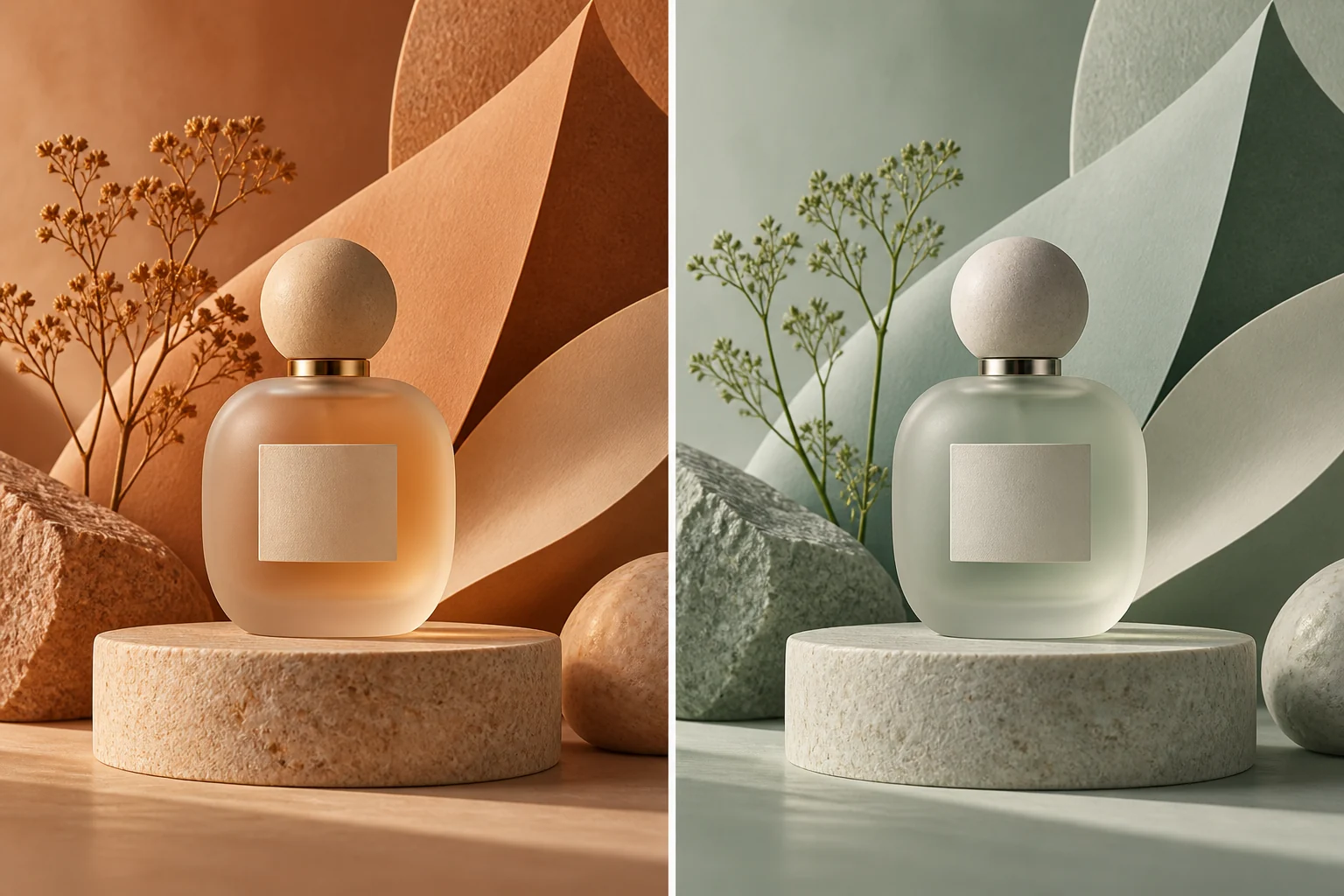
Guide the overall palette with warm earth tones, cool blues, muted greens, vibrant color or black and white. The AI uses your color direction across the subject and its surroundings.
Explore how a palette changes a campaign concept or creative moodboard. Terracotta and amber feel different from sage and ivory, even when the central object and composition stay similar.
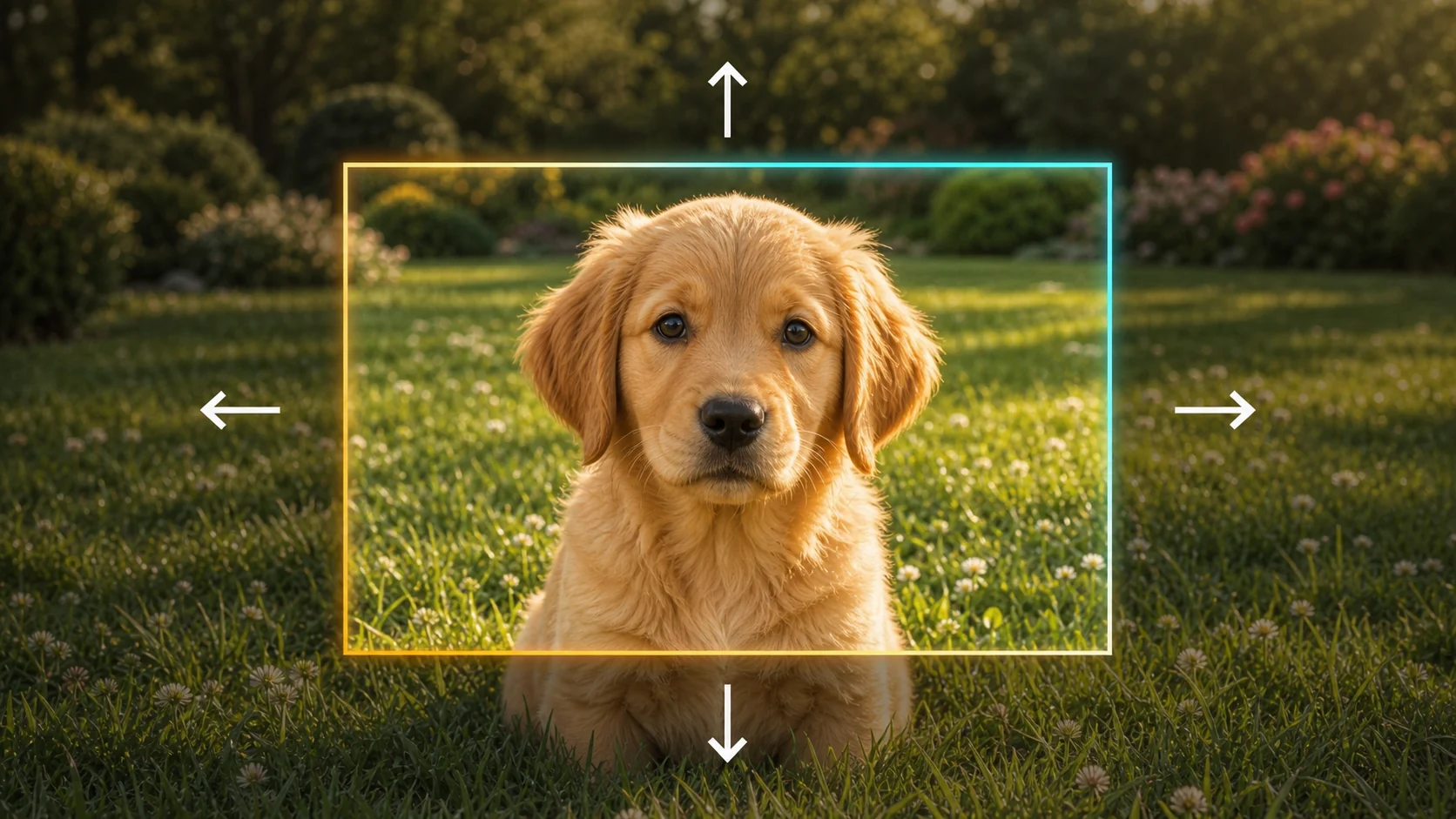
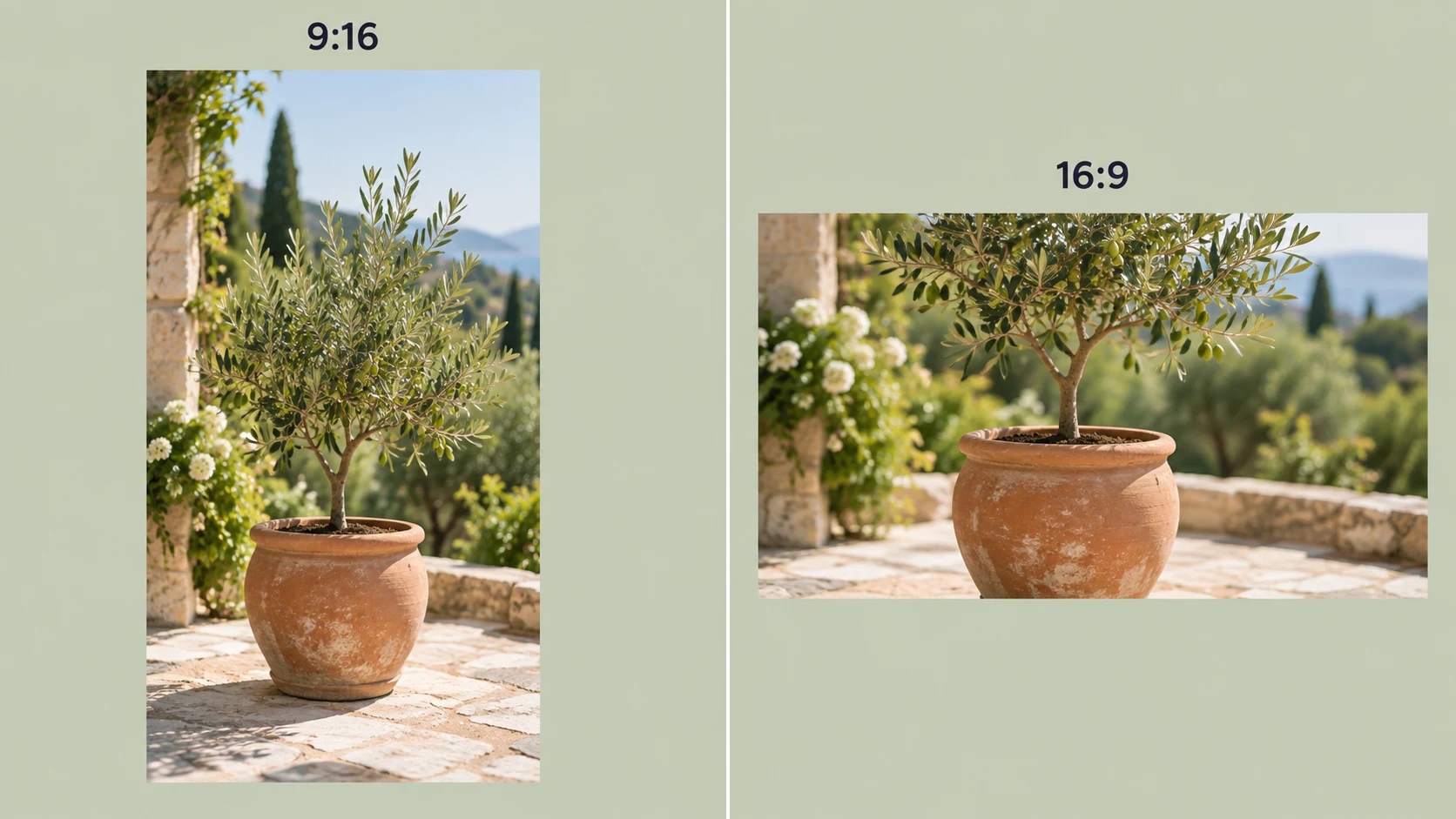
Create square, portrait or landscape images to suit the space where they will appear. An aspect ratio shapes the canvas; your prompt guides the arrangement inside it.
Use a square for a feed graphic, a tall frame for a story or wallpaper, and a wide view for a banner or presentation. Describe where the focal point should sit so the image makes good use of the chosen format.
From a single post to an early campaign concept, start with the image your project needs.
Create a square post, a vertical story background or a wide channel visual. Match the scene and format to the idea you want to share.
Turn an article’s central idea into a visual. Explore watercolor, photographic or 3D styles that fit the tone of your writing.
Visualize a product idea, styled still life or campaign setting. Compare framing and composition before moving a concept into production.
Explore imaginary worlds, unusual subjects and visual directions for games, books or personal projects. Give an abstract idea a concrete starting point.
Sketch the atmosphere of a scene with words. Explore lighting, camera direction and setting while developing a film or visual story.
Try palette directions and visual themes for a new campaign. Build a collection of references to communicate the look you have in mind.
Start with a clear description, shape the result, then make it your own.
01
Write the subject, setting and style. Add the lighting, colors and camera angle that matter to your image.
02
Select an aspect ratio for your layout, then generate. Let the AI turn your description into a visual.
03
Keep a result you like, or adjust your prompt and create another version. Download the image when it fits your idea.
A free AI text to image generator turns a written description into a new image. Describe your subject, setting and visual style to create photos, illustrations, artwork or design concepts without drawing them yourself.
Yes. You can start creating AI images from text for free. Enter your idea, choose a format and generate a result. Free access lets you explore prompts and visual directions; usage limits can apply.
No. You can start with a text prompt without creating an account. Describe the image you want and use the generator above to begin.
Compare how well it follows a prompt, the styles it can create, control over composition and the quality of the result. Also consider image formats, free-use limits and how easily you can refine an idea. The best fit depends on the kind of images you make.
Include the subject, setting, style, lighting and composition. For example: “A cream ceramic teapot beside a green cup on a walnut table, overhead product photography, soft window light, warm neutral colors.” Start with one clear idea, then add or change details to refine it.
Yes. Specify the look in your prompt, such as realistic photography, anime, watercolor, oil painting, pixel art or a 3D render. Describe materials, lighting and mood as well as the style to give the AI a clearer direction.
Yes. Choose an aspect ratio for the layout you need. Square images suit feed graphics, tall images work for story backgrounds and wallpapers, and wide images fit banners or presentations. Include framing instructions in your prompt to guide the composition.
Images can be created in seconds, although processing time varies with the request and service demand. Allow the current generation to finish, then review the result or try a revised prompt.
AI interprets your description, so a broad or ambiguous prompt can produce an unexpected result. State the most important subject and details clearly, simplify conflicting instructions, and change one part of the prompt at a time when trying again.
No photo is needed: the written prompt is the starting point. If you want to use an existing picture to guide a new result, explore the Image to Image tool in the image tools collection below.
Yes. Generate again with the same core idea, or change the style, lighting, palette or framing in the prompt. Each version gives you another direction to compare; keep the details that matter consistent while exploring.
Yes. Download a result to use in your design workflow. You can also explore the image tools below to resize, upscale or adjust a picture after generation. Save the prompt with your image if you want to revisit the idea later.
What will you turn into an image?
A scene, a character, a campaign idea—start with a few descriptive words and see where they take you.
Generate an image for free