
8 Best AI Product Photo Generators in 2026 for Free Studio Shots and Lifestyle Scenes
These eight AI product photo generators can turn a product snapshot into a plain catalog image, a lifestyle scene, or a campaign shot with space for a headline.
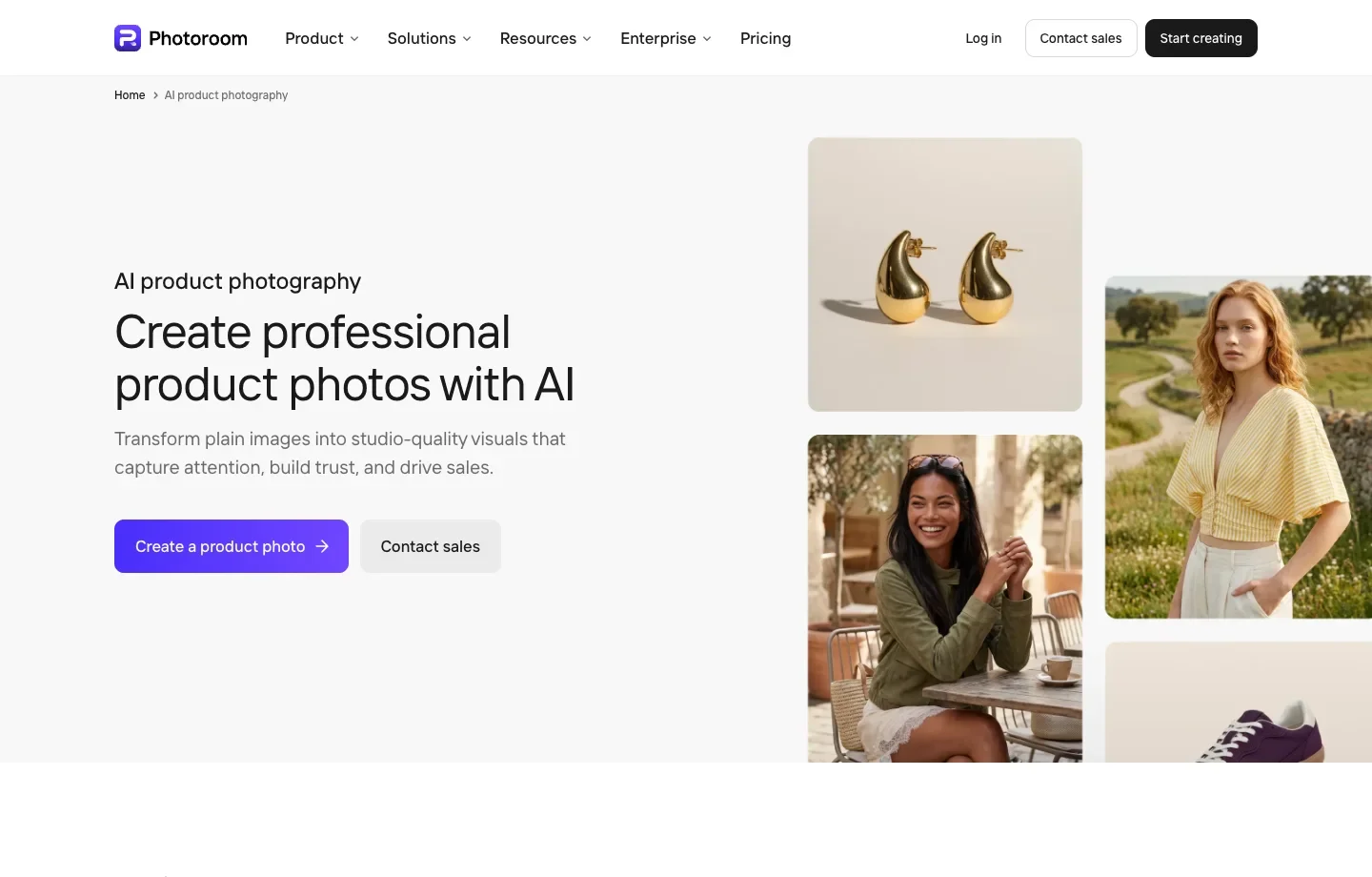
Preparing a catalog of products that must look consistent? Photoroom offers background removal, reusable templates and batch editing for that job.
Want to place the props yourself? Flair.ai gives you a scene editor where you can position objects around the product before generating.
Need a free studio or lifestyle concept from one snapshot? Free AI Image’s Product Photo Generator accepts a reference photo and offers five scene styles, with no sign-up required.
The 8 Best AI Product Photo Generators and What Each Does Best
1. Photoroom: give a catalog a consistent background and crop
Photoroom combines background removal with templates, shadows, and batch editing. For a row of bottles sold in different scents, decide on the padding, backdrop and lighting with one bottle first. Apply the treatment across the range and compare the thumbnails side by side. Consistent scale and clean edges often matter more on a collection page than an elaborate setting.
2. Free AI Image: try five scene styles from a single product photo
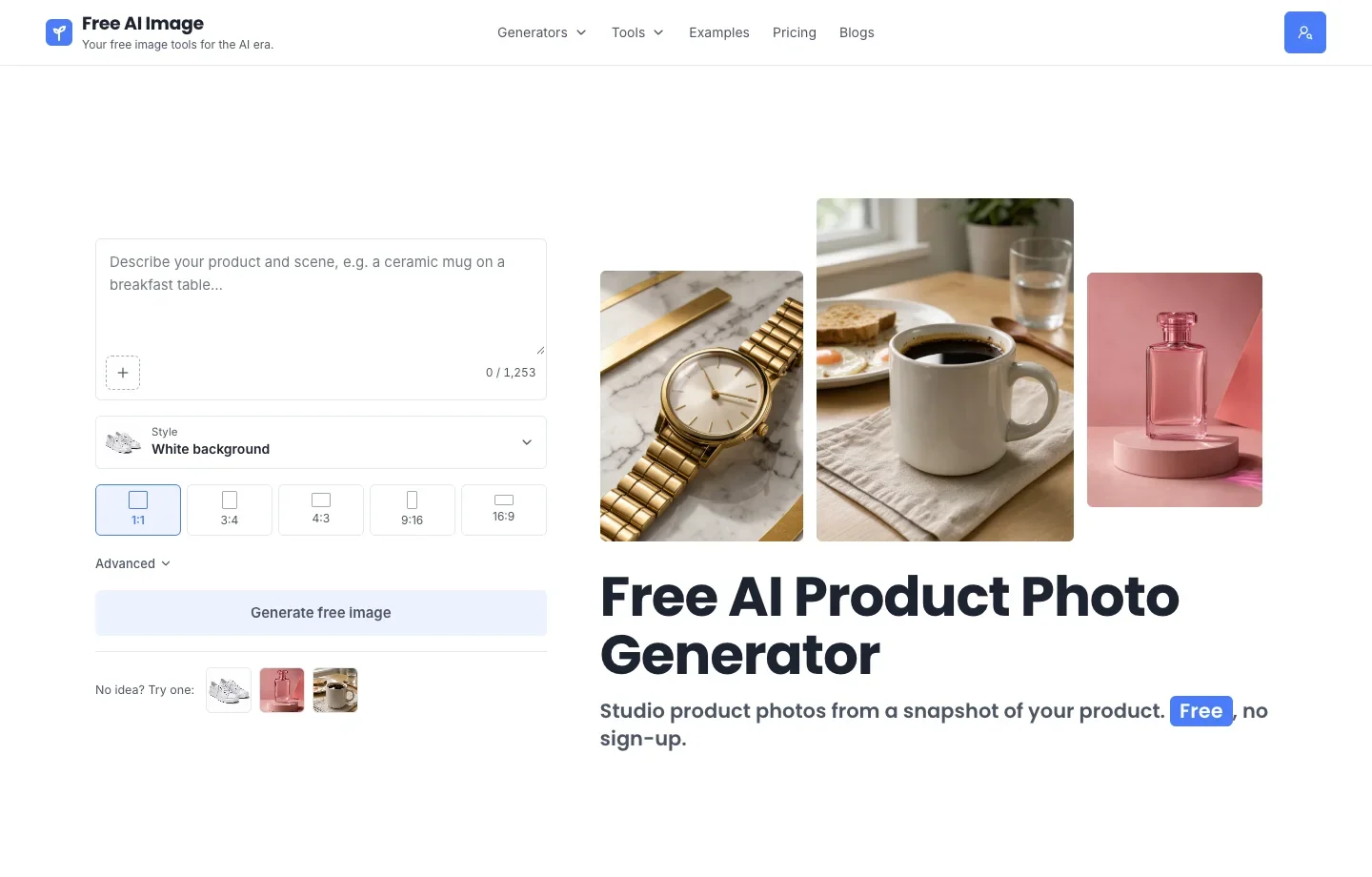
Free AI Image makes high-quality product photo concepts in white background, studio set, lifestyle, luxury, and natural outdoor styles. You can generate and download watermark-free images for free, with no sign-up required. Start with a clear reference of the item you sell. For a shoe, check the eyelets, sole and heel tab against the original before you use a generated scene in a listing.
3. Pebblely: explore several backdrops for one product
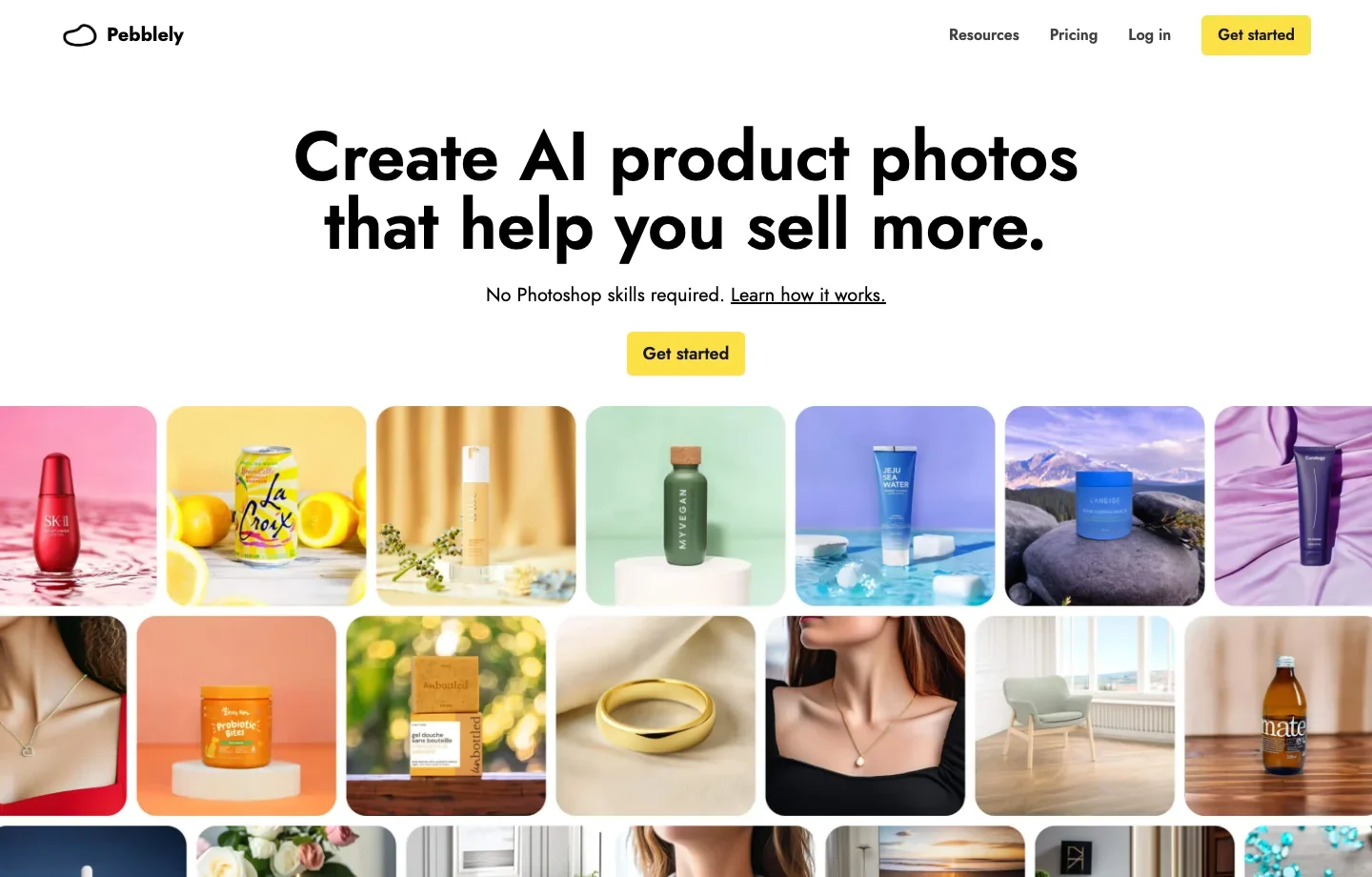
Pebblely is useful when the product stays the same but the mood needs to change. Its gallery pairs products with surfaces such as a colored riser, a log, and rippling water. For a summer campaign, try a pale tile surface and a poolside scene with the same bottle. Compare reflection, contrast and room for copy before spending time refining either image.
4. Flair.ai: arrange props for an art-directed shot
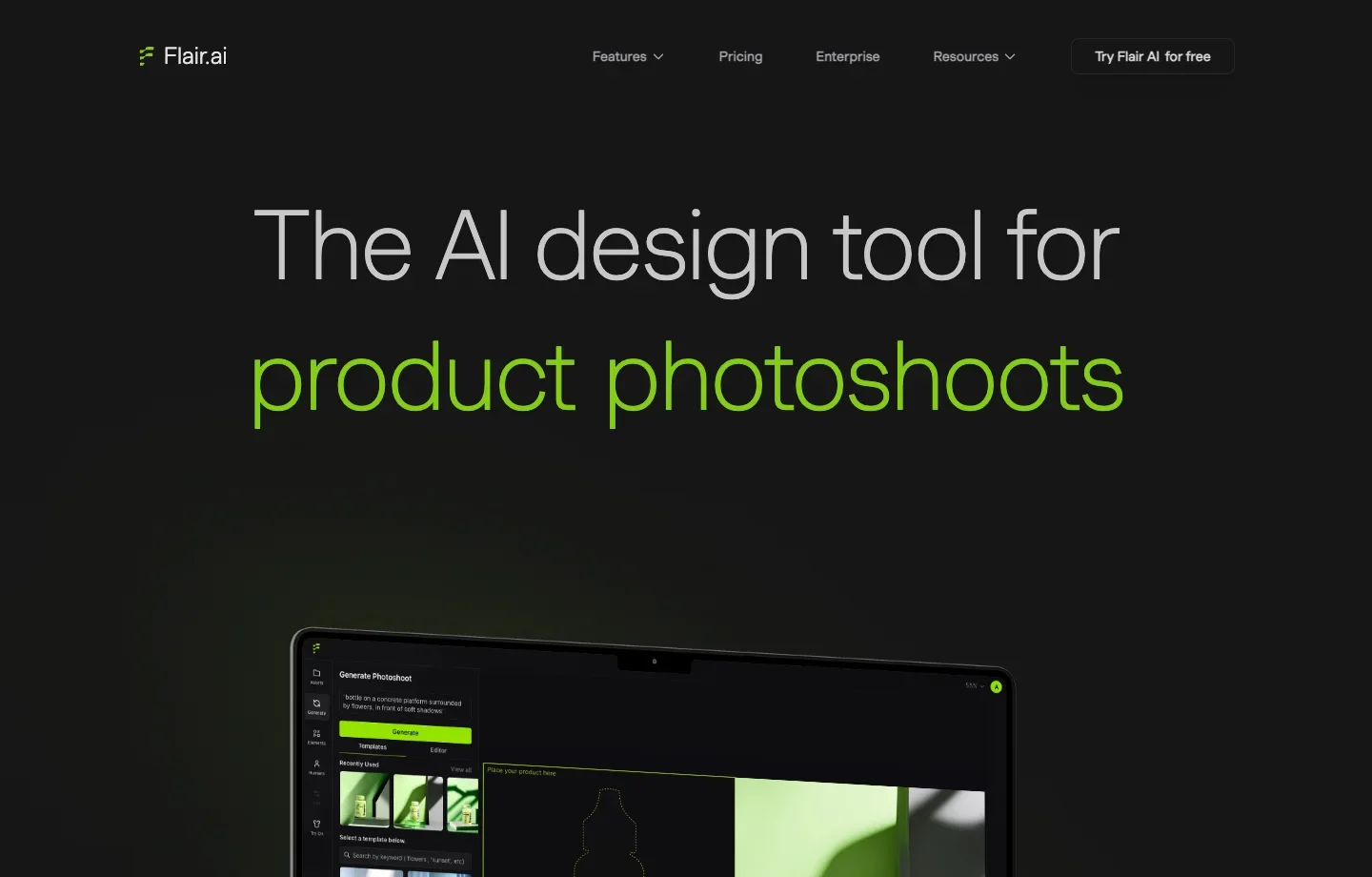
Flair.ai describes a drag-and-drop workflow for staging scenes with props. Use that control if a creative brief specifies where objects should go. For a face-cream campaign, position the jar to one side, leave the headline area open, and use a single prop to suggest scale. A reusable arrangement can also help when a second product needs a companion image.
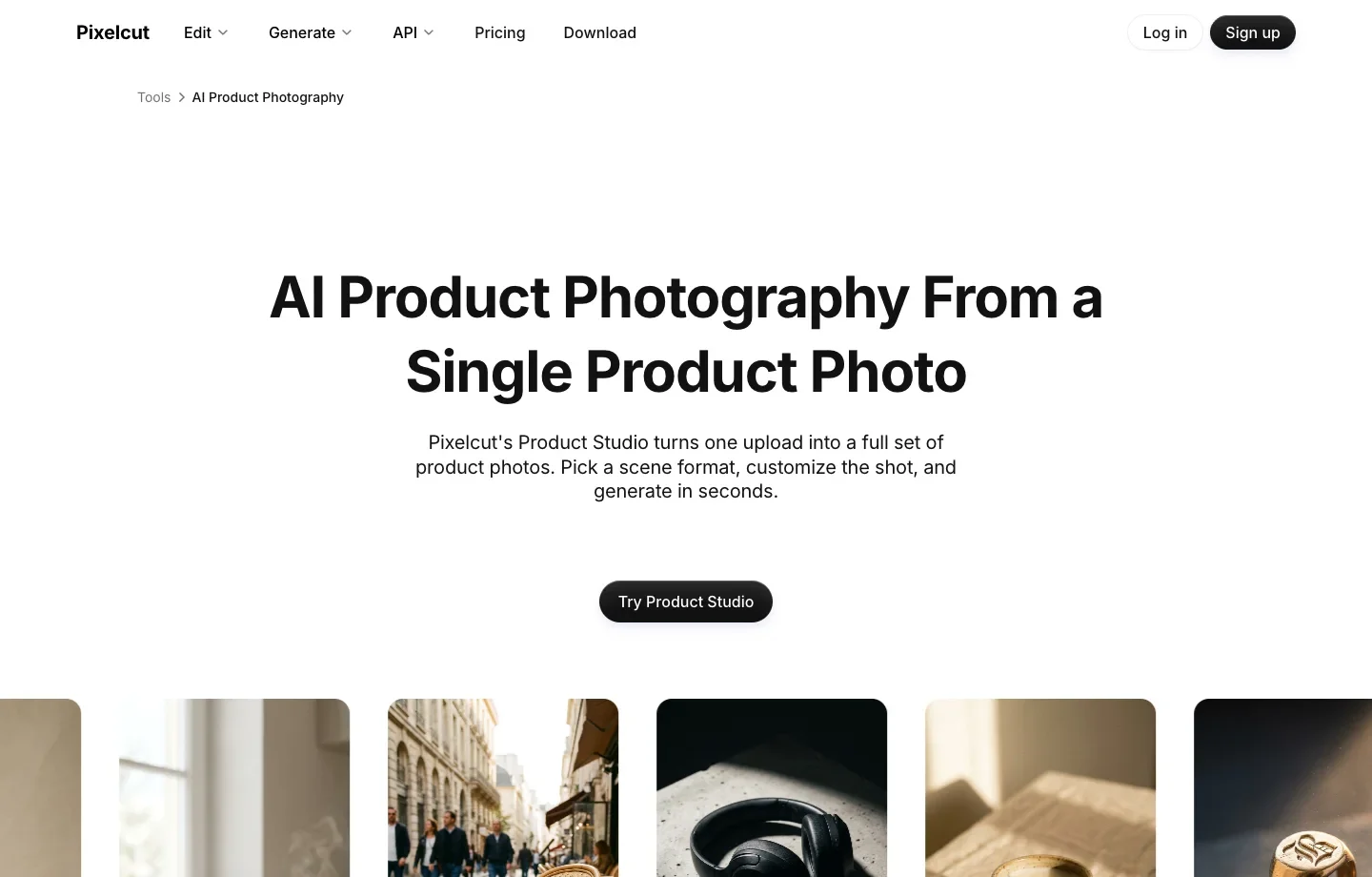
5. Pixelcut: build a shot list from one product upload
Pixelcut’s Product Studio offers formats for studio, lifestyle, and on-model scenes. Use the same product reference to plan a listing image and a secondary photo showing how the item is worn or held. Compare the proportions across the set before approving a shot for your store.
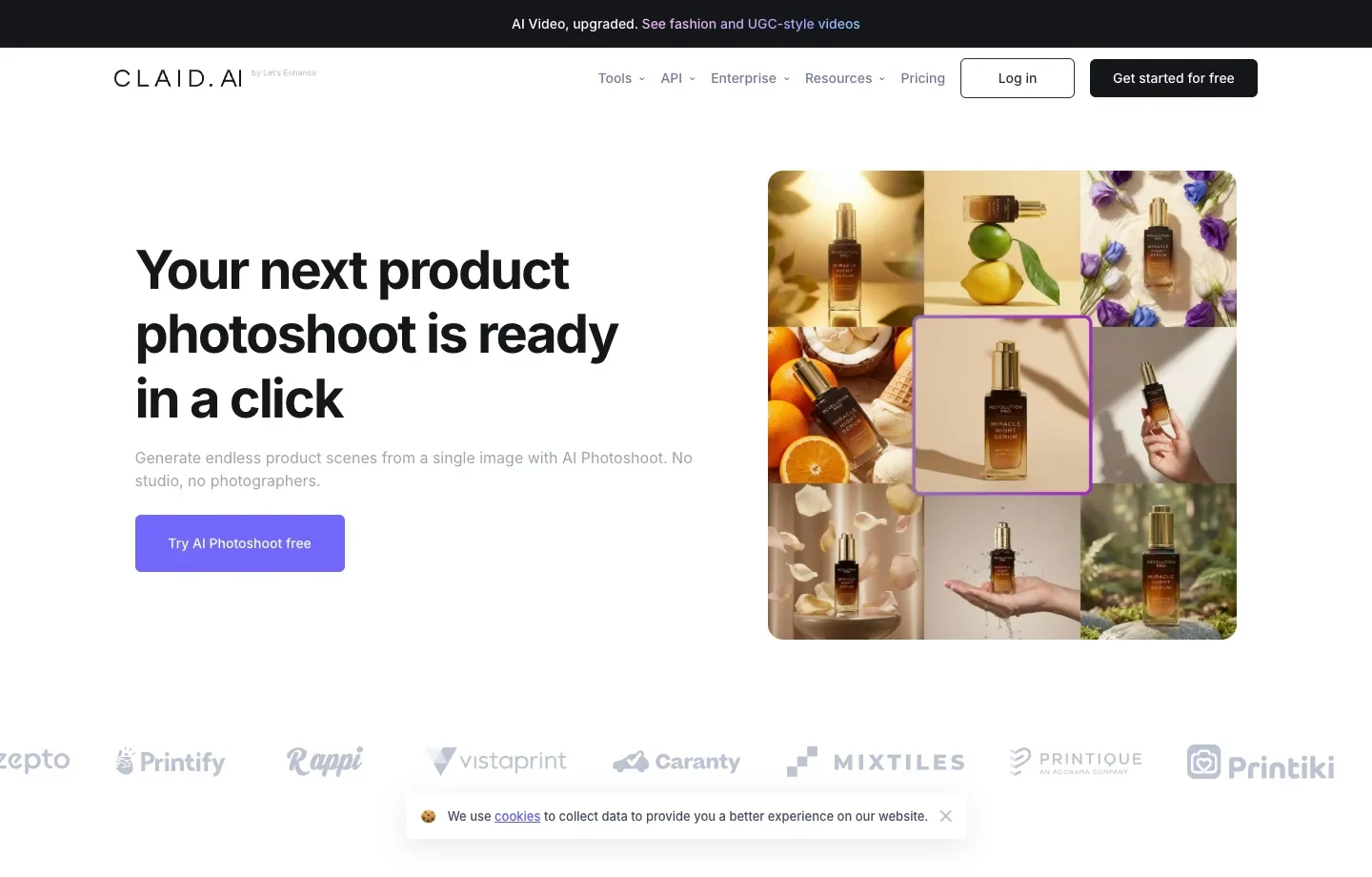
6. Claid: match a campaign’s visual reference
Claid’s AI Photoshoot accepts an inspiration image to guide colors, angles, and atmosphere around a product. If a campaign already has a warm, side-lit hero image, use that as a direction for the next item in the range. Check how the resulting light falls on the product and whether the label is still readable.
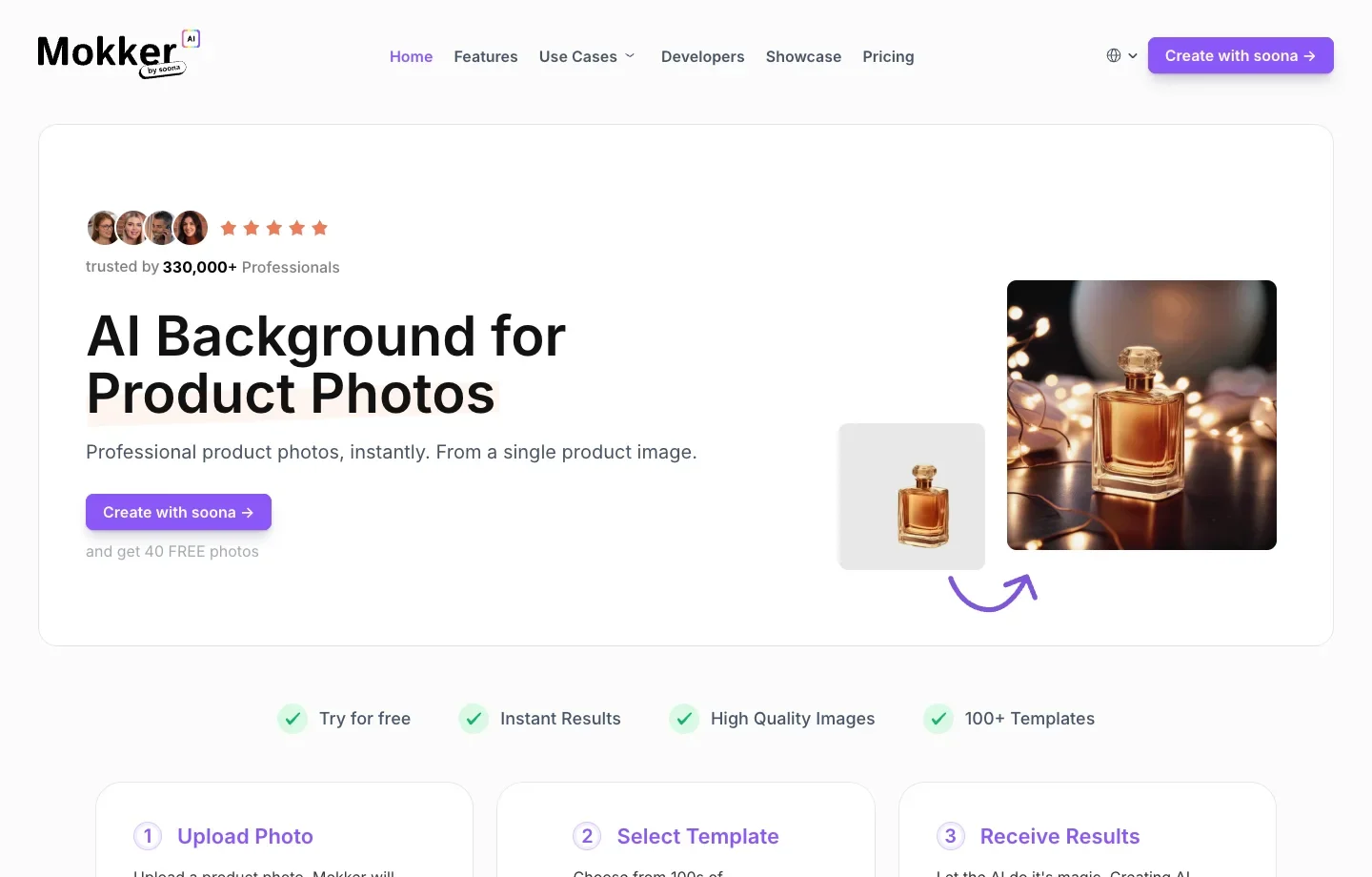
7. Mokker: replace a background using a scene template
Mokker describes an upload, background-removal, and template-selection workflow. A template is useful when you need a predictable scene before adjusting props. For a candle jar, compare its base and shadow against the new surface: even a small gap can make a product appear to float.
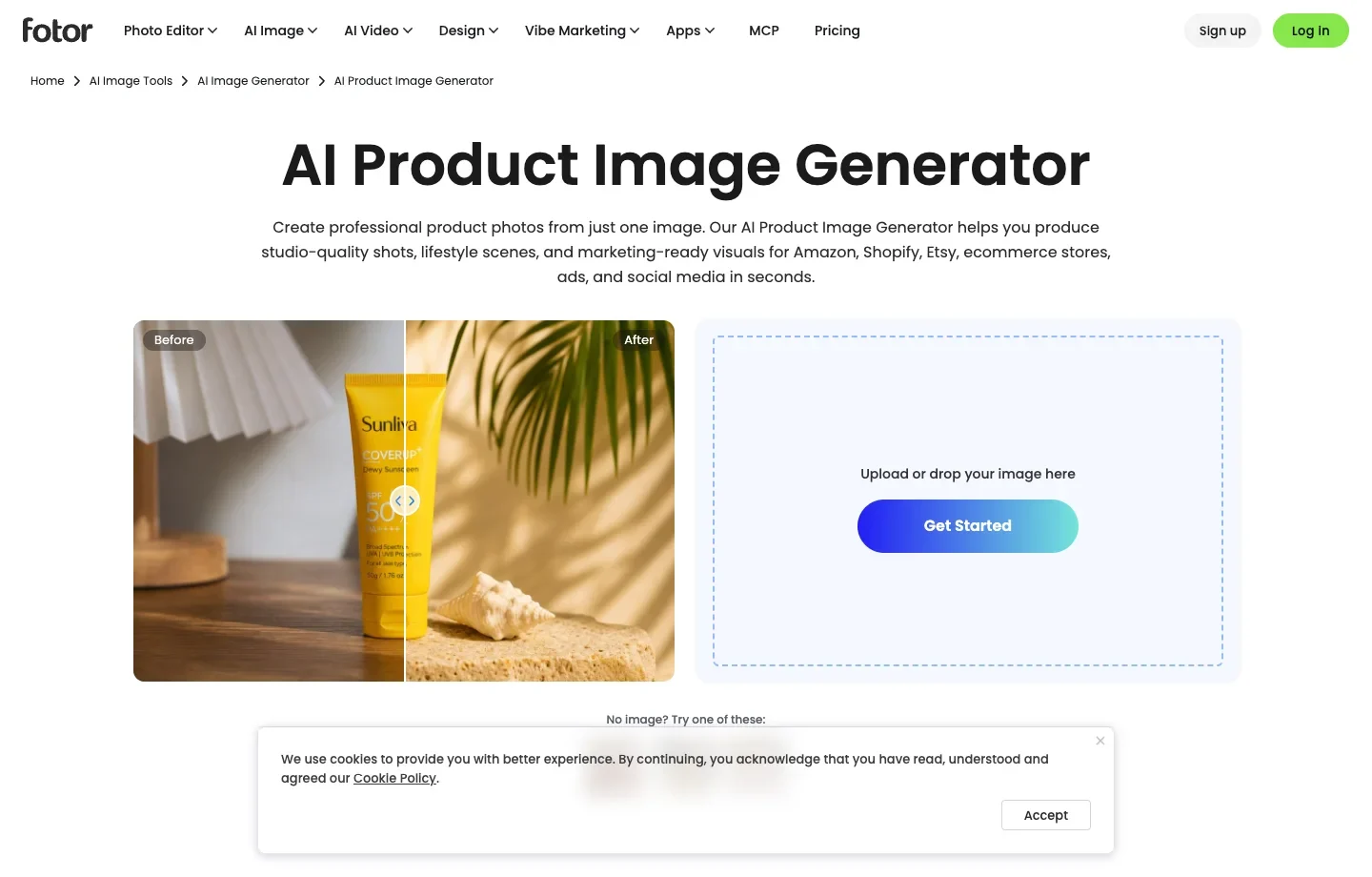
8. Fotor: turn a product image into a marketing visual
Fotor’s product image workflow combines scene generation with cleanup and marketing-design tools. For an ad, leave clear space on one side of the product for the headline. Start from the product photo, remove distractions, then build the campaign layout around the actual crop so text will not cover a key feature.
Which AI Product Photo Generator Should You Choose?
For a collection page, pick Photoroom when several products need the same crop, shadow and padding. For a campaign, Pebblely helps you explore different settings for the same item. Flair.ai gives you control over where the props sit, and Claid accepts a visual reference for the scene.
For one item, start with Free AI Image. Compare a plain background with a lifestyle shot, then check both against the item you actually sell.
How to Use Free AI Image’s Product Photo Generator
- Open the AI Product Photo Generator. Add a well-lit reference with + and describe the product and the setting, such as white canvas sneakers on a pale stone step.
- Choose White background for a plain presentation, Lifestyle for context, or Natural outdoor for an exterior setting. Set an aspect ratio that leaves enough space around the item.
- Select Generate free image and download the version you want to review. Zoom in on logos, lettering and material details with the original photo beside it.
In the gallery examples, white isolates the shoes for a listing, the wooden floor gives them an indoor setting, and the outdoor version places them on a textured surface. Check the sole and stitching in each when matching a real product:
| White background | Lifestyle | Natural outdoor |
|---|---|---|
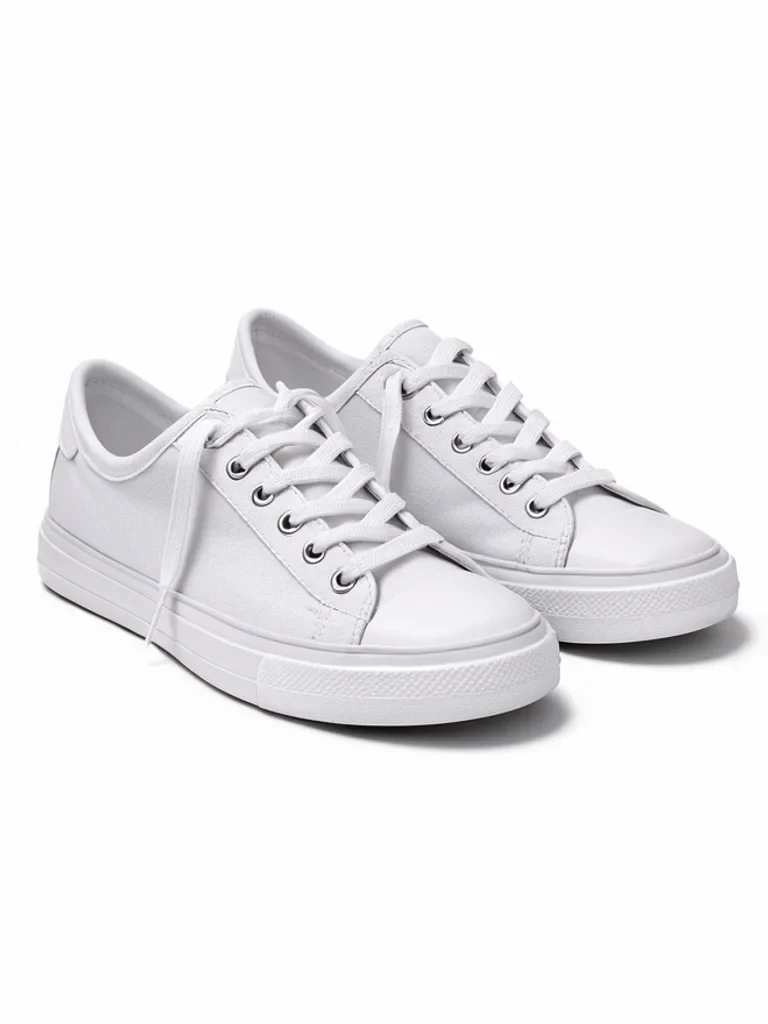 | 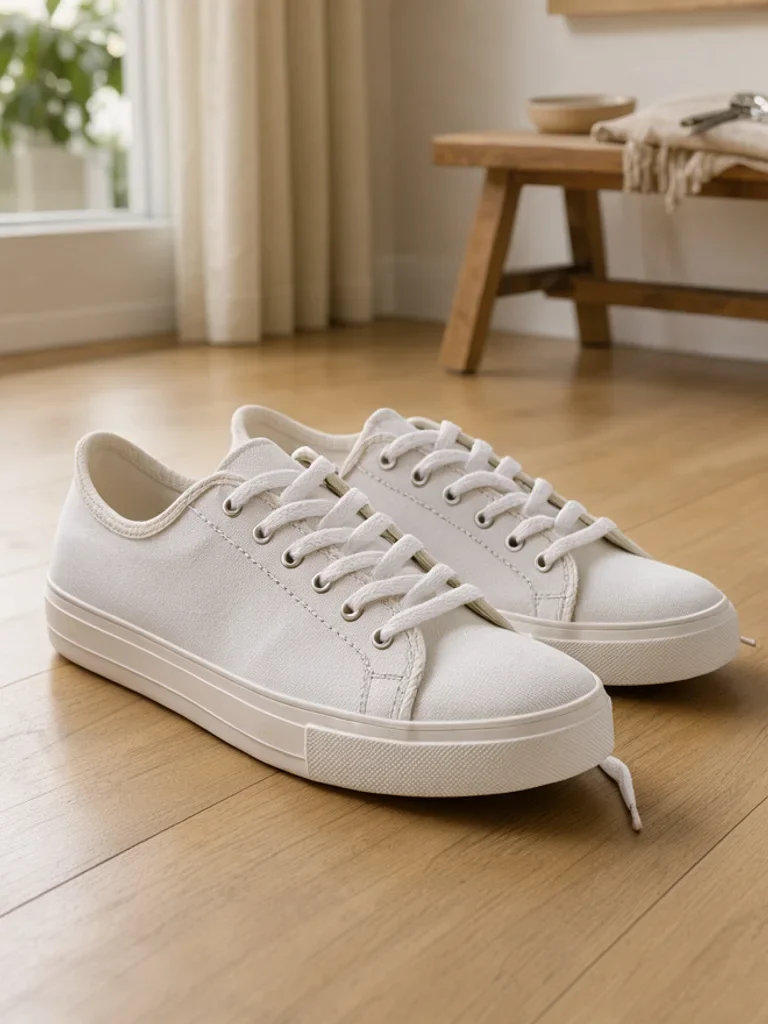 | 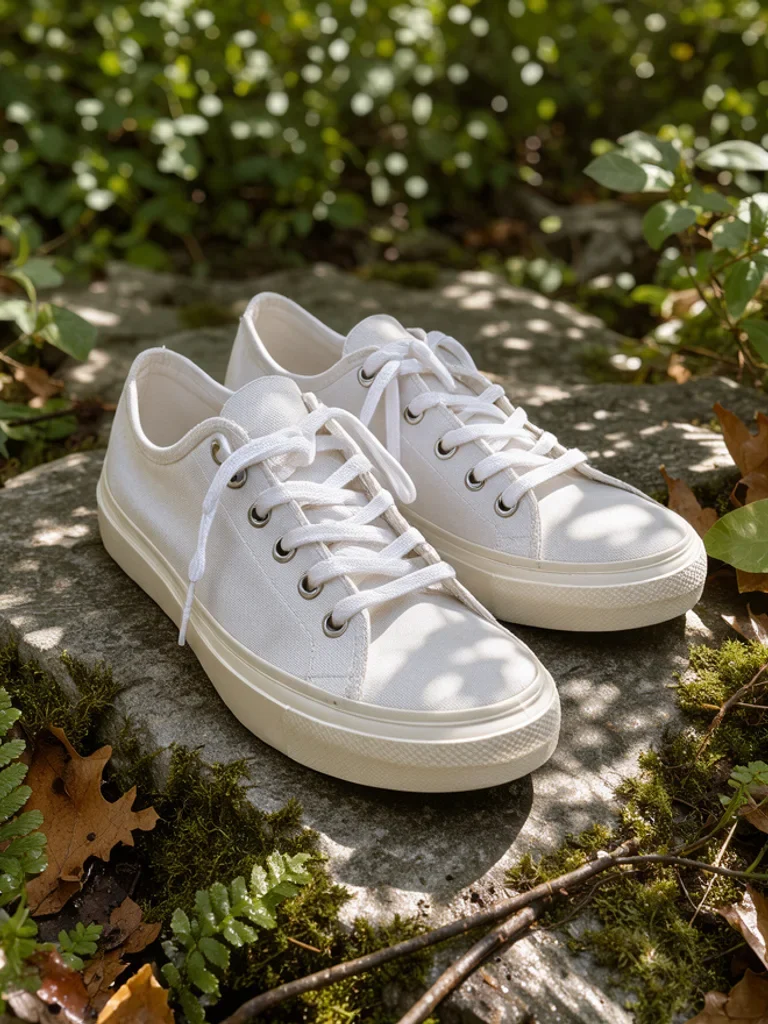 |
Free AI Image Product Photo Generator FAQ
Can I start without a product photo? A text description is enough for a concept. Upload a reference when the actual shape, color or packaging matters, and compare the generated version with the physical item.
What should I check before publishing a listing image? Compare the label, color, and proportions with the physical product. Check the marketplace’s current image dimensions and background requirements before uploading the file.