
8 Best AI Pixel Art Generators in 2026 for Free Retro Art, Game Sprites, and Animation
These eight AI pixel art generators range from portrait converters to tools for sprites that must fit a fixed grid and line up across animation frames.
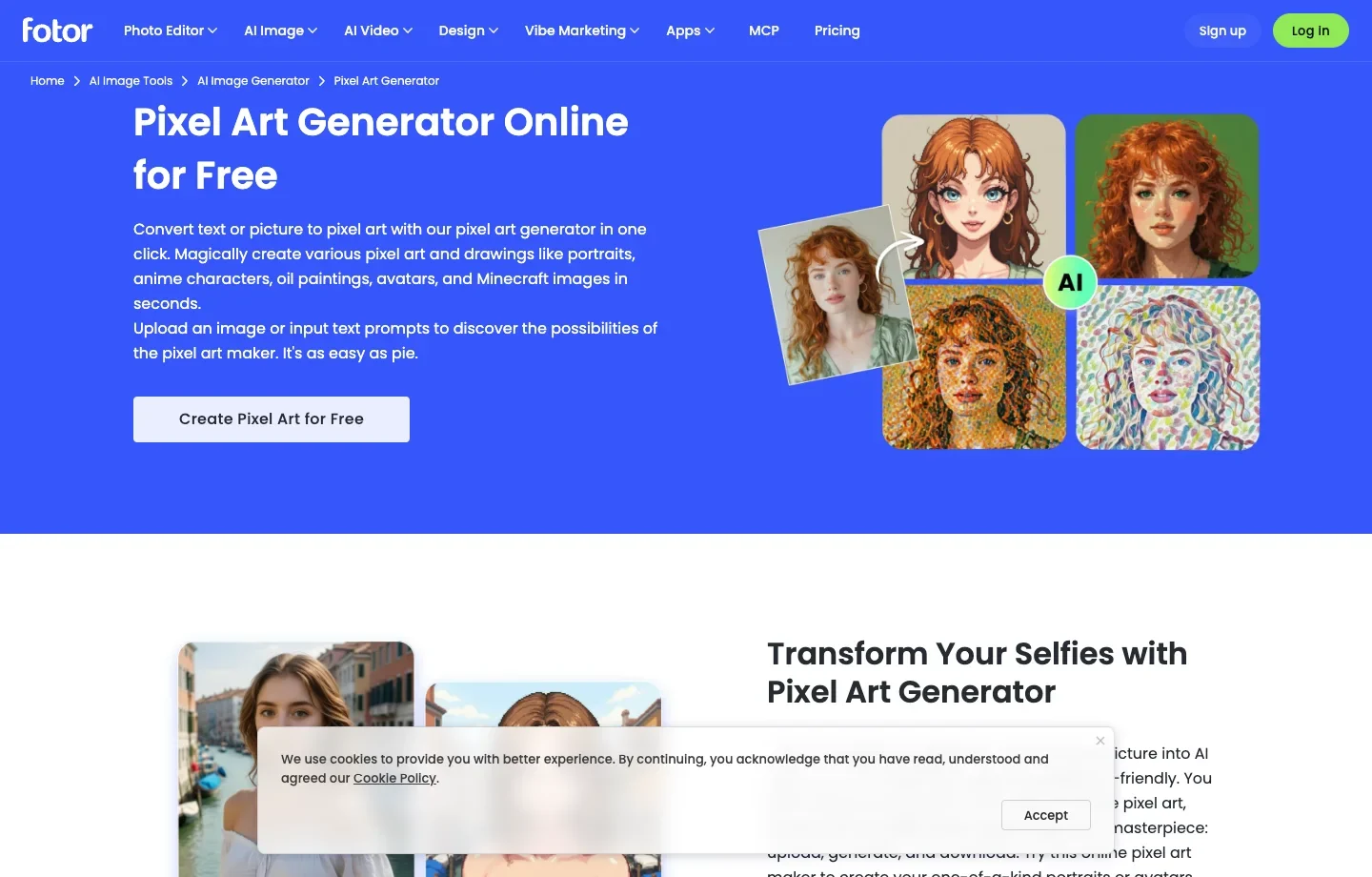
Turning a selfie or pet photo into a retro portrait? Fotor offers a photo-to-pixel-art workflow for that kind of one-off image.
Need a character that faces several directions? PixelLab provides dedicated character rotations and animation tools, useful when the asset has to move in a game.
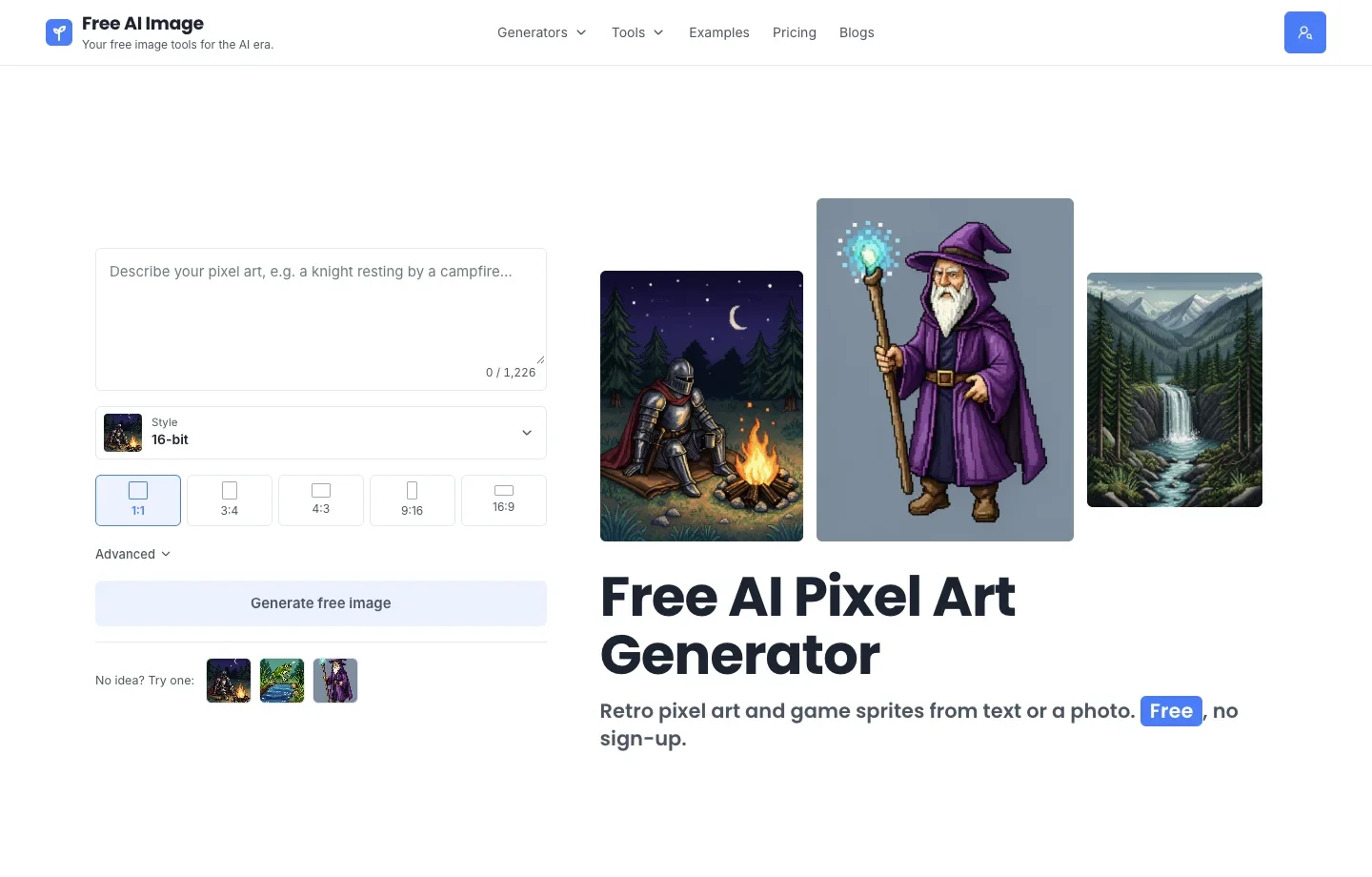
Want to sketch a retro character or scene first? Free AI Image’s Pixel Art Generator makes free pixel-style artwork from text or a reference, with no sign-up required.
The 8 Best AI Pixel Art Generators and What Each Does Best
1. Fotor: turn a familiar photo into a pixel portrait
Fotor’s pixel art generator shows how to reinterpret selfies, pets and landscapes. For a profile icon, start with a photo in which the subject fills most of the frame. After conversion, view it at the size your messaging app actually displays. Glasses, ears and an outline against the background are more useful recognition cues at that size than fine texture.
2. Free AI Image: sketch an 8-bit icon or a 16-bit scene
Free AI Image makes high-quality pixel-style designs with five presets: 8-bit, 16-bit, game sprite, pixel scene, and item icon. You can start from words or a reference picture, generate for free, and download without a watermark. No sign-up required. Use it to decide whether a character reads clearly or whether a scene needs a brighter focal point before building production assets.
3. PixelLab: build out the views a game character needs
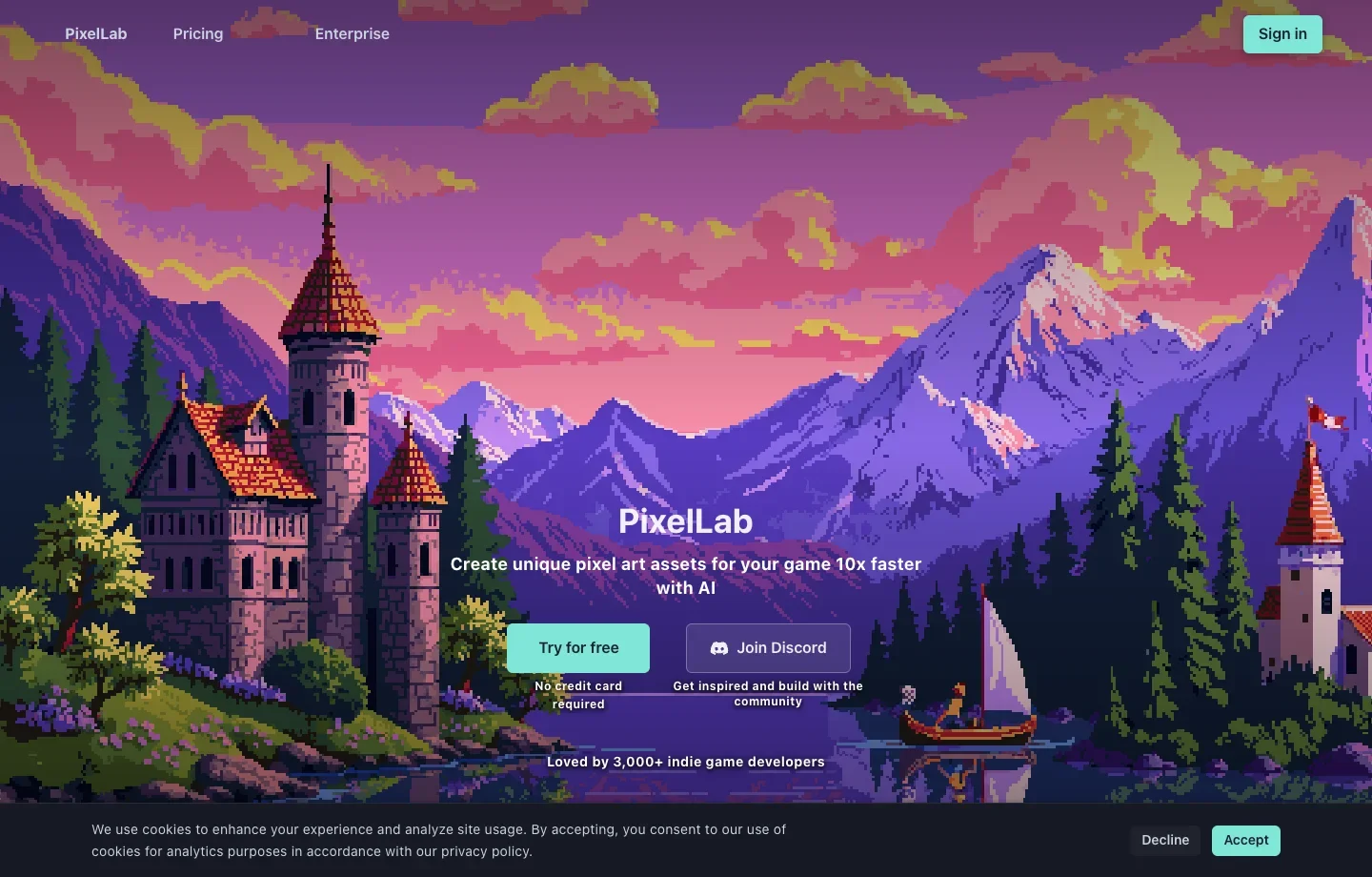
PixelLab offers four- and eight-direction character views, character animation, and tools for tiles. Start with an approved character sketch when your game needs the same figure in several poses. For a top-down character holding a shield, inspect the side and rear views together: the shield should stay on the intended arm and the feet should share a baseline.
4. pixie.haus: work toward a defined pixel grid and palette
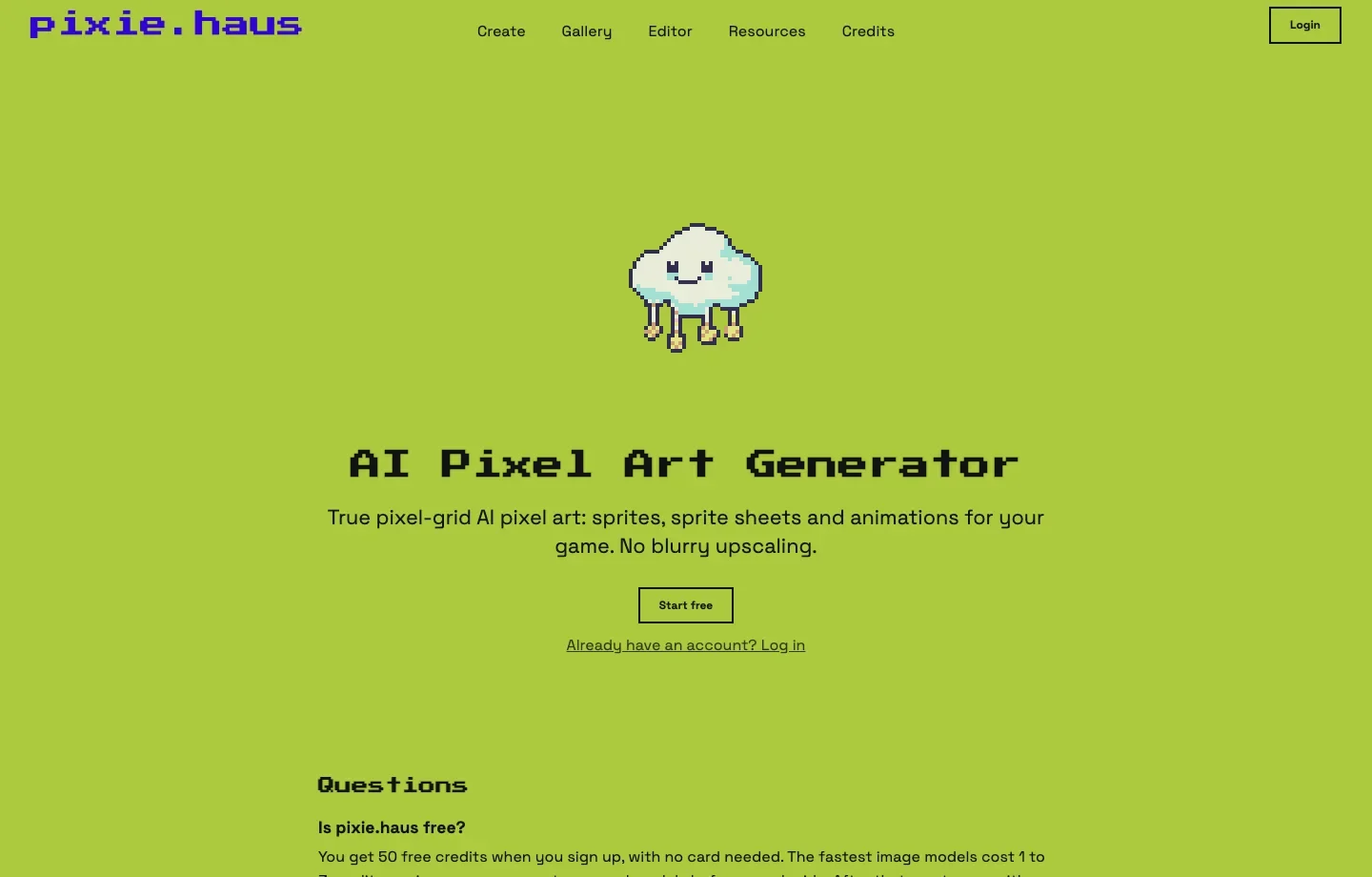
pixie.haus lists native grids including 32 × 32 and 64 × 64, palette controls, and sprite-sheet or GIF animation exports. That matters when you’re matching an existing game. If an inventory slot is 32 pixels wide, choose the target grid up front and inspect the icon at 1×. A potion bottle whose stopper disappears at that size needs a clearer silhouette.
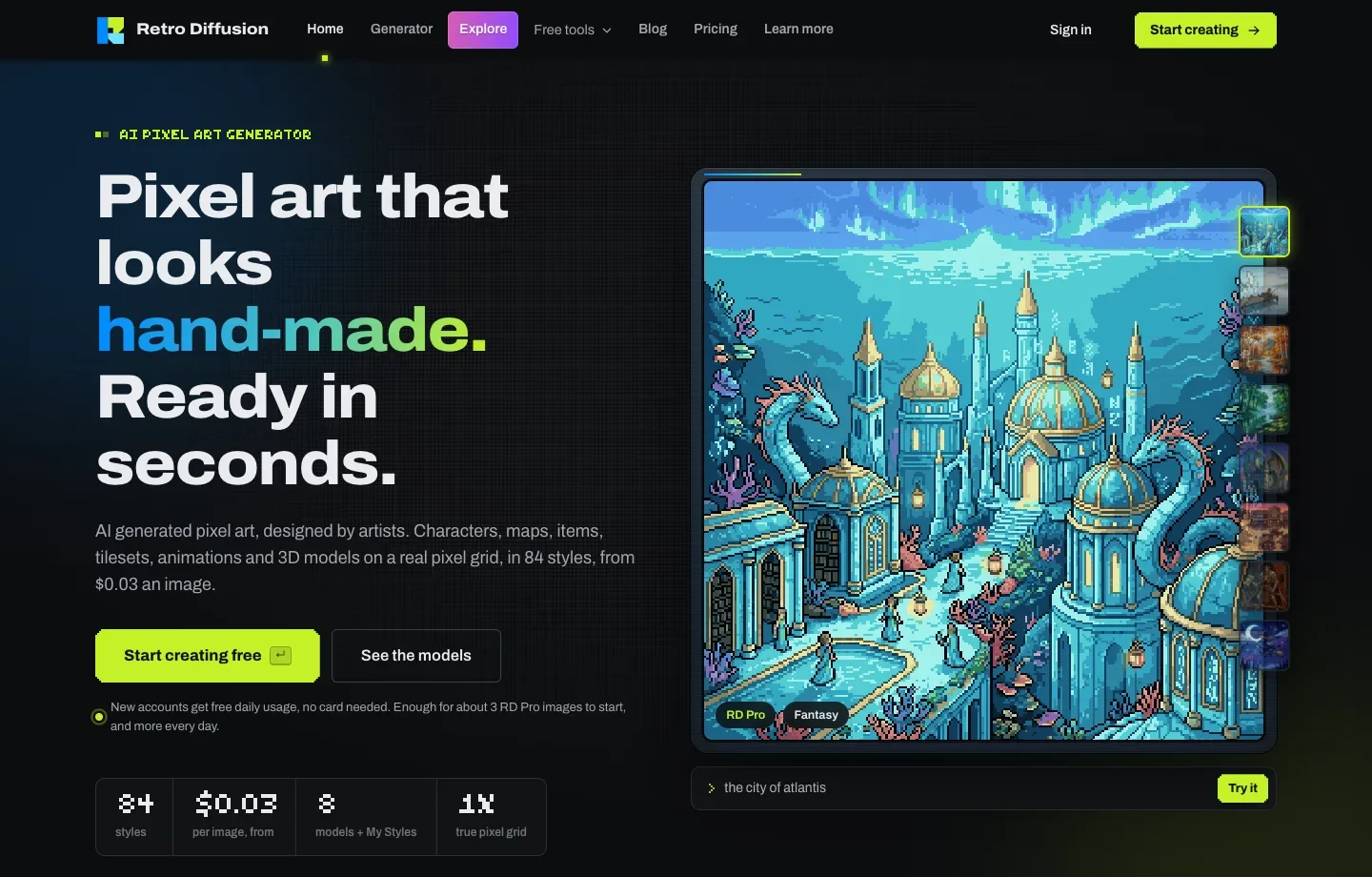
5. Retro Diffusion: match a new asset to a game-art style
Retro Diffusion organizes its showcase by game-art jobs such as inventory items, environments, and interface panels. Examples identify the model and style behind the artwork. If you need a potion icon for an existing inventory, start with an item example and check whether the bottle still reads at its intended size.
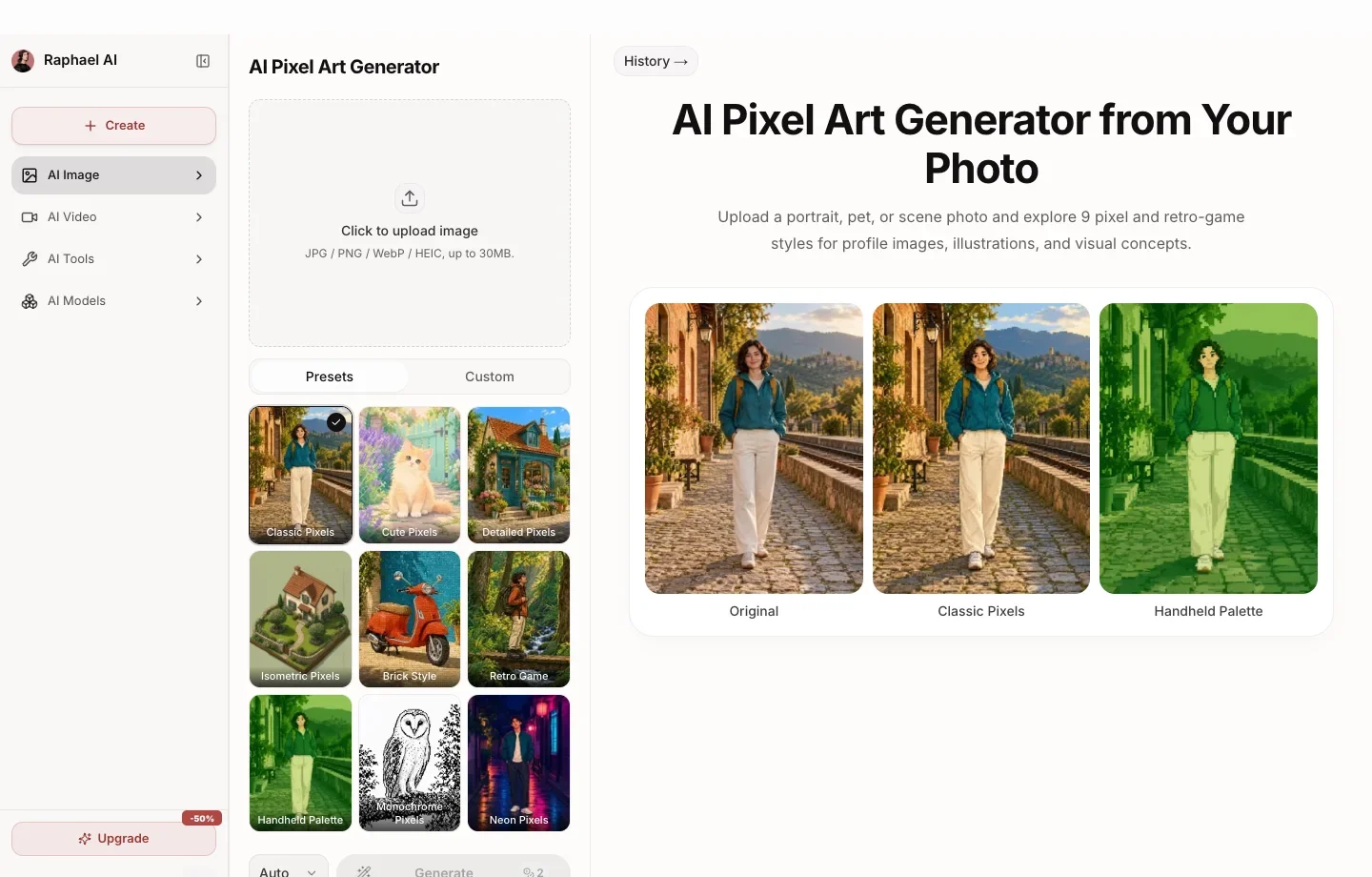
6. Raphael: compare preset treatments of one reference photo
Raphael’s photo converter lets you choose visual treatments including Handheld Palette, Monochrome Pixels, and Isometric Pixels. Its example panel pairs an original with a result. Use a familiar subject when choosing between presets: with a bicycle, for example, check whether both wheels and the frame remain legible.
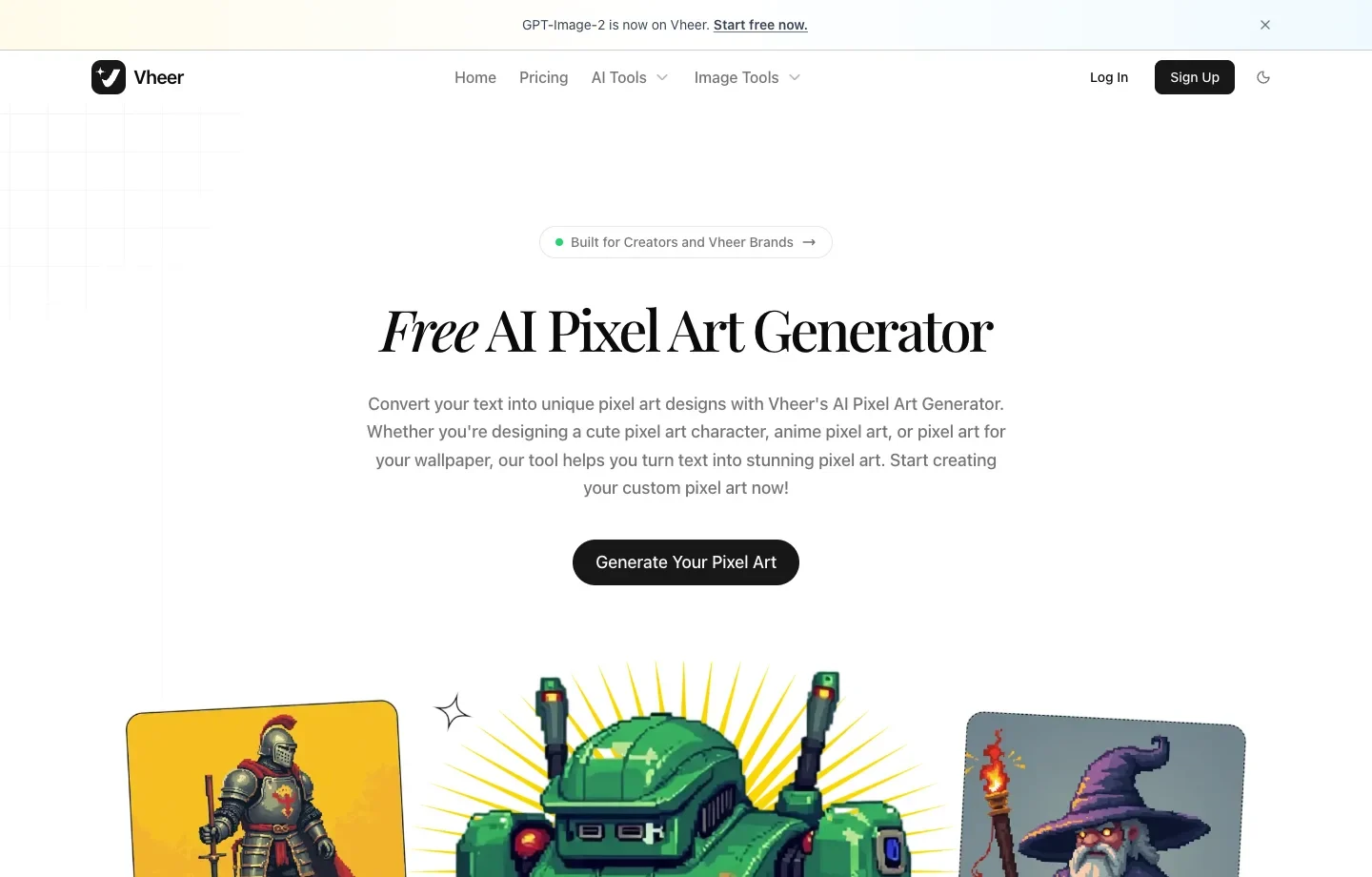
7. Vheer: build a retro scene from a text description
Vheer’s browser generator takes a written scene description and offers examples of characters, landscapes, and objects. Try specifying the viewpoint: “side view of a night train under a platform lamp” gives a different composition from “station seen from above.”
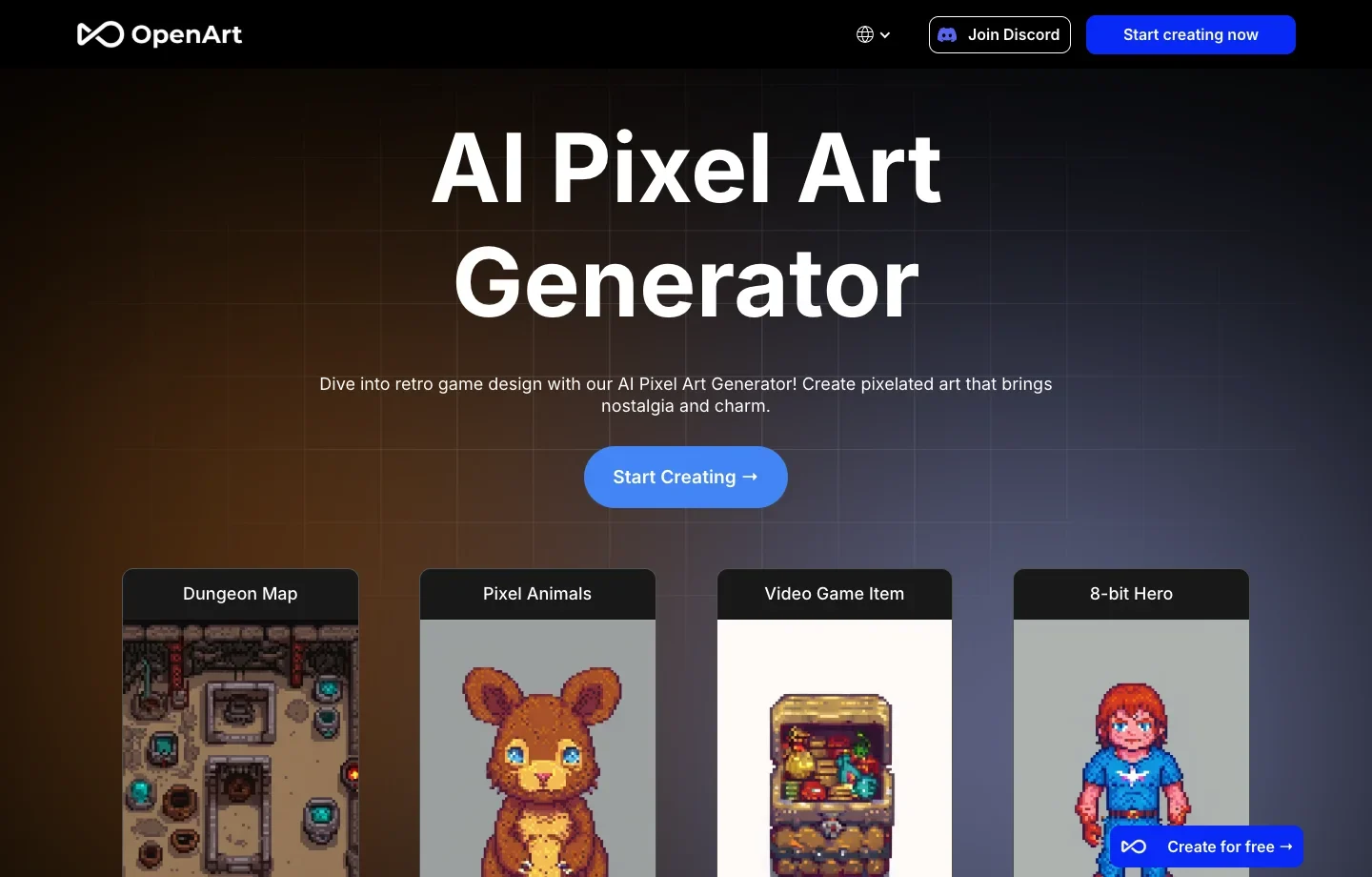
8. OpenArt: sketch a dungeon, item, or hero from an example brief
OpenArt groups its pixel-art examples around subjects such as dungeon maps, animals, game items, and heroes. Pick the nearest subject and adapt its prompt to the role your image will play. A treasure chest needs a readable latch and lid at thumbnail size; a dungeon concept needs distinct paths and rooms.
Which AI Pixel Art Generator Should You Choose?
For a profile picture made from a photo, start with Fotor. If the art has to fit an existing game, choose by the specification: pixie.haus lets you set a native grid size, while PixelLab provides multiple views of a character. For a scene where you are still choosing the look, try Free AI Image and compare the same subject in its 8-bit and 16-bit presets.
How to Use Free AI Image’s Pixel Art Generator
- Open the AI Pixel Art Generator. Enter a knight resting by a campfire. For a character concept, add one recognizable feature, such as a round blue shield.
- Choose 8-bit or 16-bit and select Generate free image. Keep the subject and switch to Game sprite for a character-oriented interpretation.
- Download your preferred image. Reduce it to its intended display size to see which details survive; use a pixel editor for final grid and frame preparation.
In the gallery below, the 16-bit campsite includes a tent behind the knight. The sprite version puts the knight and fire against a plain background.
| 8-bit | 16-bit | Game sprite |
|---|---|---|
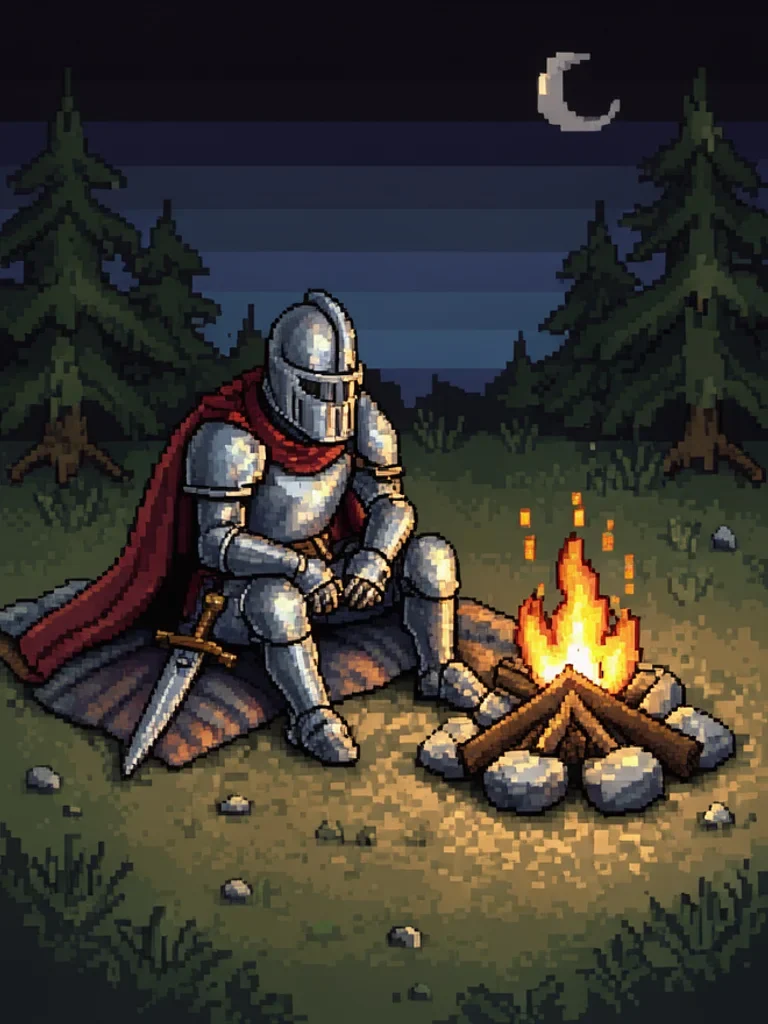 | 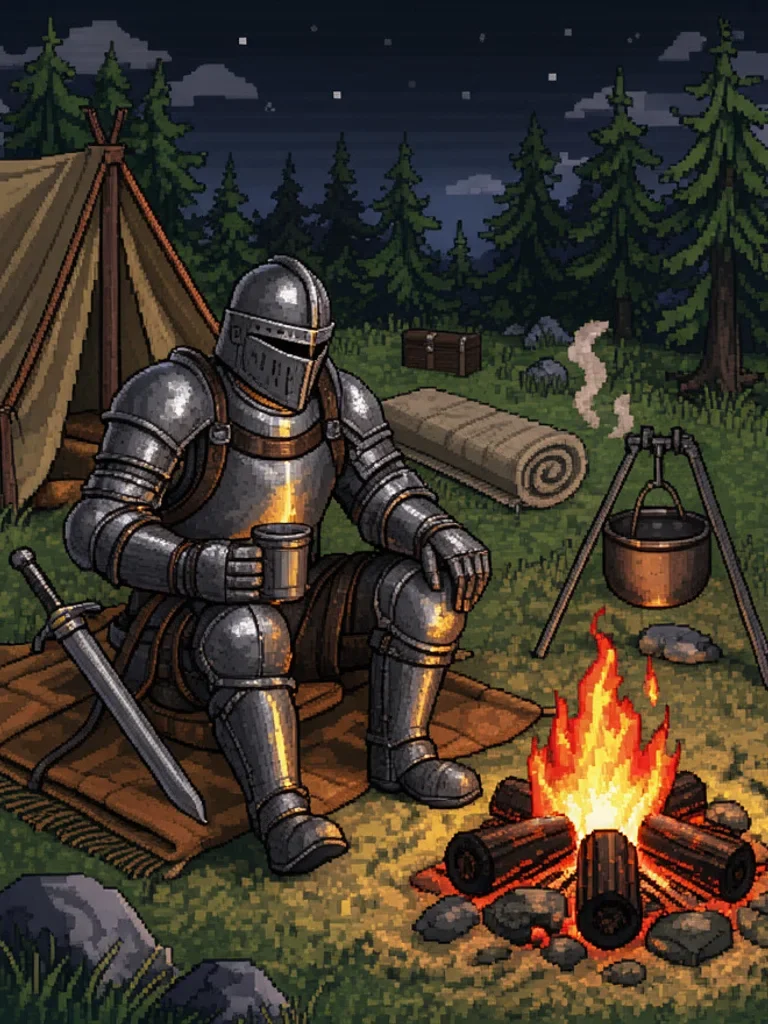 | 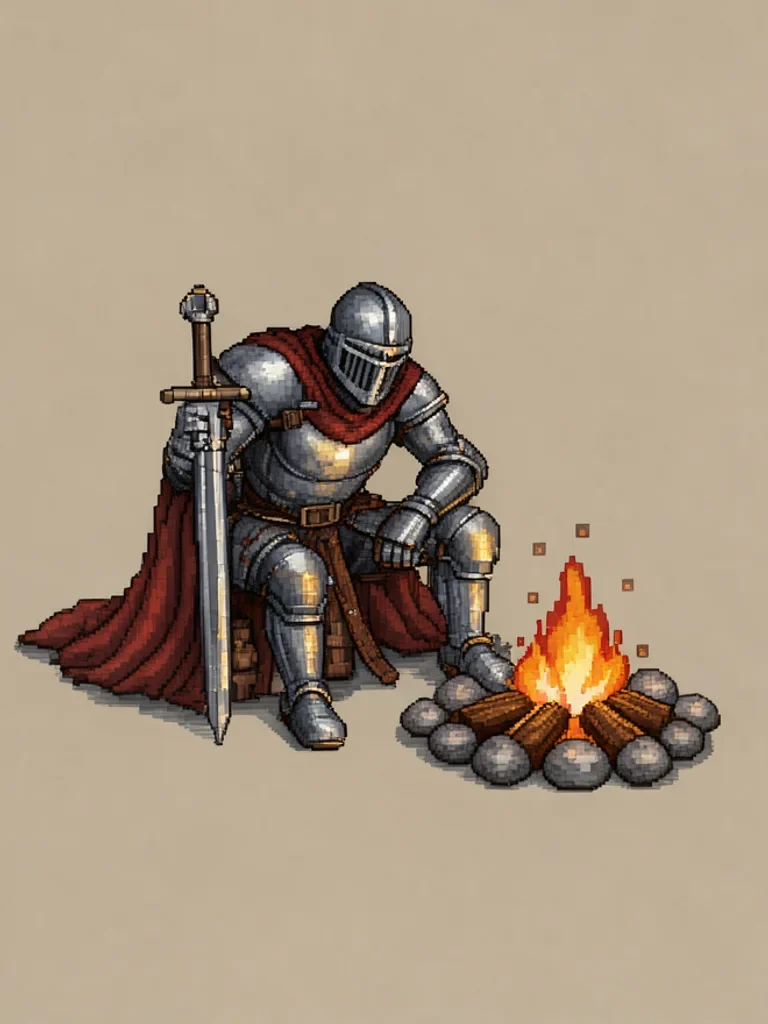 |
Free AI Image Pixel Art Generator FAQ
Does the game sprite preset export a sprite sheet? It produces one pixel-style image. A walking cycle needs multiple frames with matching dimensions, alignment and timing.
Can I use a sketch as the starting point? Yes. Add your reference with the + control and describe what to keep, such as the cloak shape or shield color.