
8 Best AI Coloring Page Generators in 2026 for Free Printables, Photos, and Names
These eight AI coloring page generators turn sketches, photos, names, and short descriptions into printable line art with different levels of detail.
Have a drawing that should guide the composition? Adobe Firefly takes reference images as well as written descriptions, useful when a picture should follow a particular arrangement.
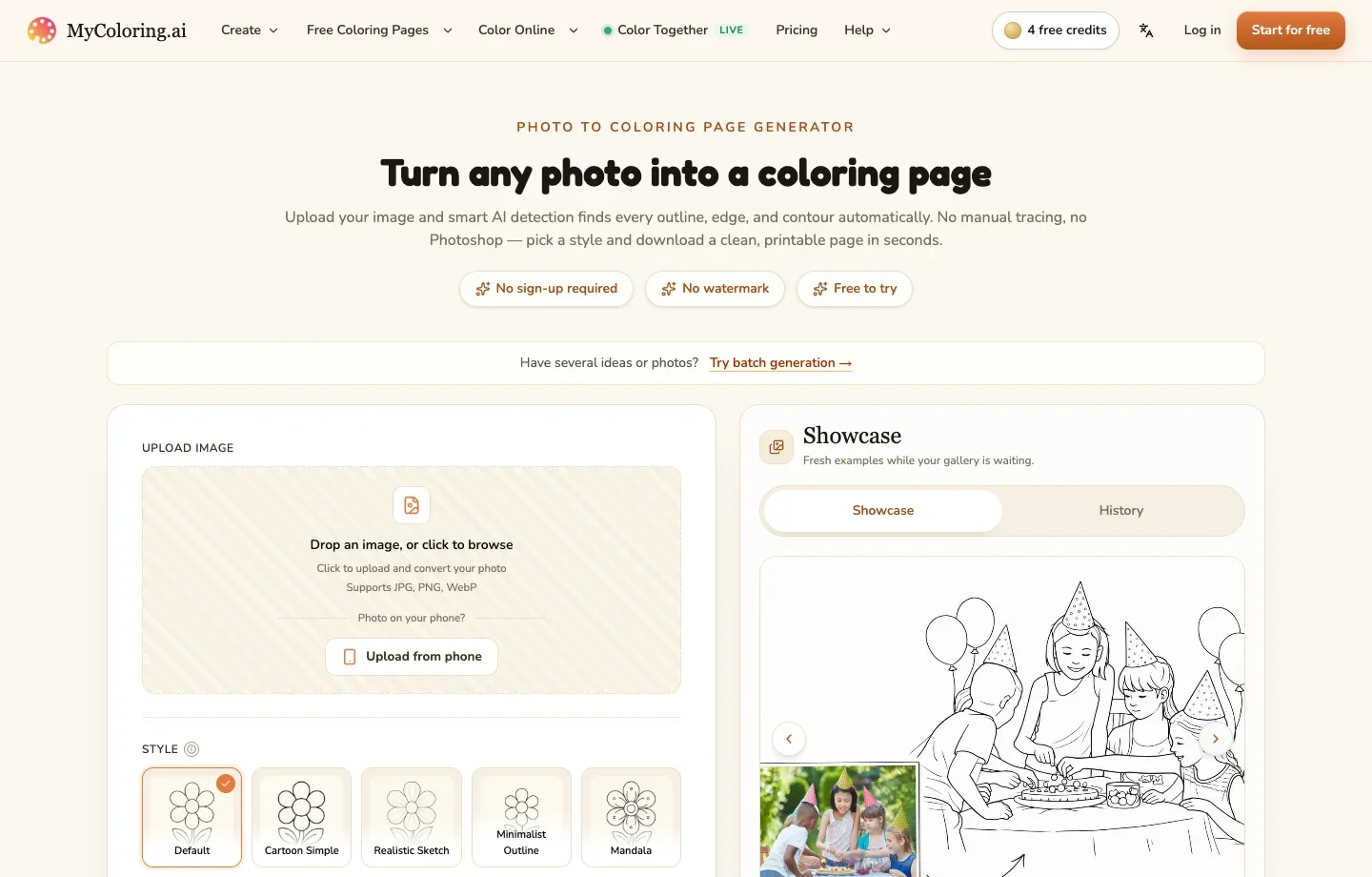
Want a coloring sheet from a family photo? MyColoring.ai provides a dedicated photo converter with outline styles and a PDF download option.
Need a fresh printable from a short idea? Free AI Image’s Coloring Page Generator makes free black-and-white artwork with no sign-up required.
The 8 Best AI Coloring Page Generators and What Each Does Best
1. Adobe Firefly: guide a new illustration with a reference
Adobe Firefly is useful when you want to direct the composition as well as the subject. For a class activity about a garden, start with a simple sketch of the beds, describe the plants you want, and ask for open areas and black outlines. Check the result at print size: a tangle of tiny leaves on screen can become a solid patch on paper.
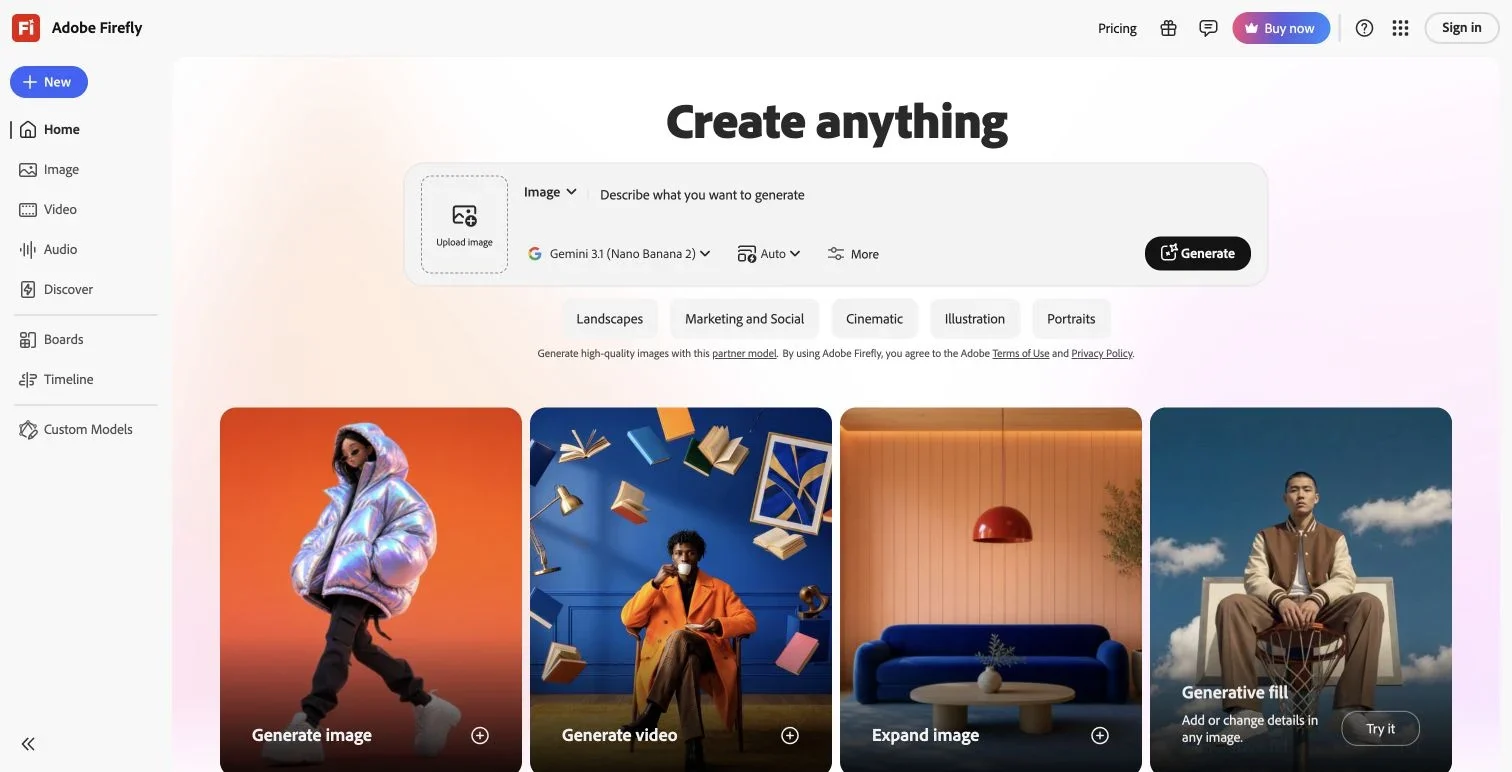
The archived Firefly workspace shows where to add the reference image.
2. Free AI Image: choose the level of detail before you print
Free AI Image creates high-quality coloring pages from a description or reference image. You can generate and download watermark-free pages for free, with no sign-up required. Its five presets include simple pages for kids, cute cartoon, detailed designs for adults, mandala, and realistic line art. Try a single owl in the kids’ preset before adding a woodland background; the spaces around the bird matter as much as the lines inside it.
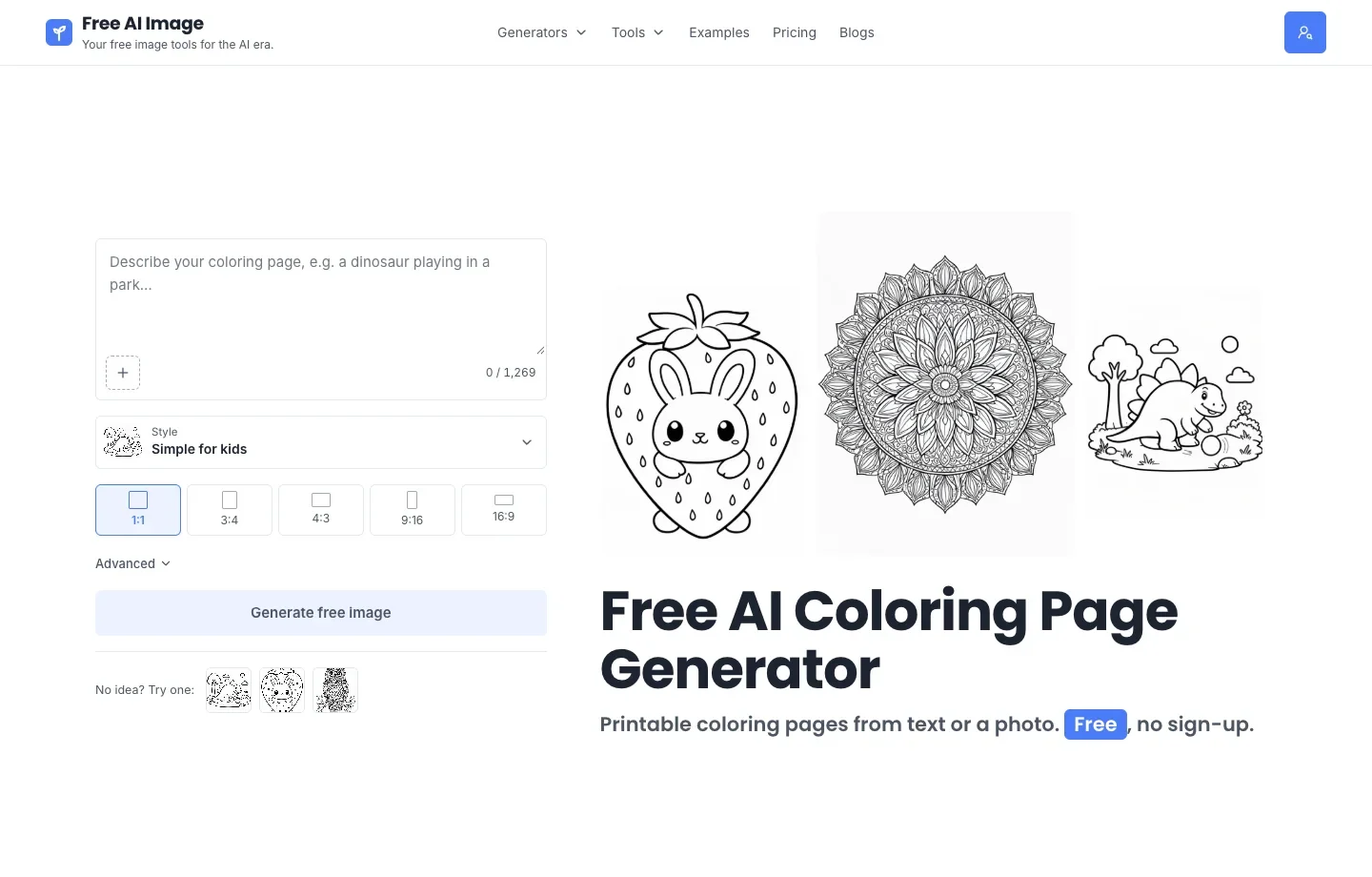
3. MyColoring.ai: turn a particular photograph into a printable sheet
The MyColoring.ai photo converter is a practical starting point for a birthday activity featuring the family dog or a familiar place. Upload the photo, then choose an outline treatment such as Cartoon Simple or Minimalist Outline. Its page lists PDF and PNG as download options. Use a clearly separated subject: a busy bookshelf behind the dog gives an outline converter many extra edges to trace.
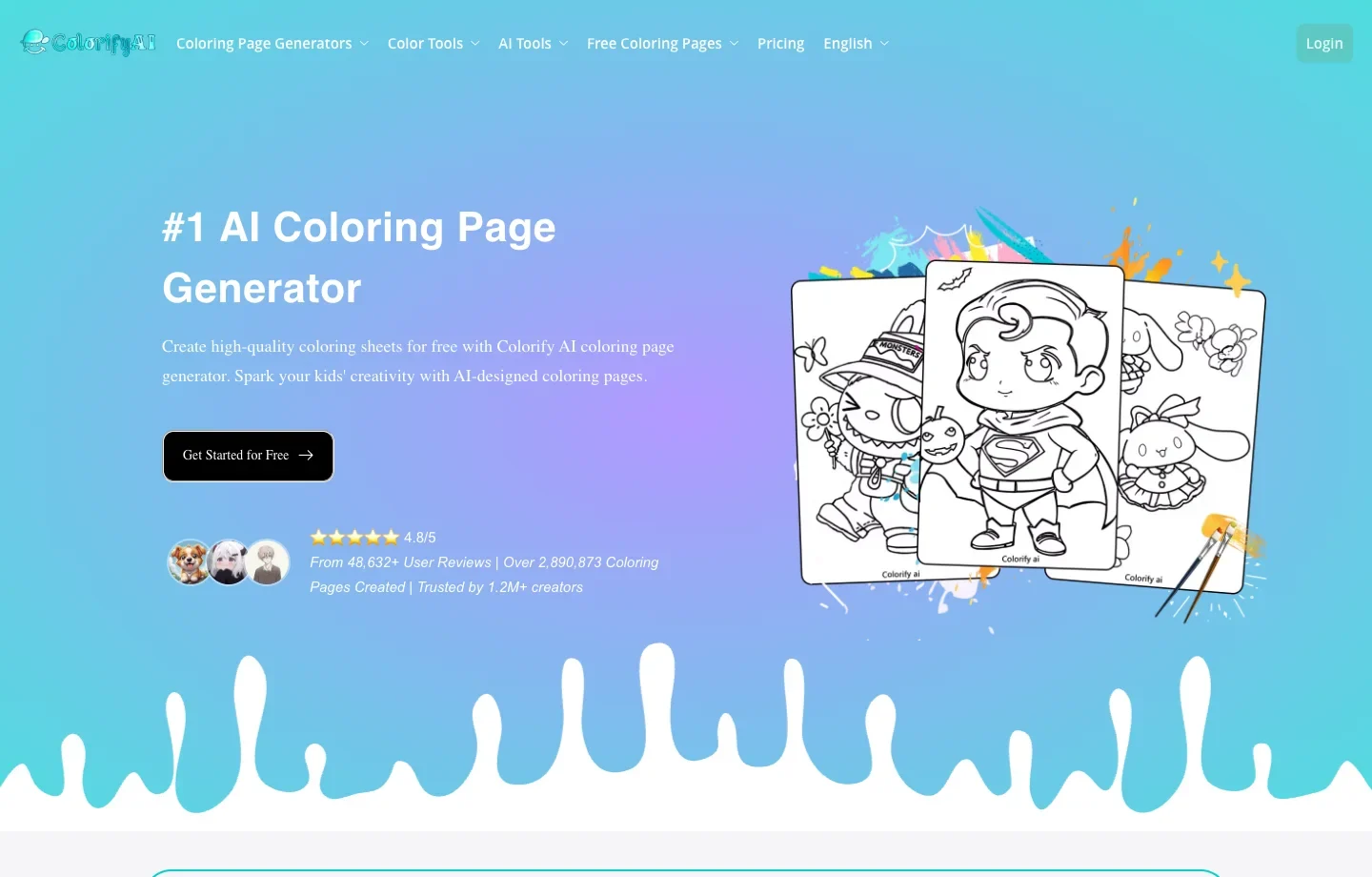
4. Colorify AI: make lettering the subject of the page
Colorify AI lists dedicated name and graffiti coloring generators alongside its text and photo tools. Choose the name workflow for a classroom handout where the letters themselves are what the child will color. Read every letter in the generated image before printing a batch, especially if the name has an uncommon spelling or diacritics.
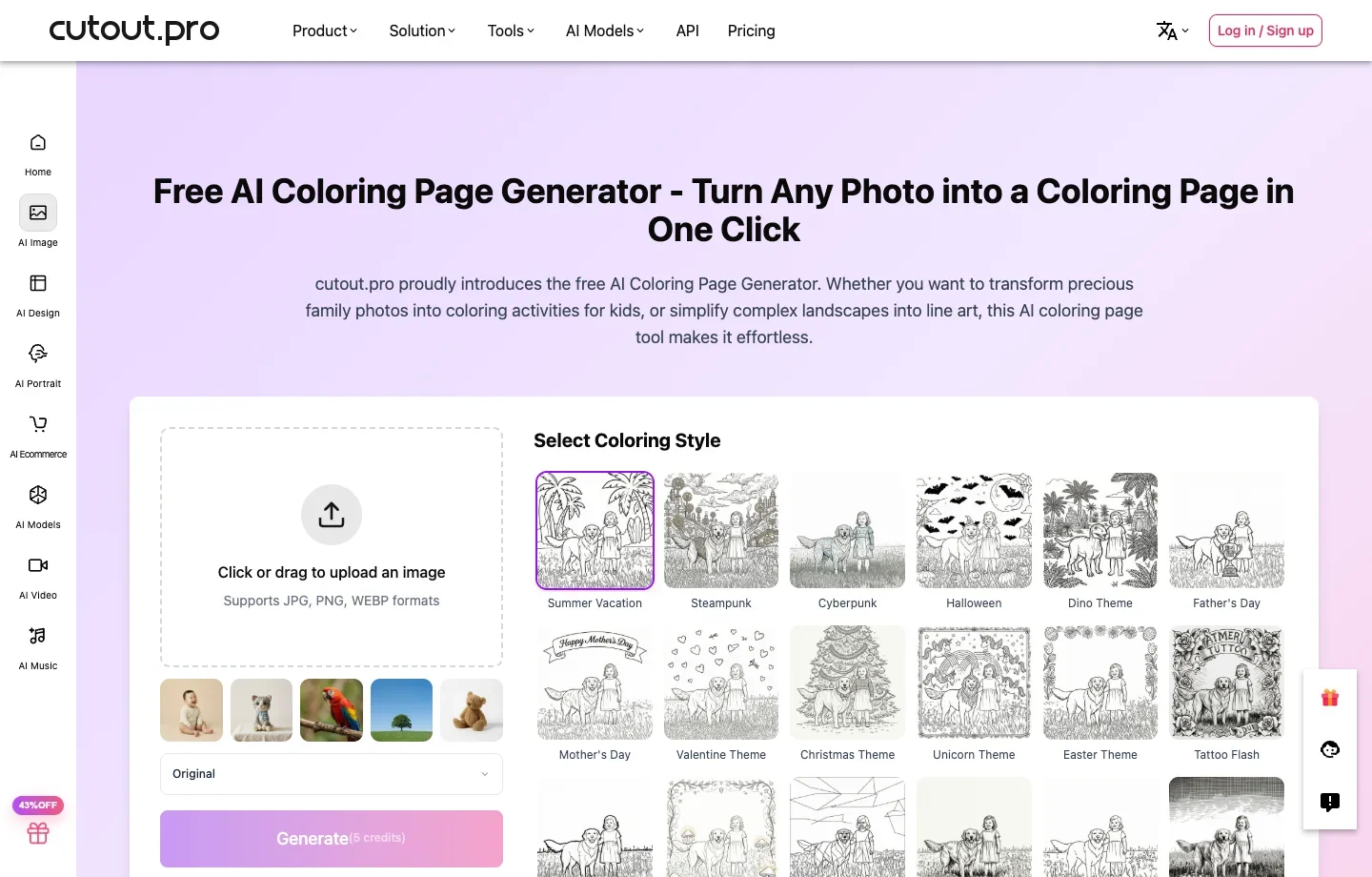
5. Cutout.pro: convert an existing colored sketch into outlines
Cutout.pro accepts an image and presents a grid of coloring styles. It can turn a child’s colored drawing into a fresh sheet the class can color again. Choose a style that preserves the drawing’s main shapes, then check that pencil marks and paper texture have not become extra outlines.
6. iColoring AI: make an outline and a color reference
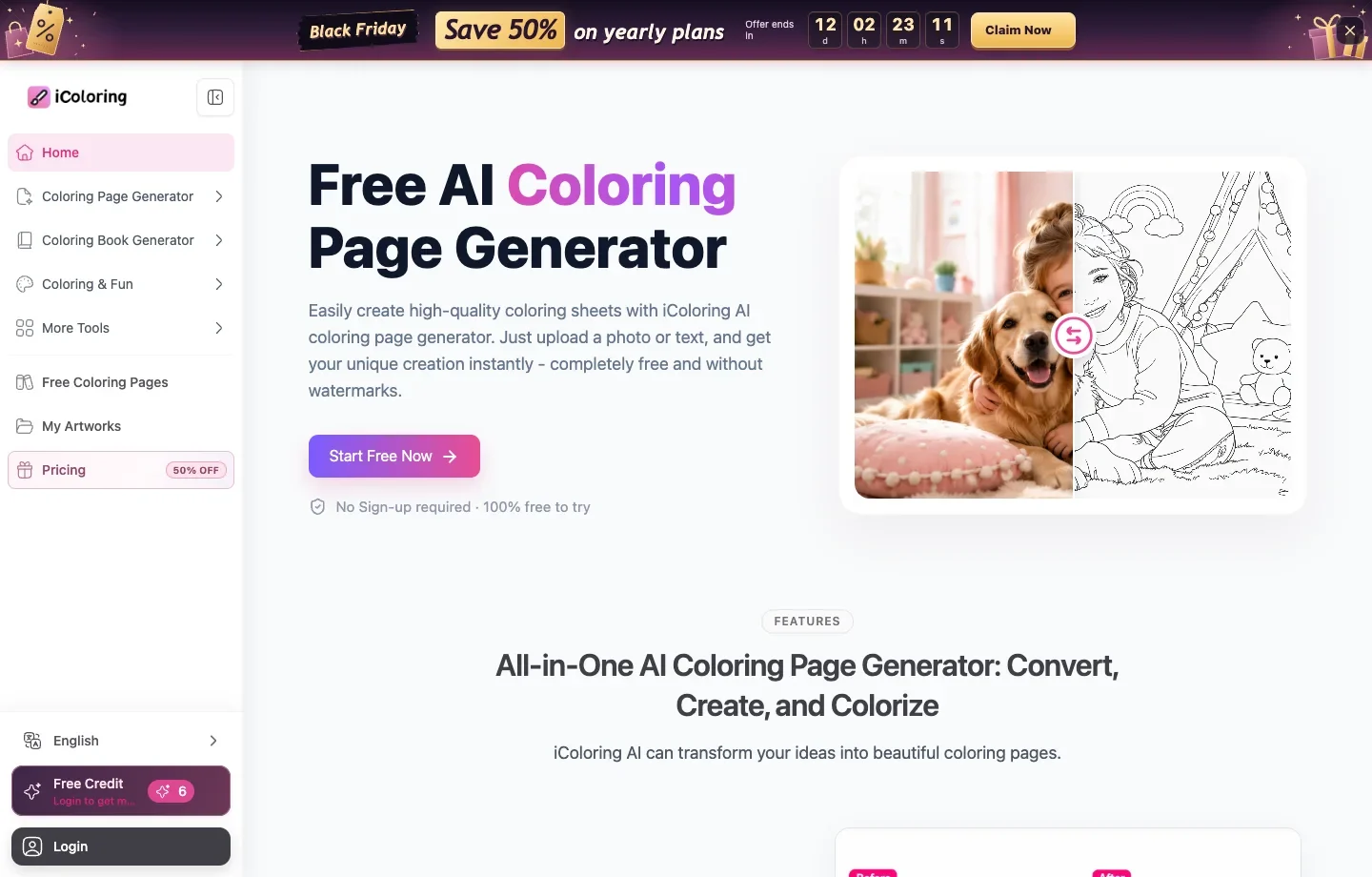
iColoring AI combines text- and photo-based page creation with a colorizer. A teacher can prepare a blank worksheet, then use the colorizer on the outline with a theme such as autumn leaves to make a separate reference. Keep the blank version for children who prefer to choose their own colors.
7. ColoringBook AI: plan several pages around a recurring character
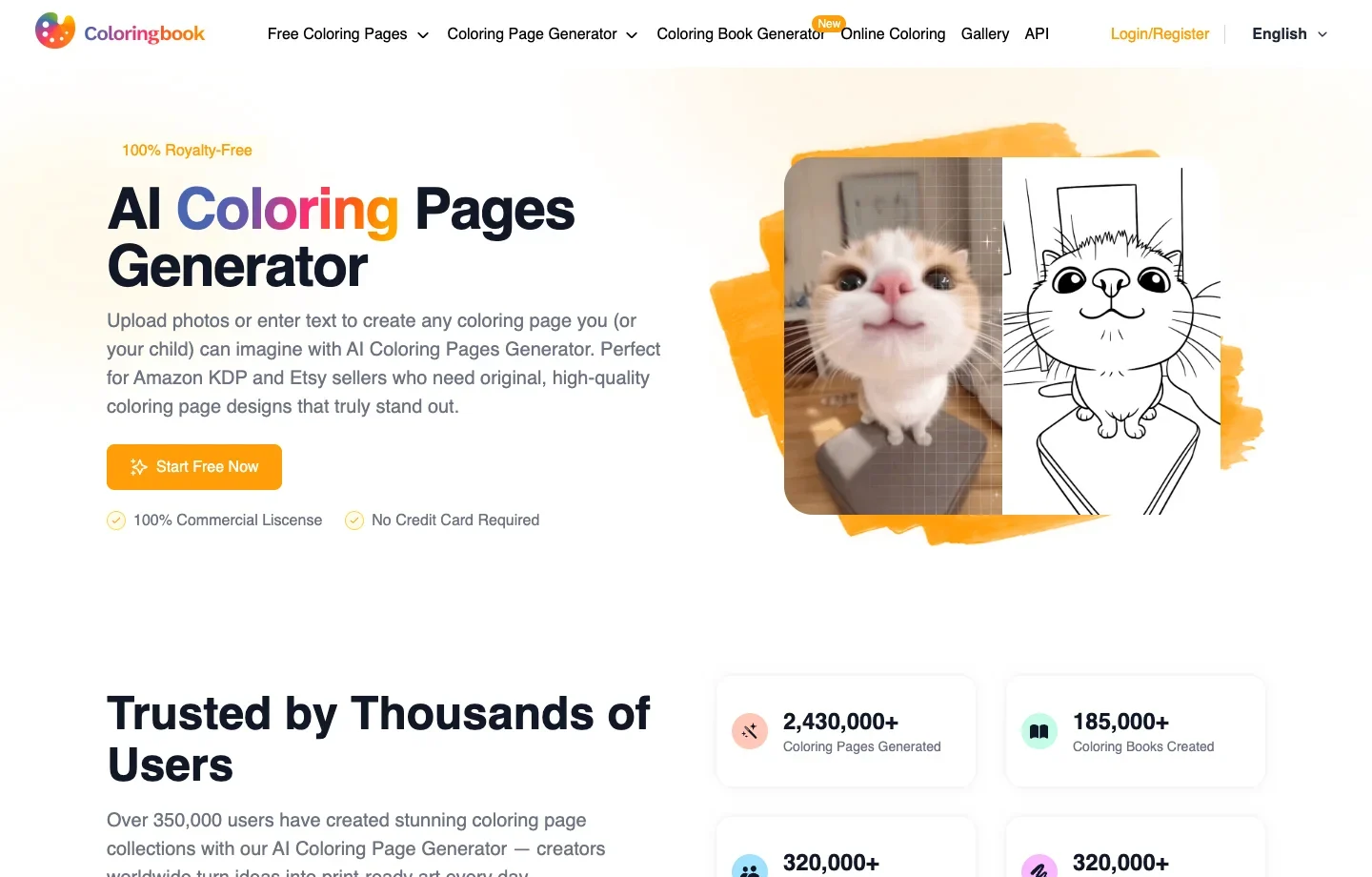
ColoringBook AI includes a multi-page book generator that takes a character and a story outline. This fits a small narrative booklet better than independently prompting every page. Review the character’s identifying features and each page’s coloring spaces before assembling the final print file.
8. OpenArt: use example prompts to set the level of detail
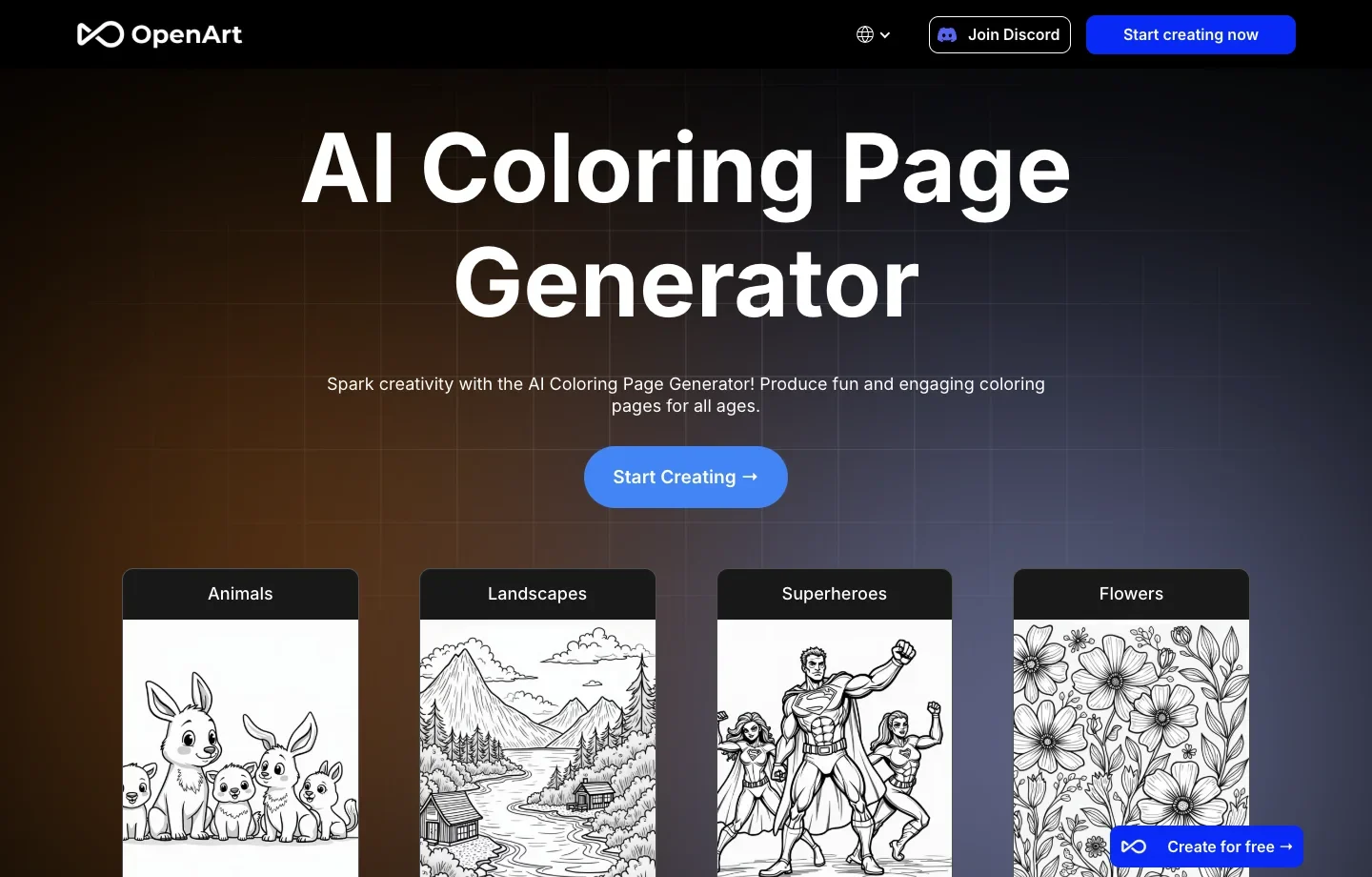
OpenArt’s coloring-page generator includes illustrated examples and a prompt guide. Start from a subject close to your own and specify which parts should stay open for coloring. For a younger child, “one turtle with five large shell sections” gives a clearer brief than simply asking for a detailed turtle.
Which AI Coloring Page Generator Should You Choose?
For a family photograph that you want to print as an outline, MyColoring.ai offers a direct PDF export. For a classroom set, choose Colorify if each child needs a name sheet, or ColoringBook AI if the same character needs to appear on several pages.
For a single worksheet, start with Free AI Image. Choose the detail level for the pencils or crayons the reader will use.
How to Use Free AI Image’s Coloring Page Generator
- Open the AI Coloring Page Generator. Try one owl perched on a branch, large feathers and a plain background.
- Choose Simple for kids for a first sheet. Pick a portrait ratio for an upright subject, then select Generate free image.
- Download the image and open your print preview. Check the margins and the smallest coloring spaces at the intended paper size. To make a second version, keep the owl and change the preset.
In the kids’ example, the owl’s chest is one large space to fill. In the mandala version, small patterns fill the feathers and the space around the bird.
| Simple for kids | Detailed for adults | Mandala |
|---|---|---|
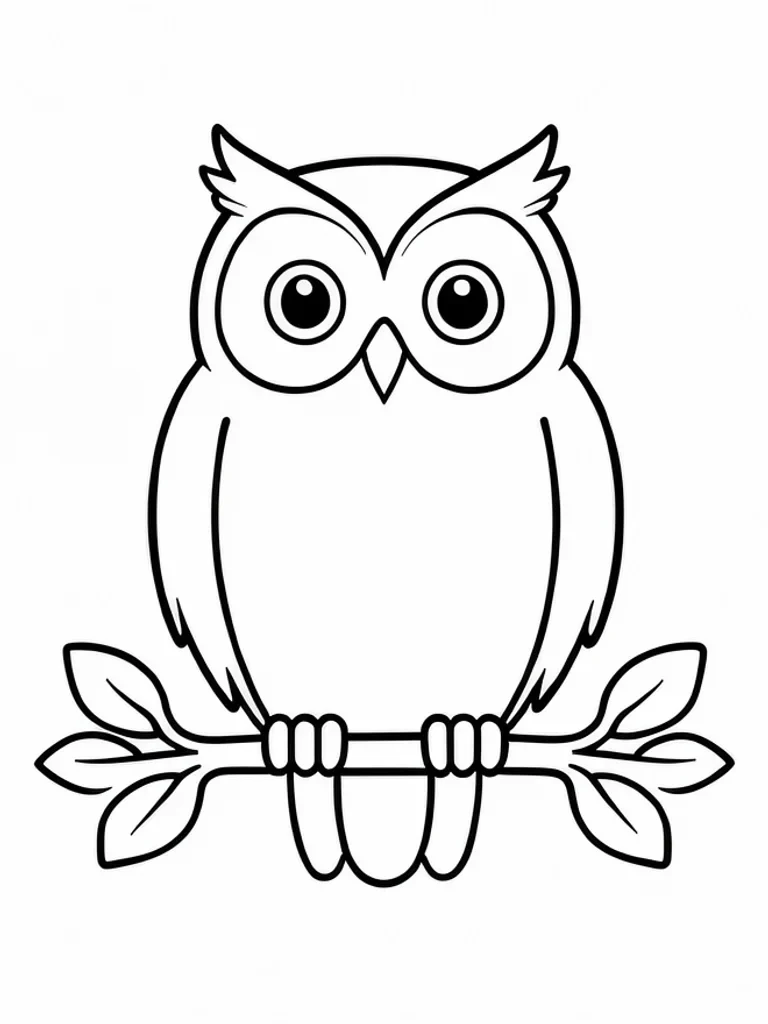 | 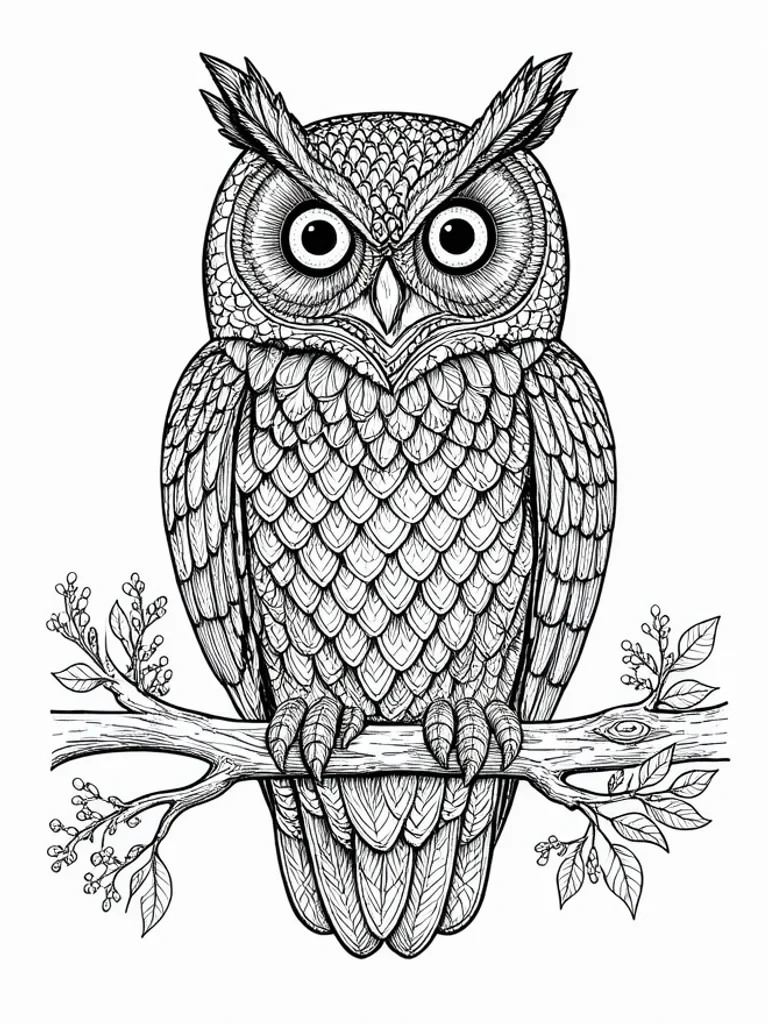 | 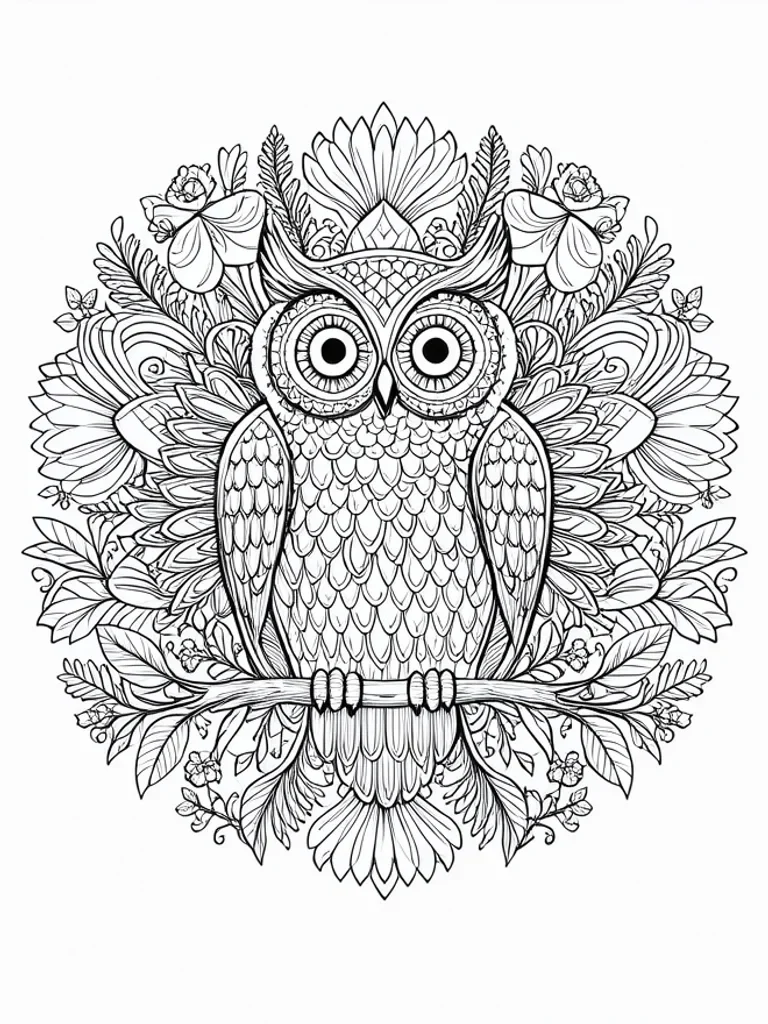 |
Free AI Image Coloring Page Generator FAQ
Does it create a whole coloring book? Each generation gives you an image. To build a booklet, download the pages you want and arrange them in a document with the paper size and margins you need.